
 Connie Yang
 Henrique Vieira
Choosing hard drive recovery software depends on the condition of the drive, the type of data loss, the file system, and what each tool includes at no cost. This guide compares four Windows tools and explains when software recovery is appropriate, when to create a disk image first, and when to stop using the drive and seek professional help.
Tips: Data recovery is not the same as hard drive repair. Recovery software can read and copy accessible data; it does not repair failed heads, motors, controllers, or other physical components.
Stop using your drive and diagnose before scanning
Before selecting and using the hard drive data recovery software, check the drive's condition and choose the safest recovery approach. Improper operation may cause unrecoverable corruption to the data on the drive.
| Drive state | First action | Recommended recovery approach | Avoid |
| Detected and stable | Stop writes and check for backups | Use data recovery software to scan for recoverable files | Installing recovery software or saving recovered files to the source drive |
|
RAW
or prompts you to format |
Recover or image first | Use iBoysoft data recovery software to try fixing the RAW drive; if fixing failed, switch to recovering files | Formatting the drive or running CHKDSK before recovering important data |
| Slow, disconnecting, or showing bad sectors | Minimize further use and repeated read attempts | Back up the data on the drive; seek professional help if the drive continues to deteriorate | Repeated deep scans |
| Clicking, grinding, squealing, burnt smell, or not detected | Power off the drive immediately | Consult a professional data recovery service | Reconnecting repeatedly, opening the drive, running CHKDSK, or formatting it |
Windows Disk Management showing a drive does not prove that the hardware is healthy. A drive can be enumerated while it has bad sectors, a failing controller, or a mechanical problem.
Identify your data-loss scenario
Before recovering files from a hard drive, identify the cause of data loss. If the drive shows signs of physical failure, stop using it to avoid further damage.
- Recycle Bin emptied: You emptied the Recycle Bin or Trash, so deleted files can no longer be restored from it.
- Hard drive formatted: You accidentally formatted a drive or partition in File Explorer or Disk Management, losing access to its files.
- File system corruption: The drive becomes inaccessible or appears as RAW in Disk Management due to improper ejection, power failure, or system errors.
- Virus or malware attack: A virus or malware infection deletes, encrypts, or makes files on the drive inaccessible.
Know HDD and SSD recovery limits
Traditional HDDs often offer more recovery opportunities after accidental deletion because deleted file data may remain until overwritten.
A mechanically unstable HDD is different: unusual noise, repeated disconnects, or rapidly increasing read errors. In such a case, you should create a read-only image if possible, and then seek professional service.
SSDs support TRIM, which allows the operating system to notify the drive that deleted data blocks are no longer needed. The SSD may then erase these blocks during garbage collection, making the original data unrecoverable even with professional recovery tools.
If you accidentally delete files from an SSD, stop using the drive as soon as possible to minimize further data loss. However, even if you stop using the drive immediately, recovery may already be impossible if the SSD has erased the deleted data.
Four hard drive data recovery software comparison
After tests, we selected the 4 hard drive data recovery software tools. You can browse them and choose one that suits your needs or situation most. The table below is a decision aid, not a claim that one tool is best for every hard drive data recovery.
| iBoysoft Data Recovery for Windows | Stellar Data Recovery for Windows | EaseUS Data Recovery Wizard for Windows | Disk Drill for Windows | |
| Tested version | V4.3 | V12.6.0.0 | V20.8.0 | V6.3.1398 |
| Best for | RAW drive fixing and data recovery BitLocker drive data recovery Lost/deleted partition recovery |
General file recovery, including photo and video repair features | Recovery for common Windows data-loss scenarios | Recovery for common Windows data-loss scenarios |
| HDD / SSD support | Support | Support | Support | Support |
| Supported data loss scenarios | Deleted files, formatted drives, RAW drives, corrupted partitions, deleted/lost partitions, BitLocker drives (require BitLocker password or recovery key), virus infection data loss |
Deleted files, formatted drives, corrupted drives, BitLocker drives (require BitLocker password or recovery key) | Deleted files, formatted drives, corrupted drives, BitLocker drives (require BitLocker password or recovery key) | Deleted files, formatted drives, RAW drives, lost partitions, BitLocker drives (require BitLocker password or recovery key) |
| Supported file systems | NTFS, FAT32, exFAT | NTFS, FAT32, exFAT | NTFS, FAT32, exFAT | NTFS, FAT32, exFAT |
| Free quick & deep scan | Yes | Yes | Yes | Yes |
| Free preview | Yes | Yes | Yes | Yes |
| Physical-damage repair | No | No | No | No |
| Paid recovery required | Yes, pricing from $59.95 | Yes, pricing from $59.99 | Yes, pricing from $69.95 | Yes, pricing from $89 |
| Last checked | Oct. 14, 2026 | Oct. 14, 2026 | Oct. 14, 2026 | Oct. 14, 2026 |
Note: Product versions, pricing, and supported formats may vary. Confirm the current official documentation and pricing on the date of publication.
Which tool should you choose?
- Stable Windows drive and beginner workflow: choose a tool with clear preview, file-type filtering, and a recovery destination on another drive.
- RAW or lost partition: choose a tool that explicitly supports that scenario. Do not format the drive before checking whether important files can be previewed.
- BitLocker volume: prepare the correct password or recovery key. A recovery tool cannot bypass every encryption, credential, or hardware-state problem.
- Clicking, grinding, severe slowdown, or no detection: do not choose software as the first step. Power the drive off and seek an evaluation.
How do we test and compare recovery software?
We test Windows data recovery software on a Dell 27 EC27260 27" All-in-One Desktop Computer running Windows 11 and an HP 21.45-inch All-in-One Desktop FHD Display Intel Pentium running Windows 10.
Our test drives include a Seagate Backup Plus Slim Portable Hard Drive (1.5 TB) connected via USB 3.0 and a WD My Passport Solid State Drive WDBAGF (1 TB) connected via USB-C 3.1, formatted with NTFS, exFAT, or FAT32.
For each software, we record its version and test RAW partitions, deleted files, and quick-formatted drives separately. We use a predefined dataset of documents, photos, videos, and archives, with file counts, total size, and SHA-256 hashes recorded before testing.
We evaluate Quick Scan and Deep Scan where available, measure scan and recovery times separately, and save recovered files to a different physical drive. We then verify whether files open correctly, match their original hashes, and retain their names and folder structures.
Failed tests and unsupported conditions are documented, and results are reported separately for each scenario rather than combined into a universal recovery rate.
Test 1. RAW partitions
Simulated results · 100 reference files · 2.4 GB
| Software | Quick Scan found | Deep Scan found | Recovered | Hash matched | Quick / Deep scan time | Recovery time |
| iBoysoft | 88 | 99 | 99 | 97 | 3m 41s | 7m 52s |
| Stellar | 76 | 89 | 87 | 80 | 5m 01s | 10m 13s |
| EaseUS | 84 | 93 | 90 | 86 | 4m 26s | 8m 53s |
| Disk Drill | 89 | 97 | 96 | 94 | 3m 23s | 8m 04s |
Test 2: Deleted files
Simulated results · 100 reference files · 2.4 GB
| Software | Quick Scan found | Deep Scan found | Recovered | Hash matched | Quick / Deep scan time | Recovery time |
| iBoysoft | 92 | 98 | 98 | 93 | 2m 48s | 5m 22s |
| Stellar | 88 | 93 | 91 | 87 | 4m 22s | 7m 33s |
| EaseUS | 91 | 95 | 93 | 87 | 3m 06s | 7m 20s |
| Disk Drill | 90 | 97 | 97 | 91 | 3m 01s | 6m 06s |
Test 3: Quick-formatted drives
Simulated results · 100 reference files · 2.4 GB
| Software | Quick Scan found | Deep Scan found | Recovered | Hash matched | Quick / Deep scan time | Recovery time |
| iBoysoft | 68 | 81 | 80 | 69 | 4m 21s | 8m 02s |
| Stellar | 54 | 69 | 67 | 58 | 4m 59s | 9m 13s |
| EaseUS | 41 | 63 | 59 | 51 | 5m 14s | 7m 53s |
| Disk Drill | 67 | 77 | 75 | 67 | 4m 01s | 8m 11s |
How to recover files from a hard drive?
If you've deleted files, check if they are still in the Recycle Bin.
If not, stop using the affected drive. Use the data recovery tool to scan the drive only when the drive is detected and stable. Do not download and install the software on the affected drive or save the recovered files to it.
If the files have been deleted for over 30 days or you've emptied the Recycle Bin, try recovering the deleted files is using a data recovery tool.
Besides, whether your hard drive is inaccessible or formatted, data recovery software can give you a chance to retrieve the lost data. And even if your disk is corrupted or shows up as a RAW partition, data recovery tools can also help you to get back the lost files.
Here, we recommend the data recovery expert, iBoysoft Data Recovery for Windows, and we are going to use it as an example. With this data recovery tool, you can restore your lost files with only a few clicks.
Steps:
- Free download iBoysoft Data Recovery and install it on your computer with a few clicks.
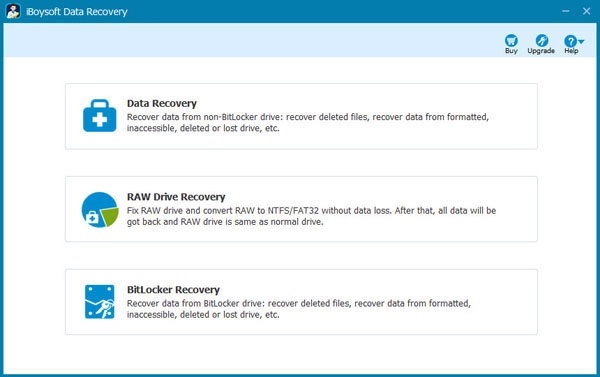
- Choose a recovery module according to your data loss situation.
- Select your target drive & click "Next" to scan for lost data on this drive.
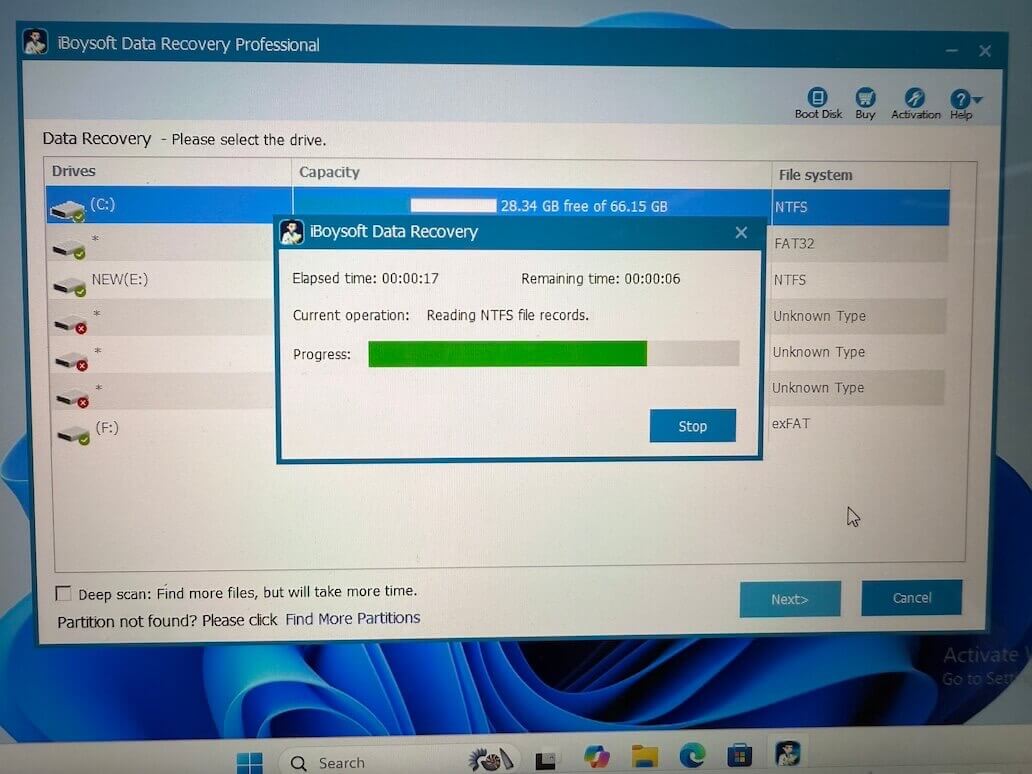
- Double-click to preview the scanning results, choose the recoverable files you need to recover, and click "Recover" to get them back.
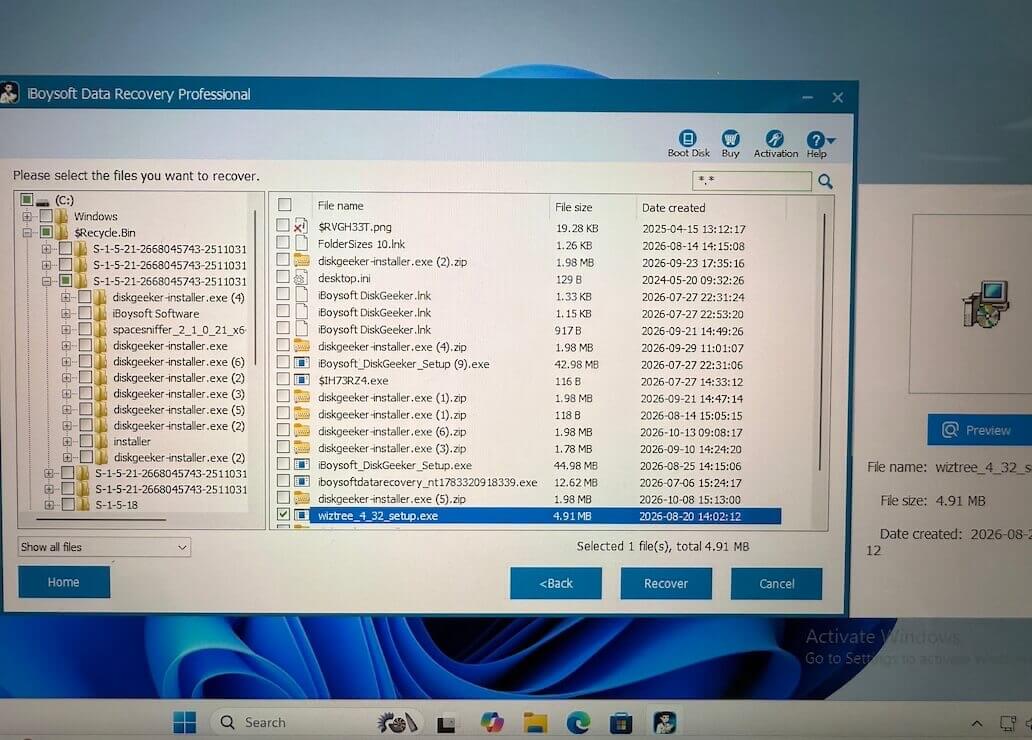
Warning: Always save the recovered data to a different device; never save the data on the device you are performing the data recovery on.
Best hard drive data recovery software
There are many different types of hard drive data recovery software on the market. But how to know which one is the best? Commonly, the best hard drive data recovery software should present these features:
- Full compatibility with your operating system
- User-friendly and intuitive interface
- Easy to operate
- Professional, cost-effective, and secure
- Free scan and preview before payment
Here, we've listed the best data recovery software for you, including free and paid apps.
1. iBoysoft Data Recovery for Windows
iBoysoft Data Recovery for Windows allows you to quickly scan lost files from the hard drive or other storage device, whatever the brand of your hard drive is, such as WD, Seagate, Toshiba, or SanDisk. This all-in-one data recovery software can recover your data from:
- Crashed, unreadable, and inaccessible hard drives
- Formatted, unmountable, and RAW external hard drives
- USB flash drives, SD cards, CF cards, memory cards, etc.
- Pros:
- Supports Windows 11/10/8/7/XP/Vista and Windows Server
- Compatible with NTFS, exFAT, FAT32 file systems
- Supports BitLocker encrypted partition data recovery
- Allows RAW partition repair and data recovery
- Enables deleted/lost partition data recovery
- Supports recovering data from emptied Recycle Bin
- Free preview before recovery
- Cons:
- Does not support physically damaged data recovery
- No phone support
Overall Experience
In general, iBoysoft Data Recovery is one of the best free hard drive data recovery software. It can recover files that are mistakenly deleted or formatted from hard drives with no fuss, be it pictures, videos, music files, emails, documents, or other file types.
Whether your Toshiba external hard drive becomes inaccessible or your WD hard drive is not recognized on your PC, iBoysoft Data Recovery can scan files on the drive and try to find them with its data recovery algorithm.
With a user-friendly design, it offers a quick and deep scan. The quick scan won't take much time, while the deep scan can find more lost files. And the BitLocker Data Recovery option allows you to directly recover lost data from a corrupted/failed/crashed BitLocker encrypted drive.
2. Stellar Data Recovery for Windows
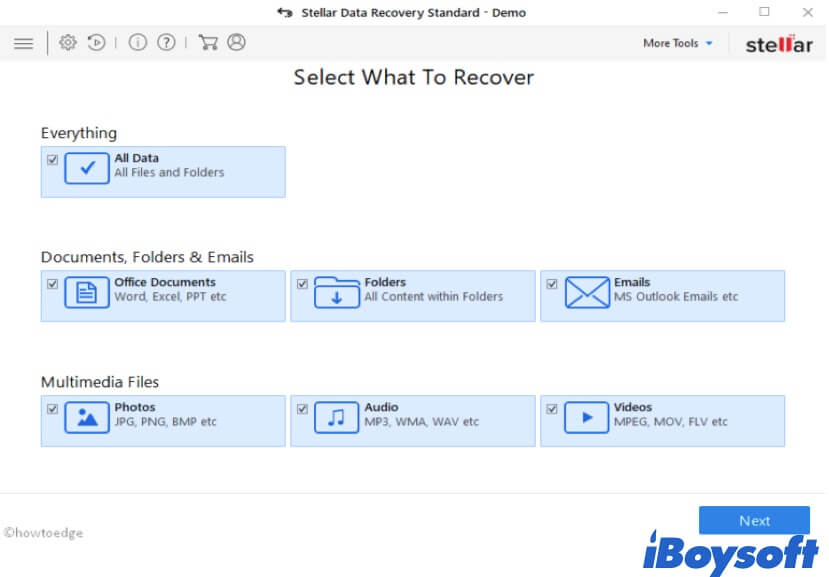
Stellar Data Recovery is also a data recovery tool that supports restoring lost data from hard drives. It allows deleted photo recovery and other file type recoveries, like videos and documents.
- Pros:
- Supports NTFS, exFAT, and FAT32
- Allows lost partition data recovery
- Repairs corrupted videos and images
- Previews before recovery
- Cons:
- Not supports physical damage recovery
- Slow scans
Overall Experience
This data recovery program is useful for recovering lost files from USB drives, SD cards, external hard drives, and other storage media. Like iBoysoft Data Recovery, it also supports lost partition data recovery. Moreover, it has the feature of repairing corrupted photos or videos.
However, Stellar Data Recovery doesn't have the function of BitLocker encrypted partition data recovery. And users need to pay a lot for data recovery.
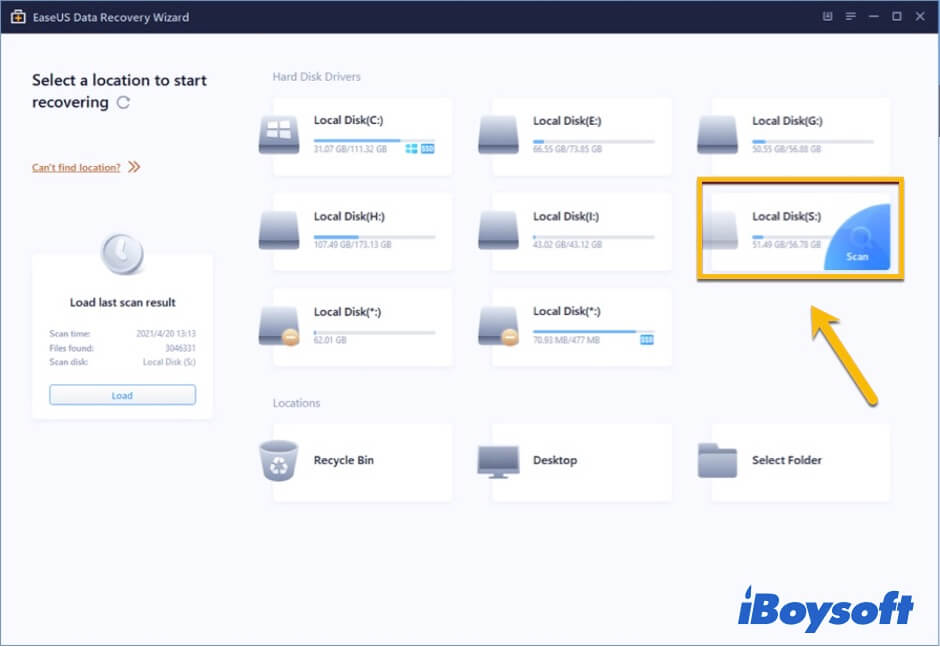
3. EaseUS Data Recovery Wizard for Windows
EaseUS Data Recovery is also an easy-to-use data recovery app. It allows you to do data recovery from hard drives, USB drives, and memory cards. With it, you can retrieve lost data from corrupted or formatted hard drives.
- Pros:
- Supports Windows 11/10/8/7/Vista/XP and Windows Server
- Supports NTFS, FAT32, exFAT
- Repairs photos and videos
- Previews before recovery
- Cons:
- Not supports physical damage recovery
- Pay for upgrades
Overall Experience
This data recovery program can recover deleted and lost files quickly. It can solve different data loss situations, such as formatting and corruption. It is worth mentioning that it can even repair photos and videos with minor corruption.
All in all, EaseUS is workable for rescuing files from different brands of storage devices. But it is not affordable. The more complex your data loss situation is, the more you have to choose its higher version with a higher price.
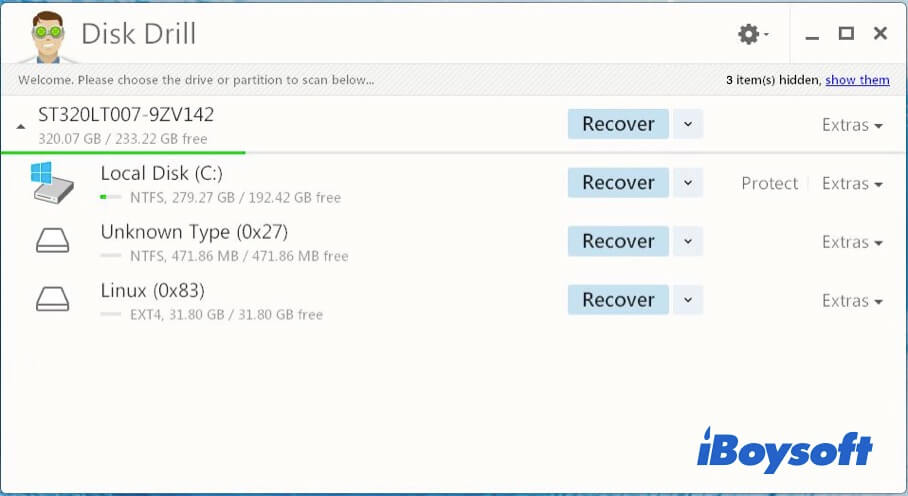
4. Disk Drill
Disk Drill is a popular data recovery tool that recovers data from disk-based storage media. It allows emptied Recycle Bin, lost partition, and crashed hard disk data recovery.
- Pros:
- Supports Windows 11/10/8/7/Vista/XP, Windows Server
- Supports NTFS, FAT32, exFAT
- Enables RAW disk data recovery
- Lost disk partition recovery
- Cons:
- Does not support physical damage recovery
- No phone support
Overall Experience
This hard drive file recovery software is expert in HDD, USB, SD card, and other devices data recovery. Whether you want to retrieve your lost audio, archives, images, or other files, it can get them back.
But the fact is, Disk Drill only allows you to free download but asks for a cost for data recovery. If your corrupted drive is BitLocker encrypted, it can't help you rescue the important files from the disk.
When data recovery software will not help
Hard drive data recovery software may not work when:
- The drive clicks, grinds, squeals, smells burnt, or was dropped
- The drive repeatedly disconnects or disappears during access
- The BIOS, Disk Management, or a trusted hardware interface cannot detect it
- An SSD has already completed TRIM for permanently deleted data
- The data has been overwritten
- The problem involves a mechanically failed HDD, damaged controller, or an unsupported RAID/NAS configuration
In these cases, power the drive off and ask a qualified data recovery lab to evaluate it. A professional service may attempt recovery; it cannot guarantee a repair or a complete, loss-free result.
How to fix your drive after data recovery
After data recovery, try fixing hard disk problems.
Repair actions can change file-system metadata or erase the current structure. Use them only after important files have been recovered and verified.
1. Check the cable and port
For a stable drive with no unusual noise, safely disconnect it and try a known-good cable, port, or powered enclosure. Do not repeatedly reconnect a drive that clicks, overheats, or drops offline.
2. Review health information
Check SMART or the drive manufacturer's health utility when available. A healthy-looking status does not guarantee that every sector or component is working correctly.
3. Repair corrupted hard drives with the CHKDSK command
CHKDSK is a basic and free Windows utility that can check and repair hard drive errors. You can fix some hard drive errors with this tool on your PC.
Notably, CHKDSK can modify file-system metadata. If the data is important, recover data on the drive first.
Here's how to fix corrupted hard drives with the CHKDSK command:
- Type cmd in your Windows search box and press Enter.
- Right-click cmd.exe (Windows 7)/Command Prompt (Windows 8 and 10) and choose Run as Administrator.
- Type chkdsk *: /f ( * is the drive letter of the hard drive you want to repair) into the Command Prompt window and press Enter.
- When the process of repairing the hard drive is finished, type exit and press Enter.
For RAW volumes, see: why CHKDSK may not be available for RAW drives.
4. Reformat the HDD to fix hard drive corruption
If even CHKDSK failed to solve your hard drive issue, the file system of your hard drive could be corrupted or be unrecognizable to the system.
In this case, you can fix this hard drive in question by formatting it again. Be careful: some of the new drives come with internal encryption. Please make sure that's not the case.
• How to reformat an external hard drive on a Windows computer?
Warning: Reformatting will erase data on this hard drive. Please make sure you have file backups, or you can recover lost data from this drive with hard drive data recovery software in the first instance.
5. Repair drive through a local lab
A hard drive data recovery tool can't recover data from a damaged drive.
Clicking, grinding, burnt damage, a dropped drive, or a drive that is not detected requires a professional evaluation. Do not open a hard drive outside a controlled clean-room environment.
A skilled data recovery service give you a chance to get files back from HDDs, SSDs, and other types of storage devices with mechanical failures or logical problems like bad sectors, head crashes, or motor failure. Take a look at the customer reviews and testimonials. Some disk repair workshops can fix and replace the damaged parts of a hard drive for you with special equipment.
Ontrack and DriveSavers are well-known data recovery services. Or, you can search for a data recovery service near you.