
 Jenny Zeng
 Jessica Shee
Knowing that NTFS is read-only on Mac, you're probably looking for free NTFS software for Mac to write to your NTFS-formatted drives. This may have led you to Hasleo NTFS for Mac, a free NTFS for Mac tool. But Is it reliable?
This article will review Hasleo NTFS for Mac and introduce a better alternative - iBoysoft NTFS for Mac - for users seeking data safety, performance, and stability.
Hasleo NTFS for Mac official source and compatibility
| Software Name | Hasleo NTFS for Mac (Freeware) |
| Official Pages | • Product Homepage: https://www.easyuefi.com/ntfs-for-mac/ntfs-for-mac.html • Tech Specs Page: https://www.easyuefi.com/ntfs-for-mac/tech-spec.html • Official Download Link: https://www.easyuefi.com/ntfs-for-mac/downloads/HasleoNTFS4Mac.pkg |
| Current Version | Hasleo NTFS for Mac V5.3 |
| V5.3 Changelog Highlights | 1. Enhanced compatibility support for macOS Sequoia 15; 2. Fixed known bugs to improve product stability and overall quality. |
| Release Date | September 5, 2025 (2025/09/05) |
| Official Compatibility | • Operating System: macOS Sequoia 15 down to macOS High Sierra 10.13 • Hardware Architectures: Apple Silicon (M1 / M2) & Intel Processors • Supported Devices: External Hard Drives, External SSDs, USB Flash Drives, SD Cards, CF Cards, etc. • File Systems: Full read/write access to NTFS; mounting and management support for APFS, HFS+, FAT, and exFAT |
| macOS Tahoe status | Not listed on Hasleo's official page as of this review. |
Hasleo NTFS for Mac review
Hasleo NTFS for Mac is a completely free NTFS driver for macOS. It's a menu bar utility that enables you to open or eject NTFS drives on Mac through its menu bar icon and drop-down menus.
That being said, it doesn't have a traditional desktop interface, unlike other professional NTFS for Mac software, which has both the menu bar shortcut and an intuitive interface. It also lacks advanced features like formatting drives to NTFS on Mac or repairing NTFS drives on Mac.
How we reviewed Hasleo NTFS for Mac
We checked the official download source, installed the app, granted Full Disk Access, mounted an NTFS external drive, and tested whether files could be written after manually remounting the drive through the menu bar.
- Test task: mount an NTFS external drive in read-write mode.
- Observed issues: temporary hang, network error, and occasional failure to detect NTFS volumes.
- Review boundary: this review does not test BitLocker-encrypted drives or physically damaged disks.
Overall experience:
The installation process is smooth. I downloaded Hasleo NTFS for Mac and granted it full disk access to the files on my Mac during the installation. (Since macOS 10.14 Mojave, apps no longer have full access privileges to all disks by default. Instead, you need to manually enable full disk access to the app you trust.)
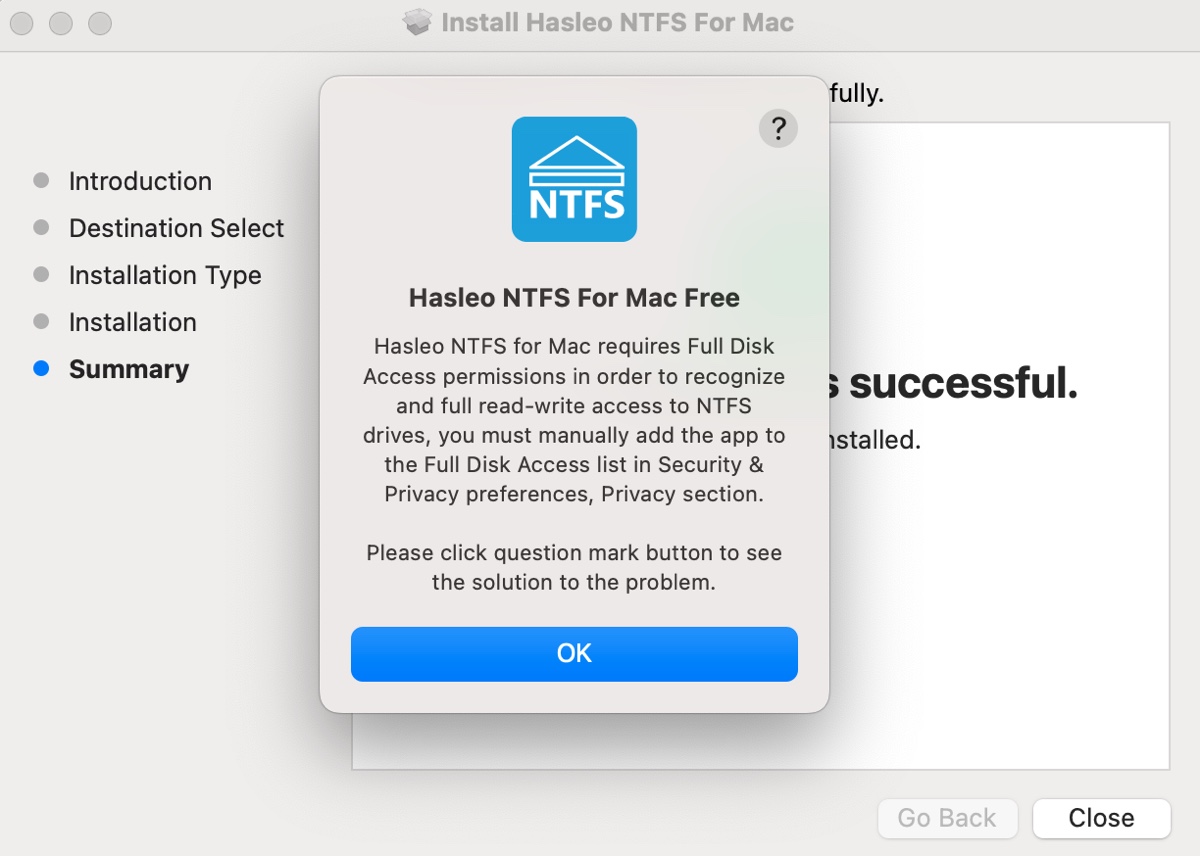
When I launch it, it appears on the right side of the menu bar. I then plugged in my NTFS drive to test if it can mount the disk in read/write mode. Since my NTFS volume was automatically mounted by macOS as read-only, I ejected it and remounted it using Hasleo NTFS for Mac as required.
This resulted in a short hang with the spinning wheel showing up. During the experiment, I also encountered a network error when opening an NTFS external drive, and sometimes, Hasleo couldn't detect any NTFS volumes. After some bumps, it did allow me to write to my NTFS volume.
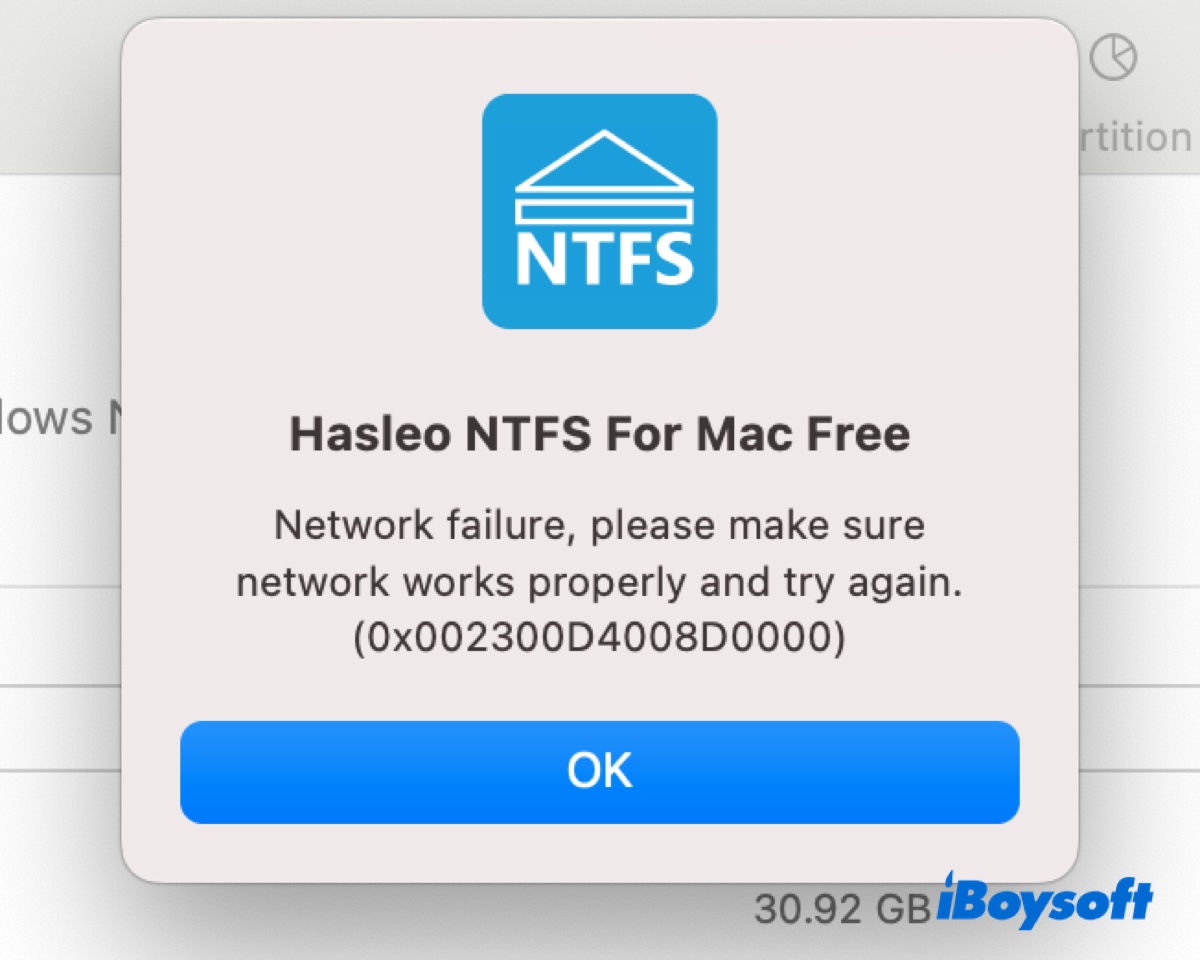
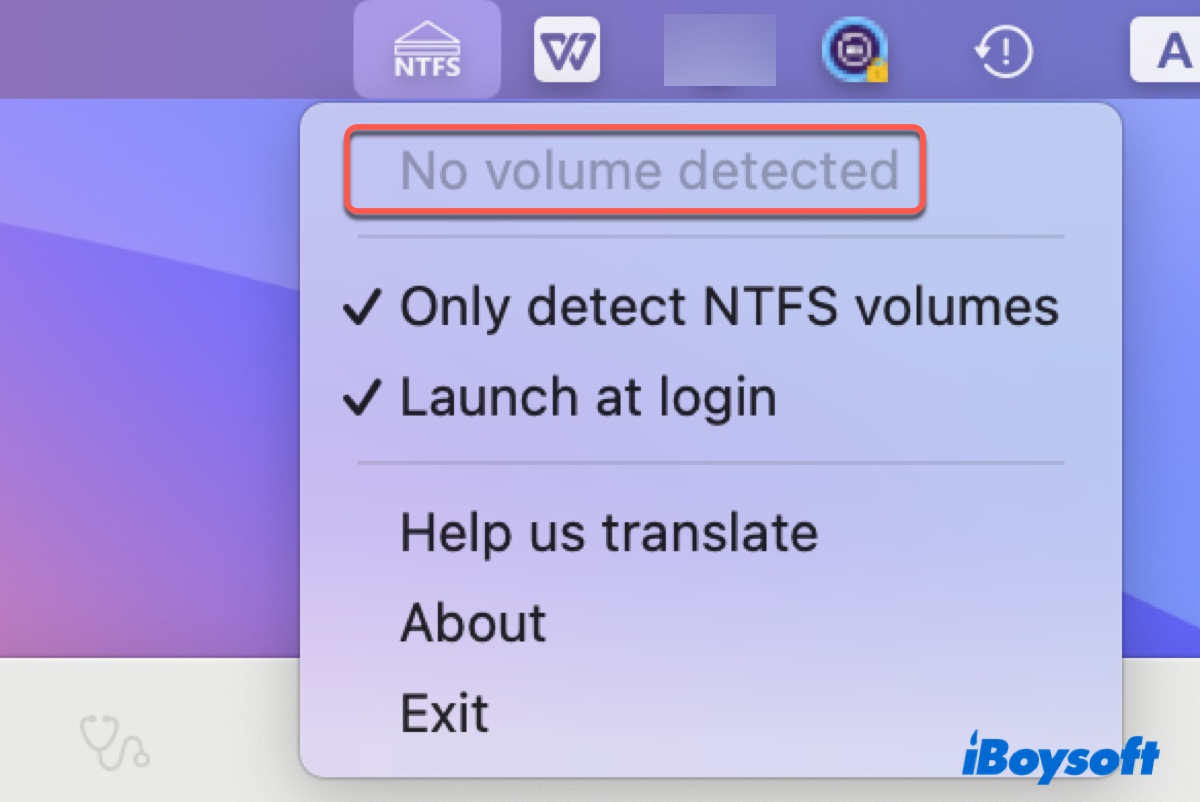
Common Hasleo Failure Cases
| Symptom | What it may mean | What to try | When to stop |
| Hasleo does not detect the NTFS volume | App permission or mount-state issue | Grant Full Disk Access, eject the read-only mount, then remount through Hasleo | Stop if Disk Utility also cannot see the drive. |
| Network error appears | Hasleo mount workflow failed or app component did not respond | Restart the app, reconnect the drive, test with a non-critical NTFS disk | Stop if the drive contains important files and errors repeat. |
| NTFS drive remains read-only | macOS mounted the drive before Hasleo remounted it | Use Hasleo's menu bar mount action after ejecting the native read-only mount | Choose another NTFS driver if this happens regularly. |
| Drive is BitLocker-encrypted | This is an encryption problem, not a normal NTFS write issue | Use a BitLocker for Mac utility with the correct password/recovery key | Do not attempt to bypass BitLocker credentials. |
In general, It's worth trying if you're working with an NTFS drive temporarily and are aiming for free NTFS for Mac software only. However, if it's an NTFS drive being used to save important data, you might want a more reliable NTFS driver for Mac.
- Pros:
- Completely free
- Compatible with macOS 15 Sequoia ~ macOS 10.13 High Sierra
- Make NTFS writable on Mac for free
- Cons:
- May not detect NTFS volumes
- May give network errors
- Doesn't support macOS 26 Tahoe and later
- Doesn't allow repairing on NTFS volumes
- Can't format drives to NTFS on Mac
- NTFS disks need to be ejected and remounted using Hasleo before you can have full read-write access
Share the information if you find it helpful!
Hasleo NTFS for Mac vs. other NTFS drivers
| Test Setup and Review Criteria | |||
| macOS Versions Tested | macOS High Sierra (10.13), macOS Sonoma (14), macOS Sequoia (15), and macOS Tahoe (26). | ||
| Mac Chips / Hardware | Intel Core i5/i7/i9 processors and Apple Silicon chips (M1, M2, M3, and M4 series). | ||
| NTFS Drive Types | USB 3.0/3.2 Flash Drives, Portable Mechanical HDDs, NVMe External SSDs, and BitLocker-encrypted NTFS volumes. | ||
| Evaluation Benchmarks | • Mount Automation: Cold plug-and-play detection speed and system wake-from-sleep auto-mount consistency. • Transfer Throughput: Sustained sequential read/write speed tests using 10 GB video and database files. • Operations Integrity: In-place file creation, deletion, renaming, and multi-file batch editing stability. • Disk Utility Suite: Availability of native NTFS volume formatting, corruption check, and repair tools. |
||
If you require consistent daily performance, high-speed file transfers, or advanced disk management tools, review the breakdown below:
| Tool / Method | Best for | Avoid if | Key limitation | Next step |
| Hasleo NTFS for Mac | Free, occasional NTFS writing on supported macOS versions | You need daily write stability, Tahoe support, or important file transfers | Manual remounting and detection errors may occur | Download only from the official developer source. |
| Native macOS | Reading NTFS files | You need to edit, delete, or copy files to NTFS | Read-only for NTFS | Use a driver or reformat only after backing up data. |
| iBoysoft NTFS for Mac | Stable read-write NTFS access, auto-mount, NTFS formatting/repair | The drive is BitLocker-encrypted | Not for BitLocker-encrypted NTFS drives | Use iBoysoft NTFS for Mac for non-encrypted NTFS drives. |
| Mounty / NTFS-3G | Users comfortable with free/open-source style setup | You need simple setup or latest macOS certainty | Extra dependencies and compatibility limits | Route to Mounty or NTFS-3G guide. |
Best alternative to Hasleo NTFS for Mac
If your workflow demands an official, legitimate NTFS driver with automatic mounting, the best alternative to Hasleo NTFS for Mac is iBoysoft NTFS for Mac. It's a professional NTFS for Mac driver that can automatically mount any NTFS drives in read/write mode without formatting. Besides, it's compatible with macOS 10.13 High Sierra and later versions.
This NTFS driver for macOS can be accessed from its menu bar icon or the main interface.
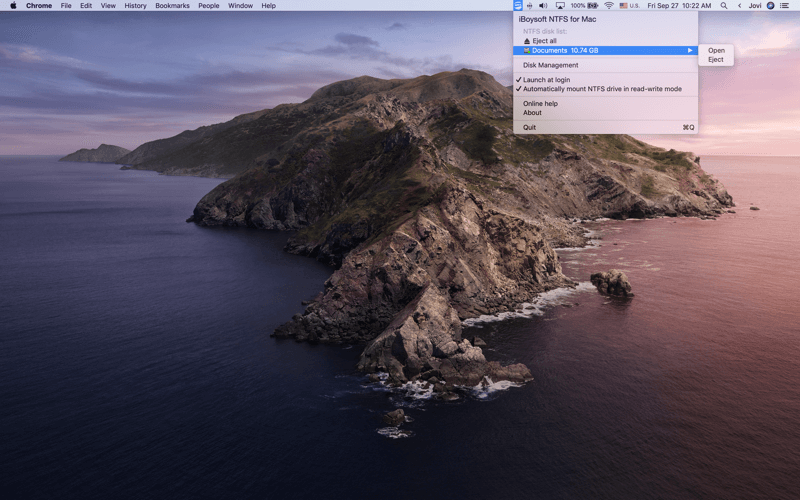
With it, you can write to NTFS drives on Apple Silicon M1/M2/M3/M4/M5 Macs and Intel-based Macs freely. Apart from the basic function of mounting NTFS-formatted disks with full read and write access, it also enables you to unmount, open, repair, and format NTFS drives on Mac, as well as format non-NTFS disks to NTFS.
If you have an NTFS Boot Camp partition, it can not only enable write access to it but also allow you to start from the Boot Camp partition. You can trust it with any type of storage device formatted in NTFS, such as external hard drives, SD cards, SSDs, HDDs, CF cards, USB flash drives, etc.
- Pros:
- Grant full read/write access to NTFS on Mac
- Read & write to NTFS on macOS 27 Golden Gate ~ macOS 10.13 High Sierra
- Repair corrupted NTFS drives on Mac
- Format drives to NTFS on Mac
- Support writing to or starting from Boot Camp NTFS partition
- Fast file transfer speed
- Automatically mount NTFS disks on Mac
- Support all types of storage devices
- Cons:
- Doesn't support BitLocker-encrypted NTFS drives
- No phone support
Here are the simple steps to write to NTFS on Mac:
Step 1: Download and install iBoysoft NTFS for Mac for free.
Step 2: Select your NTFS drive and click Open.
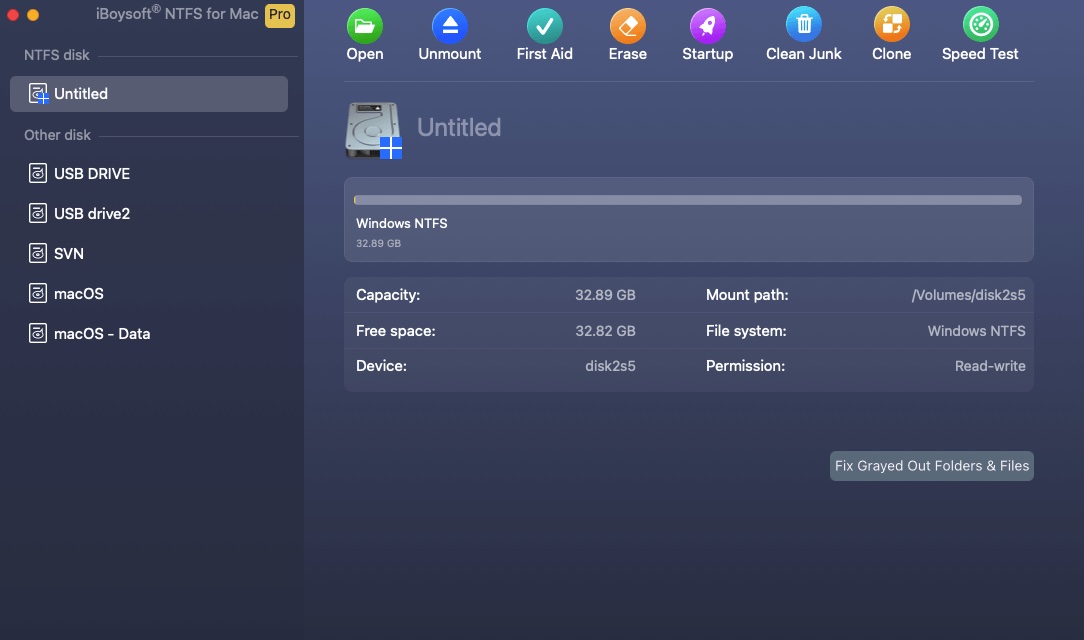
Step 3: Choose to manually or automatically mount NTFS drives in read/write mode.
In addition to Microsoft NTFS for Mac by iBoysoft, there are other alternatives to Hasleo, including Paragon, Tuxera, EaseUS NTFS for Mac, etc. You can try them if needed.
Share Hasleo NTFS for Mac and its alternatives with others!