
 Serena Wang
 Jessica Shee
Uninstalling an app on a Mac may seem as simple as dragging it to the Trash, but this can leave behind caches, preferences, and other related files. If you want to remove apps more thoroughly, a dedicated uninstaller may be a better option.
In this guide, we compare 8 Mac uninstallers and built-in removal methods, covering their features, app removal capabilities, costs, and limitations to help you choose the right option.
Quick Selector Table
| User scenario | Recommendation |
| Removing an App Store application | Launchpad |
| Removing a website-downloaded application | Finder |
| Removing leftover files | CleanMyApp |
| An application won't uninstall | Quit the app, check background processes, and review permissions |
| Freeing up Mac storage | Distinguish app removal from whole-disk space analysis |
| Using Terminal to uninstall | Terminal command lines |
Things to Know Before Uninstalling Apps on Mac
Before uninstalling an app, keep these points in mind to avoid deleting important files or leaving unnecessary data behind.
- Check the app's source: App Store apps may be removable through Launchpad, while apps downloaded from websites may require Finder or a dedicated uninstaller.
- Quit the app first: Close the app and its background processes before uninstalling to prevent removal issues.
- Remove leftover files carefully: Dragging an app to the Trash may leave caches, preferences, and support files in the Library folder. Remove only files you can identify.
- Avoid deleting system apps: Some built-in apps and components are essential to macOS. Do not force-delete them using Terminal or third-party tools.
- Back up important data: Save documents, projects, and other app-related data before uninstalling.
Tip: If you want to remove an app and its associated files together, consider using a dedicated Mac uninstaller. Always review the files before confirming deletion.
Comparison Table: 8 Mac Uninstallers and Methods
| Mac app uninstallers | Best for | Need to download | Full app removal | Price | Main limitations |
| CleanMyApp | Uninstalling third-party apps and removing their associated support files, caches, preferences, logs, and other related data | Yes | Yes — scans for and removes files associated with the selected app | Free to download; offers in-app purchases | Some features may require a paid upgrade. Users should review the associated files before deletion. |
| AppCleaner | Quickly uninstalling apps and finding files created by those apps | Yes | Yes — searches for associated files that users can review and delete | Free | Requires users to review the scan results; some files may not be found without the necessary macOS permissions. |
| CleanMyMac X | Uninstalling apps and managing leftover files as part of a broader Mac cleaning toolkit | Yes | Yes — its Uninstaller can locate apps and associated components outside the Applications folder | Paid; pricing varies by plan and edition | It is a broader cleaning suite rather than a dedicated uninstaller. Some features, including leftover-file management, vary by edition. |
| AppZapper | Removing apps through a drag-and-drop workflow while locating related files | Yes | Yes — identifies associated caches, preferences, and support files for removal | Paid; the current AppZapper 3000 page lists prices starting at $18 | The current version requires macOS 15.6 or later, which limits compatibility with older Macs. |
| AppDelete | Removing applications and related items such as widgets, plugins, preference panes, and screensavers | Yes | Yes — can remove associated files and search for orphaned files | Trial version listed; current pricing needs verification | AppDelete is discontinued, and its official website (appdelete.com) was shut down and put up for sale. |
| Launchpad | Quickly removing eligible apps downloaded from the Mac App Store | No | No — removes eligible apps but does not provide a comprehensive scan for all associated files | Built-in, free | Only works for eligible apps; does not provide a general-purpose way to uninstall all third-party apps. |
| Finder | Manually removing apps from the Applications folder | No | No — moving an app to Trash may leave related files in Library folders | Built-in, free | Requires users to locate leftover files manually, such as caches, preferences, and Application Support files. |
| Terminal | Advanced users who want to remove apps and related files using command-line instructions | No | Yes, conditionally — users can remove app files and identified related files with appropriate commands | Built-in, free | Requires command-line knowledge. Incorrect commands or file paths can delete important data. |
Share the 8 best uninstallers for Mac on social media to more people to find the suitable best app uninstaller for Mac.
Note: To evaluate the best Mac uninstallers, we analyze and test their essential features, performance, user-friendliness, and overall utility for Mac users. Only 8 of them stood out after comparing the uninstalling process, delving into user reviews and testimonials, and considering the extra features.
In the end, the descriptions offered in this article about the 8 best uninstallers for Mac as well as their effectiveness in uninstalling/removing/cleaning applications by objectivity, truthfulness, and reliability.
Test Environment
| 🔢Number of Software Tested | 15 tested, 8 selected |
| 💻Device We Tested | Mac mini, MacBook Pro |
| ⌨️Tested macOS versions | macOS 27, macOS 26, macOS 15 |
| ⏳Average testing time | 5 hours |
Best Third-party Mac App Uninstallers
1. CleanMyAPP
CleanMyApp takes a more focused approach to uninstalling apps on Mac. Rather than combining app removal with a large collection of maintenance and optimization tools, it concentrates on finding installed third-party applications and identifying the files associated with them.
Its most useful feature is the ability to inspect an app's related files before removing it. These can include caches, preferences, logs, support files, and sandbox data. This is helpful when an app has accumulated files in different Library locations and you would rather not track them down manually.
- Pros:
- Automatically detects and lists third-party applications.
- Scans for associated files, including caches, preferences, logs, and support files.
- Lets users inspect related files before removal.
- Supports removal of stubborn applications.
- Includes options for certain leftover icons and app types beyond ordinary Mac applications.
- Cons:
- Cannot uninstall built-in macOS system applications.
- Requires a paid license to complete uninstallation; the free version is not a fully free removal solution.
How to uninstall apps with CleanMyApp:
- Free download and open CleanMyApp.
- Click Grant Access to give it permission. (The window will list all the applications.)
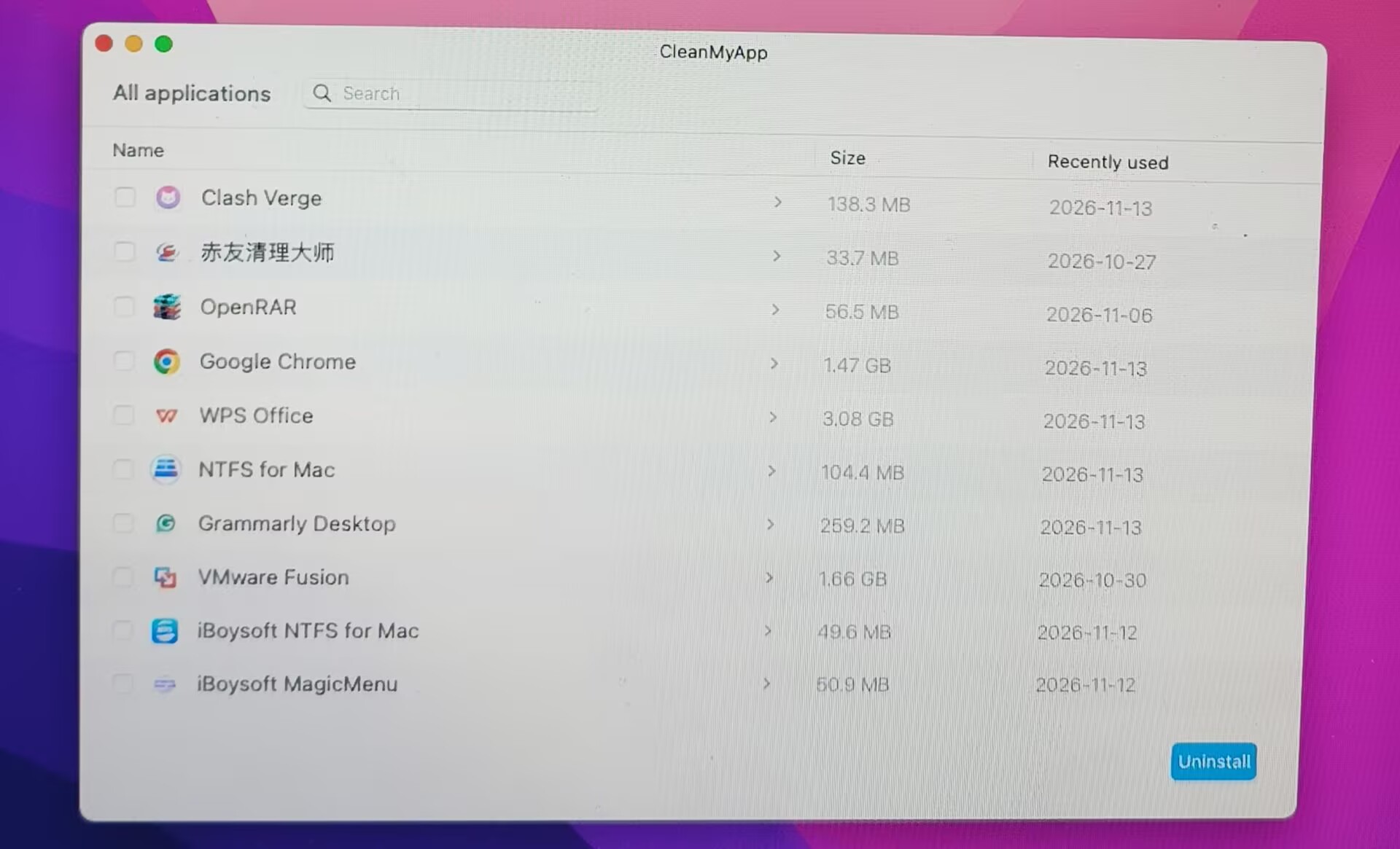
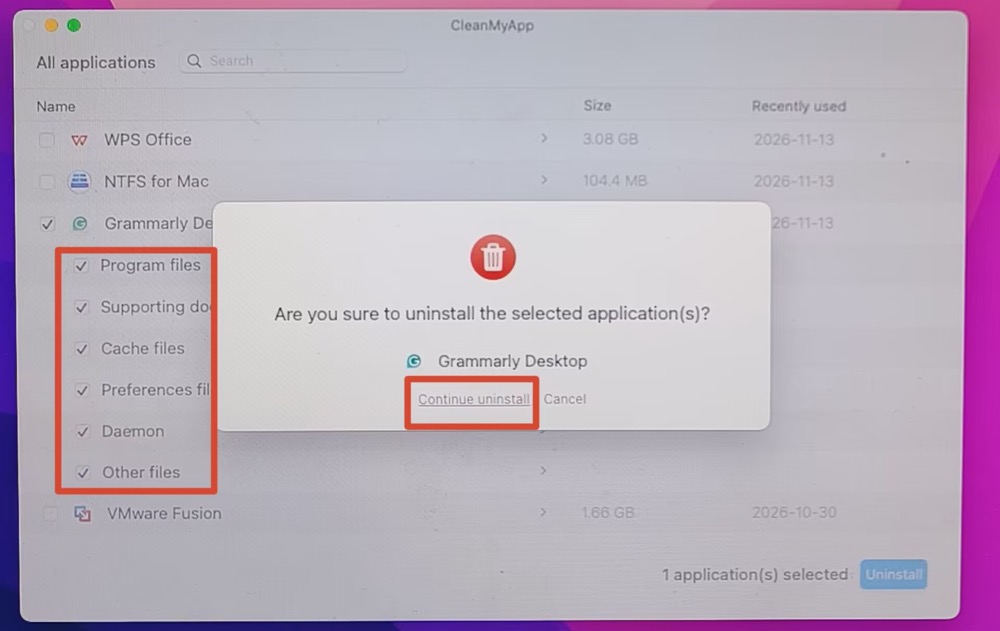
- Tick the unneeded app then click Uninstall at the bottom.
- Click Continue uninstall. (It will scan and delete the related files at the same time.)
Overall reviews
CleanMyApp stands out by combining focused app removal with associated-file cleanup. Unlike Launchpad and Finder, it can scan for leftover files; unlike Terminal, it offers a more accessible, visual workflow. Compared with other dedicated uninstallers, it offers a middle ground: AppCleaner is a free alternative, AppZapper focuses on drag-and-drop removal, and CleanMyMac X provides a broader set of cleaning tools.
CleanMyApp is worth considering if you want a dedicated uninstaller that can find related files and remove stubborn apps, though occasional users may find Finder or Launchpad sufficient.
Editor's Review: To save time and storage space, CleanMyApp provides an easy way to remove unwanted apps and supporting files, cache files, status files, log files, preferences files, sandbox files, etc.. -apps.apple.com
2. AppCleaner
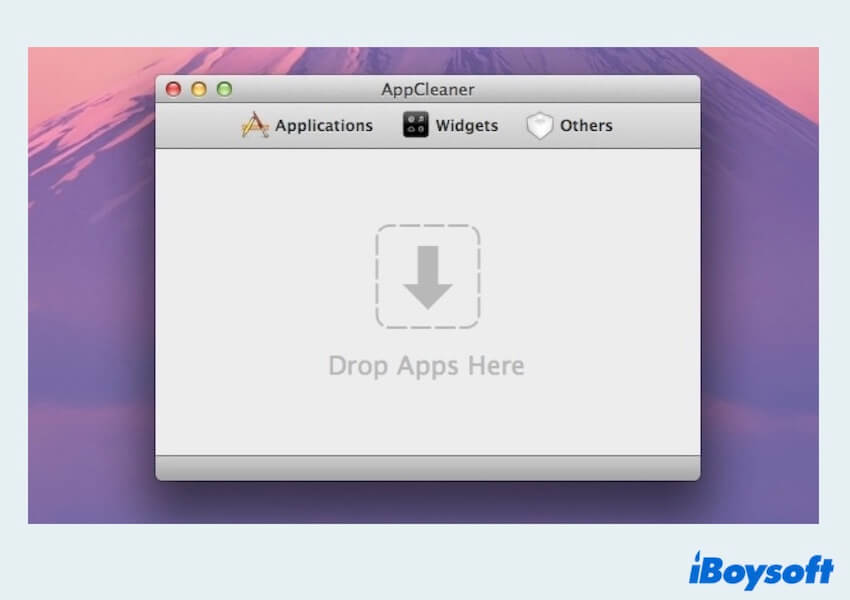
App Cleaner is a third-party application designed to streamline the uninstallation process. It offers a user-friendly interface and aims to remove all associated files, ensuring a comprehensive uninstalling. The application also includes additional features for system optimization.
- Pros:
- Smart delete feature
- Allows deleting useless files
- Clean widgets and browser plugins
- Cons:
- Consumes a few system resources
- No other cleaning and optimizing features
- Incomplete installing
- Does not switch off the protection of apps that are system-included
Overall reviews
App Cleaner ensures that no residual files or data are left behind when uninstalling an app. Utilizing its SmartDelete feature, the application identifies instances where an app is moved to the trash folder and automatically deletes the associated files and data.
However, if you want the best uninstaller for Mac to tell you how much space is freed up or which apps are taking too much energy, App Cleaner can't tell you.
Editor's Review: App Cleaner is a good choice to delete programs and apps you haven't used, but it cannot get a picture of your Mac's health. -macpaw.com
3. CleanMyMac X
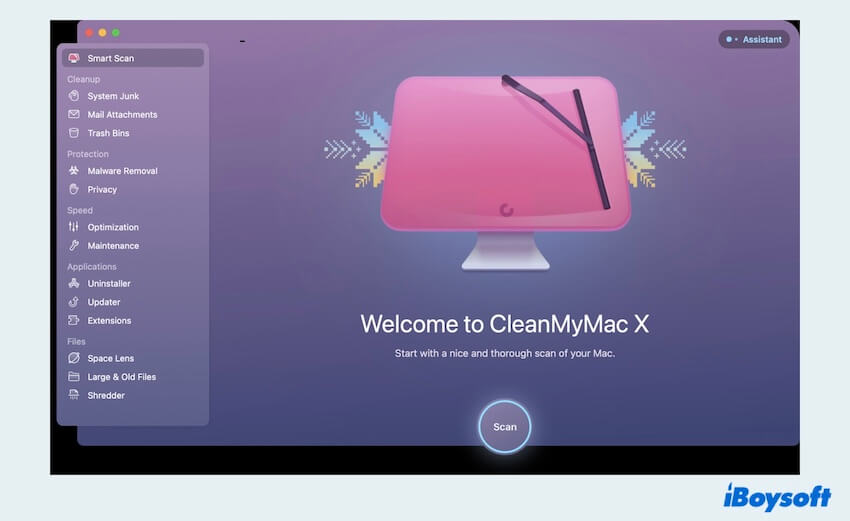
CleanMyMac X is a popular choice among Mac users for its comprehensive set of features. It not only deletes apps on Mac but also cleans up system junk, optimizes performance, and protects against malware.
- Pros:
- 7-day free trial
- Reminders before deleting
- Comes with a tool for resetting misbehaving apps
- Cons:
- Frequent annoying notifications
- No automatic scan for leftover files
- Free for uninstalling only two apps
Overall reviews
CleanMyMac X is equipped with over 30 tools designed to address prevalent Mac issues. It enables users to oversee storage, manage apps, and monitor Mac's overall health.
But if you consider a budget or don't need too many functions, maybe CleanMyMac X is not a good choice.
Editor's Review: CleanMyMac X has an unusual, colorful user interface and a wide range of tools to clean and tune your Mac. But it lacks some features to remove malware.-pcmag.com
4. AppZapper
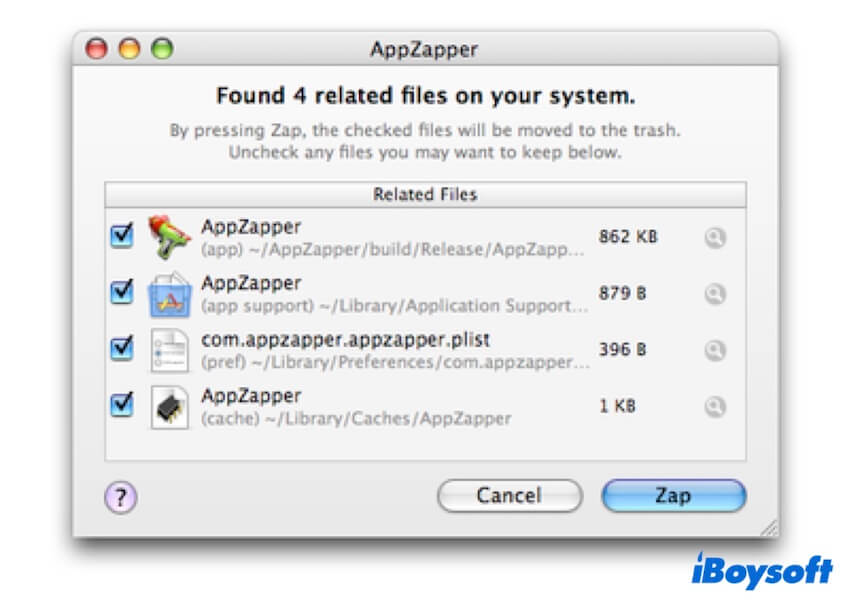
Apple Zapper focuses on simplicity and effectiveness. Mac users can drag and drop an app onto the Apple Zapper interface to uninstall it completely. The application identifies associated files and offers users the option to remove apps on Mac, ensuring a thorough cleanup.
- Pros:
- Convenient drag-and-drop app uninstallation
- Preview app-related files
- Can remove different files not only apps
- Cons:
- Support English language only
- Limited to uninstalling five apps for free
- Fail to remove extensions and plug-ins
- Abruptly crashes sometimes
Overall reviews
This compact uninstaller App Zapper lets you remove apps and hunts down all related support files. It stands out for its user-friendliness and the depth of its cleanups.
However, it can't detect relevant files automatically or offer you a wide variety of functionalities.
Editor's Review: App Zapper allows you to delete an app by dragging it into the Trash and deleting the associated files at the push of a button. -techradar.com
5. AppDelete
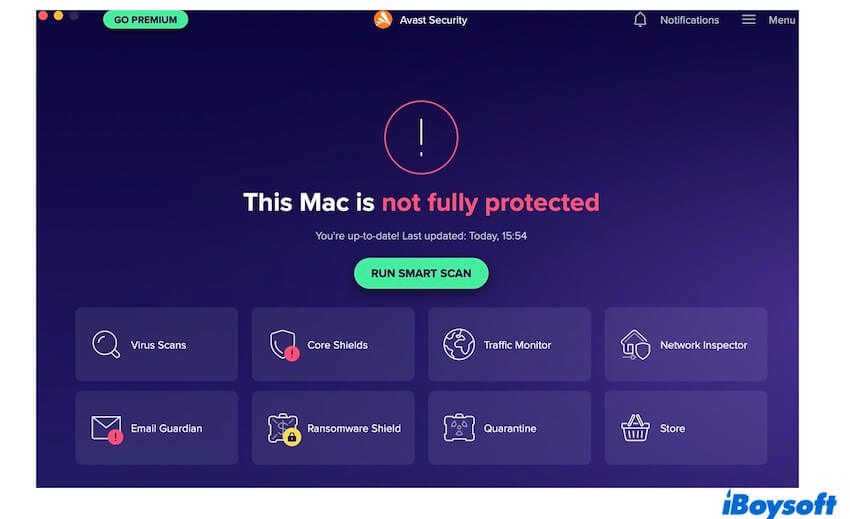
Apple Delete is a straightforward yet powerful uninstaller that ensures thorough removal of applications and their associated files. It also includes a feature for managing widgets, preference panes, and plugins, adding an extra layer of convenience.
- Pros:
- Totally removes apps, plugins, widgets, etc
- Easily preview app-related files
- Let you archive apps not remove them
- Cons:
- AppDelete is discontinued, and its official website was shut down.
- Limited to detecting and deleting five apps
- No additional features
- High price
- Incomplete removal of apps
- Freezes when restarting Mac
Overall reviews
AppDelete is a swift and efficient tool to delete apps on Mac with a singular focus. The widgets, screensavers, preference panes, and other files can be removed with this tool.
But it's important to note that AppDelete just can only uninstall apps, therefore, the wider variety of file management functions you can't own with it.
Editor's Review: AppDelete comes as a more efficient alternative to removing applications from your Mac and provides you with info regarding AppDelete features. -macdownload.informer.com
Built-in Ways to Uninstall Apps on Mac
1. Launchpad
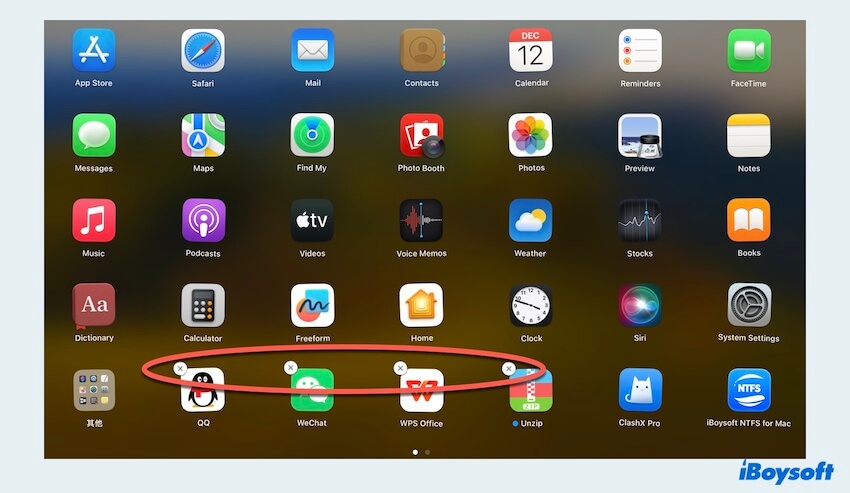
For the apps downloaded directly from the Apple App Store, you can remove them using Launchpad, another built-in option. Mac users can click and hold on the unwanted app icon until it jiggles, and then click the "x" to delete apps on Mac, but this way may not delete all associated files.
- Pros:
- Free
- Included with macOS
- Cons:
- Only available for apps from the App Store
- Can't uninstall apps completely
Overall reviews
Launchpad on your Mac is a central place where you can see all your applications and easily open them. It is very useful and convenient to search for and clean apps on Mac and it is designed to be a simpler alternative to Finder.
But the weakness is you can't remove the apps except those purchased from the App Store. And the uninstalling result is just removing the applications in the Finder or Dock but the relevant files or folders are still on your Mac.
Editor's Review: You can use the Launchpad to find and open all your apps. Removing an app from it is also easy to do, but keep in mind that you can only do it by deleting the app from your Mac. -makeuseof.com
2. Finder
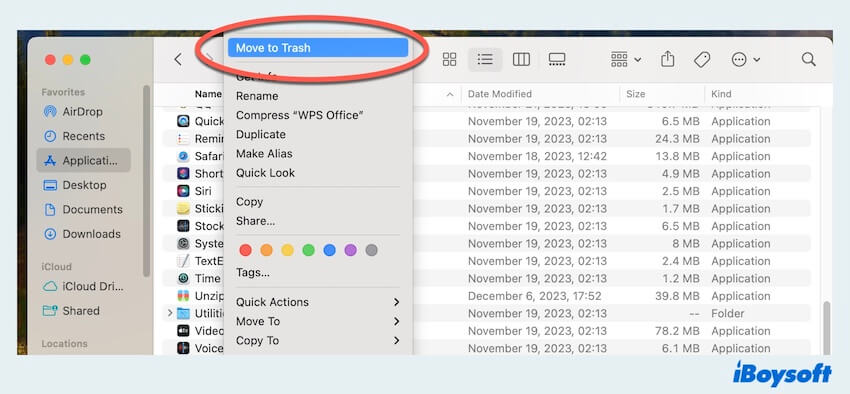
While not a dedicated uninstaller, Finder, the default file management application on Mac, provides a basic uninstallation feature for apps downloading from the App Store or the Browsers. Users can manually drag and drop applications to the Mac Trash without any third-party software, but like the Launchpad, this method may leave behind residual files.
- Pros:
- Free
- Included with macOS
- Cons:
- Fail to mass uninstalling
- Too many relevant folders in the Library
- Additional emptying actions
Overall reviews
Finder offers access to your files and folders on your Mac, displays the windows, and generally manages how you interact with your Mac. You can easily uninstall the apps on Mac from the App Store in the right-click menu.
However, there is a worry that other software downloaded from the Internet can't remove or completely delete the unwanted apps' files at the same time.
Editor's Review: The macOS file manager, Finder, has a lot of handy tricks up it sleeve, many of which are there to help you work more efficiently. -zdnet.com
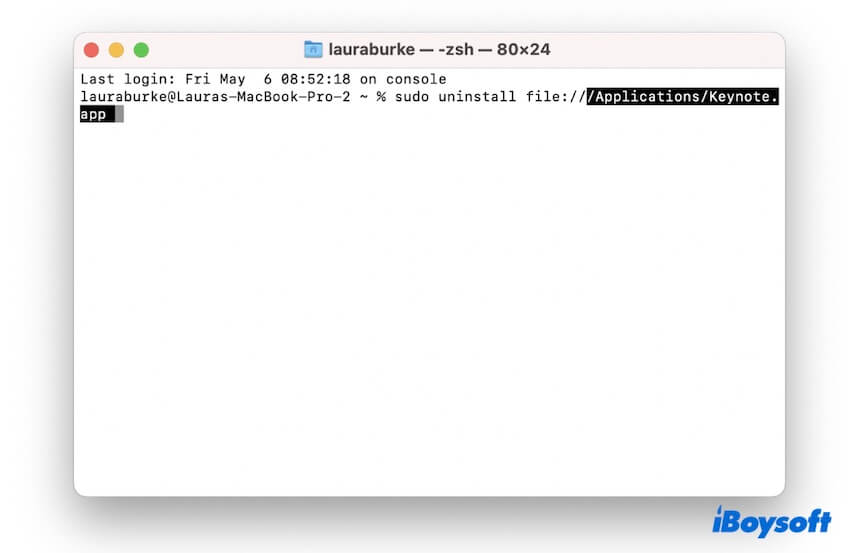
3. Terminal
For advanced Mac users comfortable with command-line operations, Terminal, a native app in macOS, is a more precise uninstallation choice. However, it requires abundant knowledge of specific commands, and a little mistake will lead to awful consequences.
- Pros:
- Free
- Included with macOS
- Cons:
- Possibility of irreversible results
- A bit complicated tool
- Prepare for plenty of command knowledge
Overall reviews
Terminal is a utility that lets you interact with your MacBook by typing the command line such as uninstalling the apps. To accomplish the uninstalling process, Terminal is usually quicker than other ways.
However, to utilize it effectively, you must master the fundamental commands and functions. And some mistakes with the commands will lead to bad consequences.
Editor's Review: When you reboot Terminal into mode sometime and need to do specific things from the command line, you can save a lot of time and hassles in working with your Mac. -quora.com
Conclusion
From the listed 8 top uninstallers for Mac, whether you opt for the built-in apps Finder, Launchpad, Terminal, or advanced tools, you can consider your preferences and needs to choose the most suitable one. Importantly, CleanMyApp distinguishes itself with its robust functionalities. Feel free to download it at no cost to remove your unwanted apps now.
Whichever you choose from the apps above, hope you can have a smoother digital life with your Mac, and share the useful software with others.