
 Serena Wang
 Jessica Shee
Mac disk space analyzers help you identify large files and folders, understand how storage is being used, and decide what you can safely remove or move. macOS Storage Management provides a useful built-in overview, while third-party tools can offer more detailed storage visualization and file discovery.
Which Tool Should You Choose?
- Analyze and clean up Mac storage with AI smart analysis: Consider a Mac disk management tool such as iBoysoft DiskGeeker for Mac.
- Analyze, clear system junk, find large files, duplicate files and uninstall apps: Choose an AI-powered automated junk cleaner - iBoysoft Cleaner.
- Prefer a free or open-source Mac disk space analyser: Use GrandPerspective.
- Analyze Mac disk usage via tree-map visualization: Use Disk Space Analyzer: Inspector or DaisyDisk.
Quick Comparison Table
| Items | iBoysoft DiskGeeker for Mac | iBoysoft Cleaner | Disk Space Analyzer: Inspector | DaisyDisk | GrandPerspective |
| Best for | Users who want disk analysis alongside broader disk-management features | Users who want an all-in-one Mac cleanup and storage-optimization tool | Finding large files and folders through a visual interface | Fast, intuitive visual analysis of local and cloud storage | Users who prefer a lightweight, configurable treemap analyzer |
| Key features | AI-assisted disk-space analysis & Mac disk management toolkit | Space-usage analysis, AI-assisted recommendations & one-click disk cleanup | Sunburst-style disk map, largest items & Quick Look previews | Interactive disk map showing space usage and large files | Treemap of rectangles sized by file size; configurable colors, filters & scan result export |
| Large-file and folder discovery | Yes | Yes | Yes | Yes | Yes |
| Cleanup workflow | Verify the precise selection, review and confirmation delete steps | Select scan results and remove them after confirmation. One-click removal available | Pro edition adds removal | Select items and drag them to the collection area for removal. | Files can be selected and deleted from the treemap. |
| Current macOS and hardware compatibility | macOS 27 - 10.13 and Intel & Apple Silicon Macs (from official page list) | macOS 27 - 11 and Intel & Apple Silicon Macs (from official page list) | macOS 11 - 27, Intel and Apple Silicon Macs support | macOS 12 or later; official specs list Intel and Apple silicon support | Official website lists macOS 14 or later and Intel/Apple Silicon |
| Pricing | Free edition Basic edition $29.95/year Professional edition $89.95/year (Features vary by edition) |
Free edition Yearly subscription $29.95 Lifetime plan $59.95 |
2-day trial Starting from $4.96/mo in-app purchases |
US$9.99 on the US Mac App Store; trial availability may depend on the download channel | Free download from sourceforge $2.99 download from App Store |
Before Deleting Files on Your Mac
Before removing files to free up storage, back up important data, confirm the full file path, and review the file's contents and purpose.
- Do not delete files from /System or unfamiliar locations in Library simply because they occupy substantial space.
- Do not remove Photos libraries, Mail data, virtual-machine files, Docker data, or iPhone backups without understanding their purpose and confirming that you no longer need them.
- Review duplicate-file and similar-photo results before deleting anything.
- If an external drive is malfunctioning or contains important inaccessible files, prioritize data recovery before attempting repairs, erasure, or formatting.
iBoysoft DiskGeeker for Mac
Best for: Users looking for an all-in-one disk management and drive utility suite rather than just a visual analyzer.
What it offers: Beyond basic disk space analysis, it doubles as a broader disk toolkit—supporting drive mounting, BitLocker reading on Mac, cloning, and disk health monitoring.
iBoysoft DiskGeeker for Mac is an all-in-one disk management toolkit designed to help you analyze disk space through intuitive directory visualization and intelligent, AI-powered cleaning. It allows you to safely clear system junk, caches, logs, unused apps, and duplicate files without the risk of accidentally deleting vital system components.
The clean interface also highlights a comprehensive suite of advanced features, including:
- Disk & Partition Cloning: Seamless data migration and backup capabilities.
- File Recovery: Reliable data retrieval via File Keeper.
- Media Creation: Bootable disk creation and macOS image downloads.
- Security & Compatibility: USB Defender, full NTFS read-write support, and complete BitLocker drive access.
How to Use iBoysoft DiskGeeker for Mac to Visually Analyze Mac Disk Space?
1. Download, install and launch iBoysoft DiskGeeker for Mac version 4.8.0.
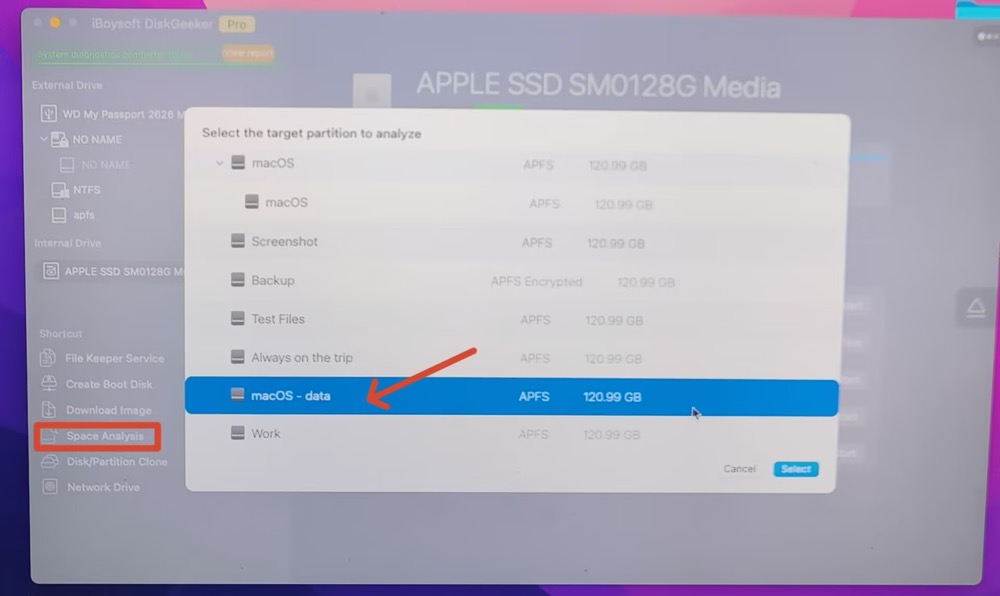
2. Click "Space Analysis" in the left panel of the interface > choose the drive. Here I chose the internal drive macOS - data for disk space analysis. Go back to the external drive if you need to analyze external drive space usage.
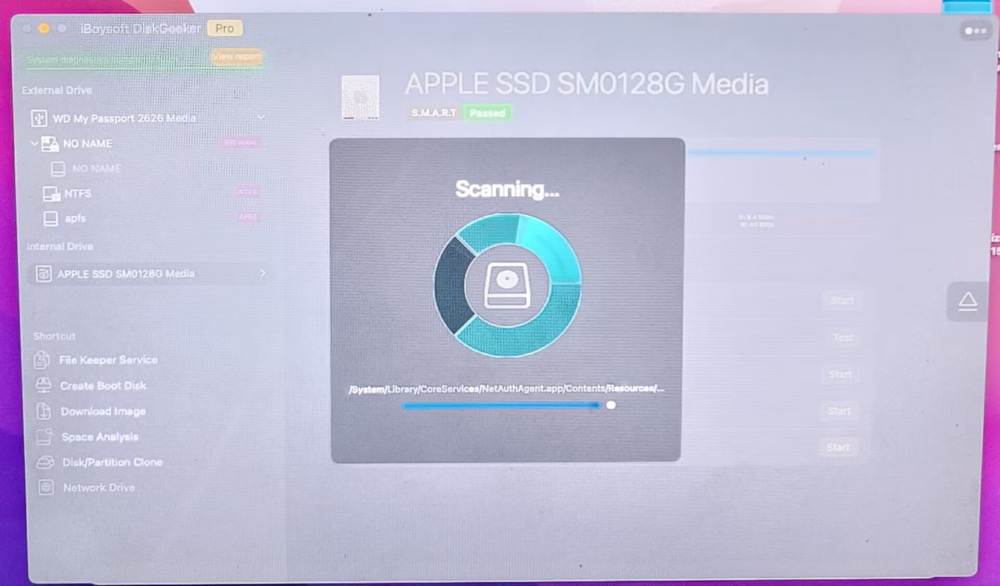
3. Simply click "Select" to start scanning your macOS data drive. The process is remarkably fast, taking just 13.75 seconds.
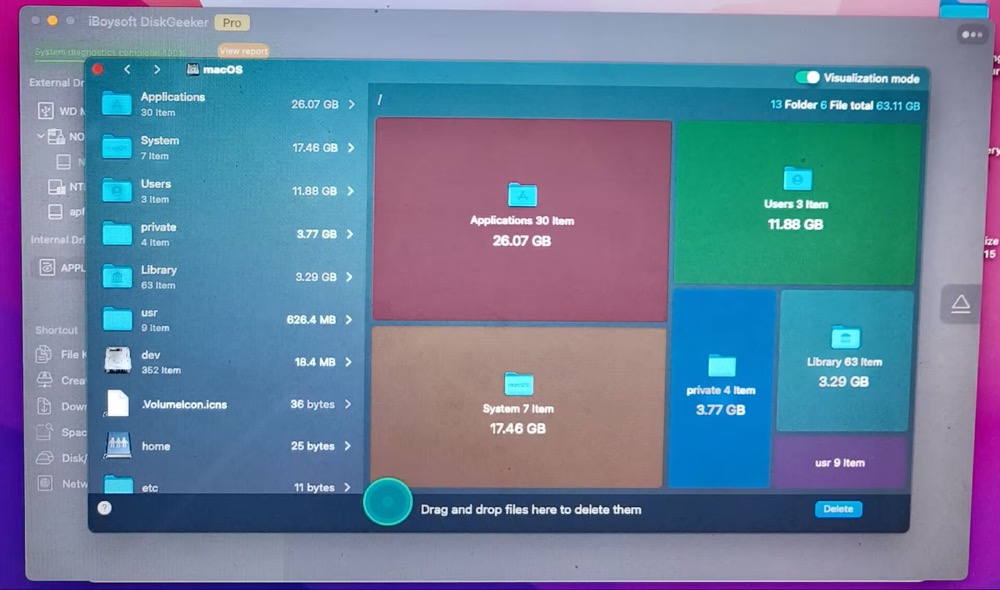
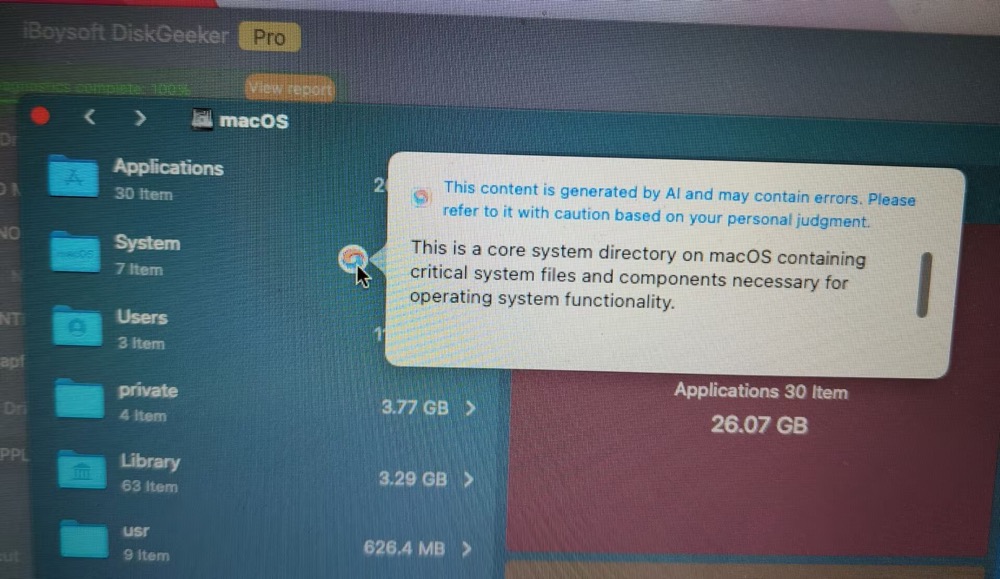
4. The disk space analysis results are displayed in a directory folder visualization, allowing me to instantly identify what is consuming the most storage on my Mac. Applications take up 26.07 GB, System files occupy 17.46 GB, and the Users directory accounts for 11.88 GB. Because the remaining folders are within an acceptable size range, my cleanup efforts will focus strictly on these top three categories.
5. Click the colorful circle on each folder to use AI to smartly analyze if the folder files are safe to delete.
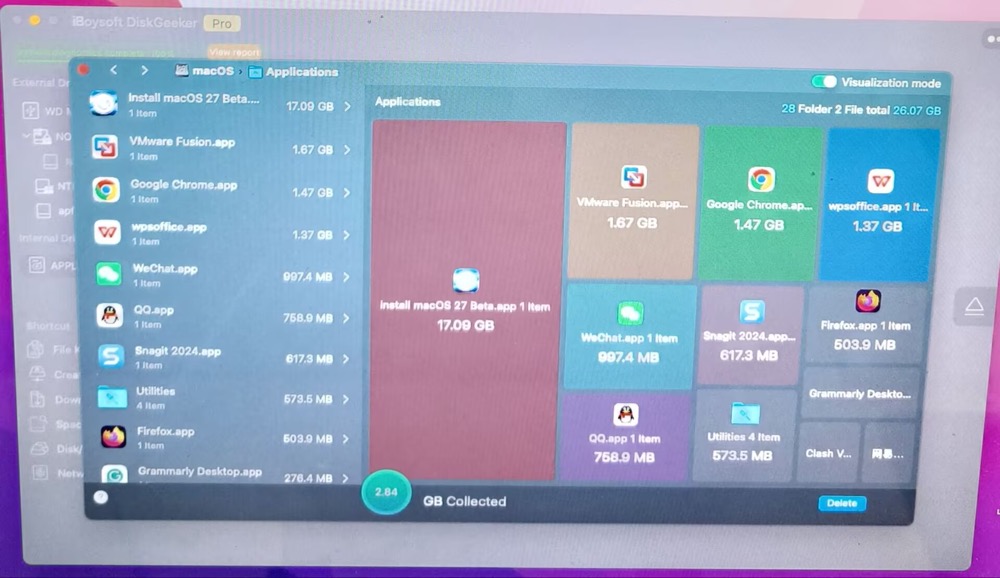
6. Simply drag and drop the files or applications you want to delete into the central green circle. For instance, after dragging the WPS Office and Google Chrome apps into the collection area, it instantly displayed a combined size of 2.84 GB. From there, just tap Delete to cleanly remove them from your macOS data drive.
- Pros:
- Support macOS 27 - macOS 10.13, Apple Silicon & Intel Macs
- AI-powered Mac disk space analysis
- Clean junk files and unwanted files from hard drives
- Feature-rich disk management tool
- Technical support provided
- Cons:
- Free edition with feature limits
We would appreciate it if you could help us reach more people!
iBoysoft Cleaner
Best for: Users who lean closer toward automated cleaning rather than manual file hunting.
What it offers: A hybrid approach focused on scanning system junk, caches, logs, and uninstalling apps cleanly, blending elements of a disk analyzer with a traditional Mac cleaner.
Traditional Mac disk space analyzers—such as GrandPerspective, DaisyDisk, and standard editions of iBoysoft DiskGeeker—are primarily built to visually map out disk usage rather than act as all-in-one cleaners.
However, if you want deep disk analysis paired with AI-powered, one-click cleaning, iBoysoft Cleaner is the ideal solution. It quickly scans your disks and partitions to remove unnecessary items like system junk, caches, temporary files, large media, unused apps, and similar photos.
Thanks to its AI-driven smart auto-selection, users of any experience level—from beginners to experts—can safely clear deletable files with a single click, completely eliminating the risk of accidental system deletions.
How to clean junk files to free up Mac space with iBoysoft Cleaner
- Free download, install, and open iBoysoft Cleaner
- Click Grant access to permit scanning.
- Click Smart scan and wait before the scanning process is finished.
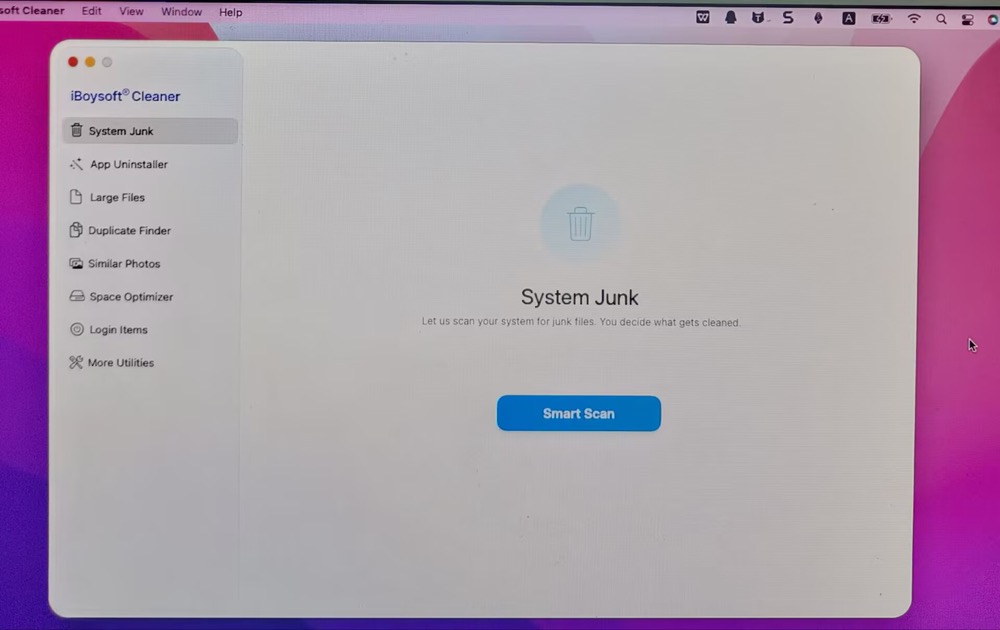
To check your Mac's disk space usage, simply click Space Optimizer. This analysis mode features a directory folder visualization similar to the one found in iBoysoft DiskGeeker for Mac.
4. Following the analysis, folders are listed by size—revealing 1.11 GB of browser cache, 87.4 GB of system junk, and 3.9 MB of system logs. These safe-to-remove folders are automatically pre-selected for cleanup. 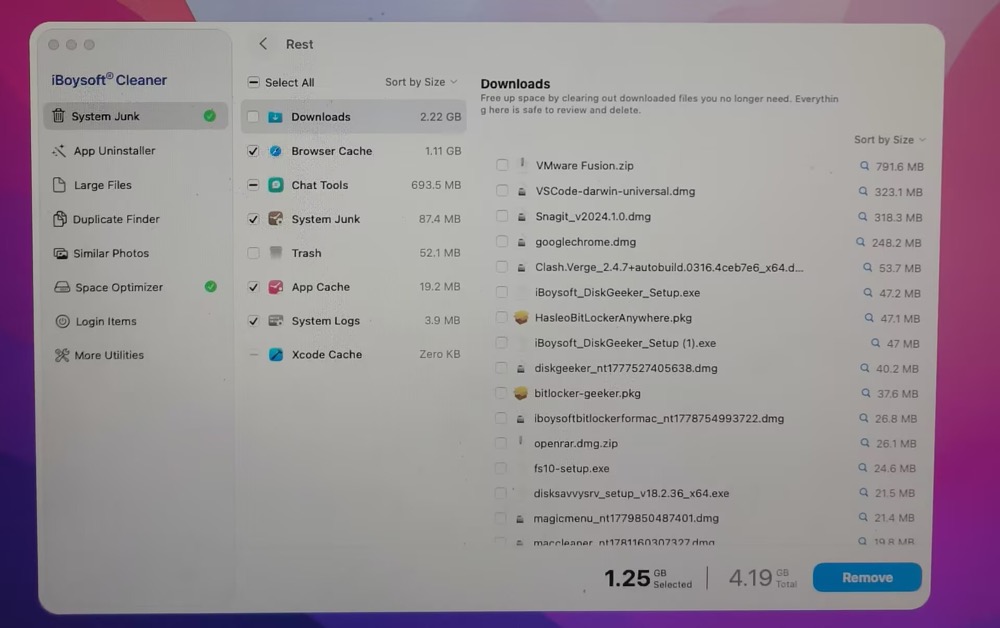
5. Select the folder or file to delete. Here I choose System Junk. It's 4.19 GB in total and the selected 1.25 GB files are safe to clear. Tap the Remove button at the lower right corner of the interface to clean up junk.
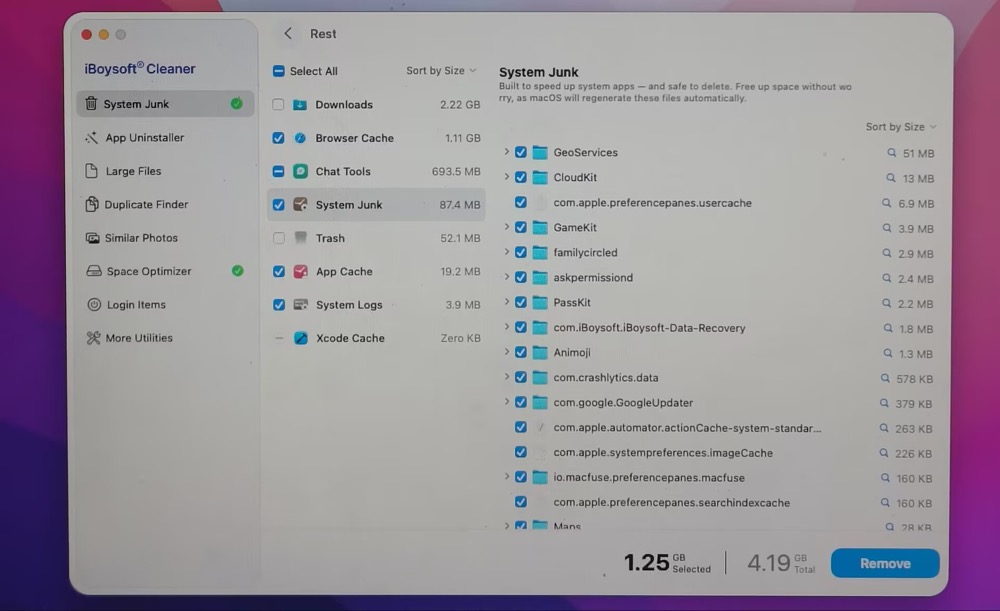
If you need to uninstall apps, clear large files, or remove duplicates and similar photos, simply navigate to the dedicated section and follow the same straightforward process. The pre-selected files are entirely safe to remove and will not impact your Mac's performance.
- Pros:
- Support macOS 27 Golden Gate - 11 Big Sur
- AI scanning, analysis and cleanup
- All-inclusive Mac cleaner to remove system junk, delete large files, uninstall apps, etc.
- 1-click fast clean with AI smart recommendations
- Cons:
- No phone support provided
- Free edition with limited features
Disk Space Analyzer: Inspector
Best for: Users who prefer a structured, hierarchical list over abstract graphical maps.
What it offers: A clean, Finder-like layout that maps out folder sizes in an organized, easy-to-read column structure.
Disk Space Analyzer: Inspector (not the advanced version Disk Space Analyzer Pro) is a wonderful software that finds the biggest files and folders eating up your limited hard drive space. It scans the file structure, analyzes the remaining disk space, and lists it with an intuitive sunburst-like diagram on various data storage containers.
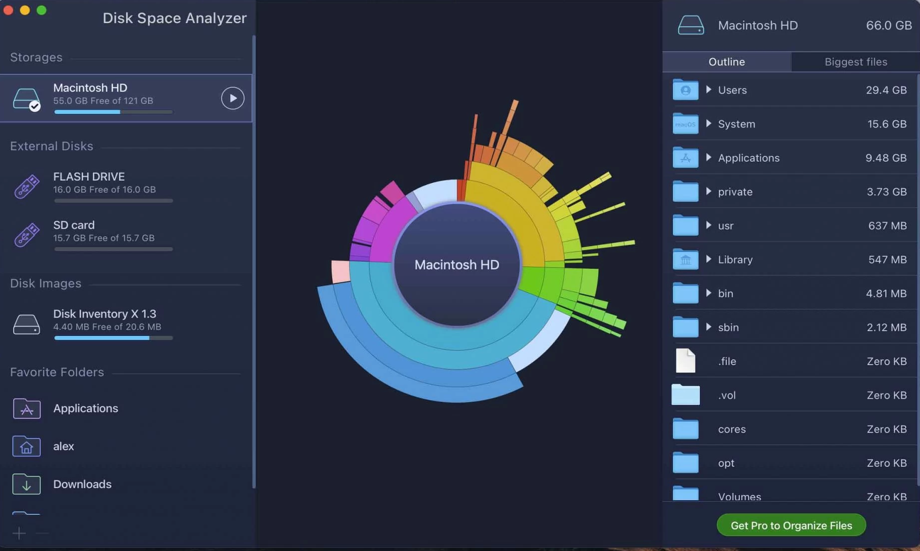
Some of its best features are:
- Visual progress bar during the scanning process
- Quick Look for the scanned items
- Navigating folders during the real-time scan
- Pros:
- Portable and small to install
- Inexpensive tool
- Simple to use
- Supports all types of Mac storage
- Cons:
- No phone support provided
- Space analysis takes some time
- No user-friendly cleanup features
- Diagram makes some people confused
Editor's Review: Disk Space Analyzer finds the biggest files and folders that eat up precious hard drive space. You can scan your disk file structure, analyze the remaining disk space, and view your files and folders with an intuitive sunburst-like diagram. - Mac Apple Store (Read Full Review)
DaisyDisk
Best for: Everyday Mac users who value a sleek interface and smooth visual design.
What it offers: A gorgeous, interactive "sunburst" map that drills down into your folders with fluid animations, making it arguably the most enjoyable disk visualizer to use on macOS.
DaisyDisk is a paid disk space analyzer for Mac operating systems. It is greatly welcomed for its beautiful and colorful table that is pleasant to view, which scans your Mac hard drive and presents its content as a sector diagram where the biggest files and folders at once become well-marked. You can launch it for the space analysis to complete the cleanup tasks with ease.
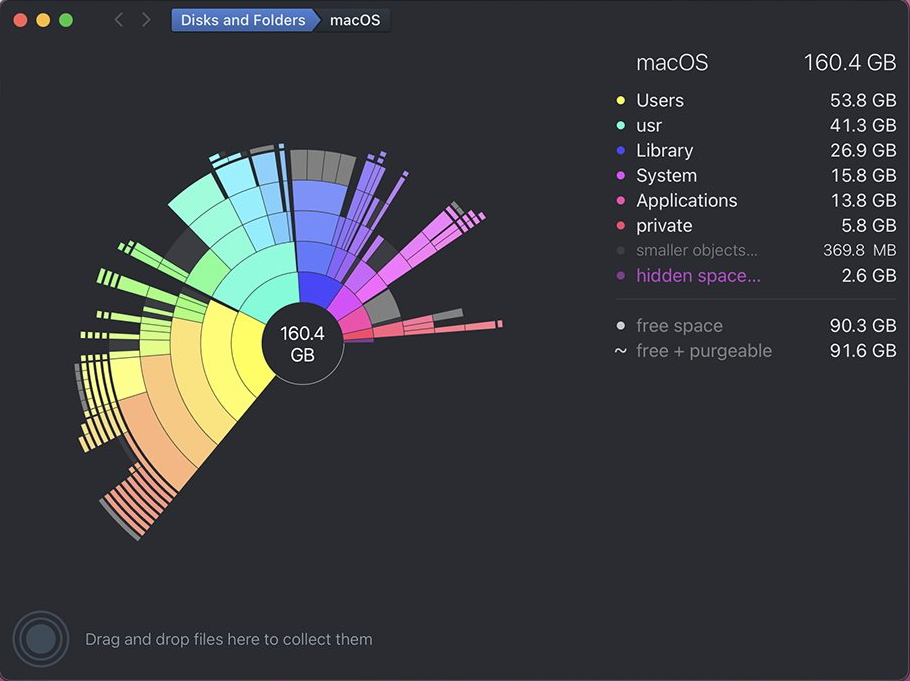
Some of its impressive features are:
- Straightforward pie chart visualization mode of disk space analysis
- Add hidden space discovery including system areas into the scan
- Add keyboard navigation in the scanned report
- One-time purchase for a lifetime license
- Pros:
- Special graphical disk map
- Fast scanning speed
- Preview files before deletion
- Cons:
- No auto-selected cleanup feature
- Free trial with limited function
- Low visualization in text interface
Editor's Review: Get a visual breakdown of your disk space in the form of an interactive map, reveal the biggest space wasters, and remove them with a simple drag and drop. Discover what's hiding inside the "Other" storage category and clear it up. Recover disk space by finding and removing large useless files. Supports all kinds of local drives, as well as the most popular cloud disks. -Mac App Store (Read Full Review)
GrandPerspective
Best for: Power users, budget-conscious users, and developers who prefer open-source tools.
What it offers: A completely free, open-source "treemap" visualization of your hard drive.
GrandPerspective is a prominent disk space analyzer for the Mac operating system in a graphical treemap. It is able to scan your hard drive sector by sector and byte by byte then presents a very comprehensive mapping of Mac's hard drive storage usage, and each item is shown as a rectangle proportional to its size.
In addition, it gives you more freedom on scan result view and export. You can configure display of views via color files (by name, file type, extension…) or mapping and export the scan result as an image or text.
Get this open source Mac disk space analyser from sourceforge for free or download it from App Store at $2.99.
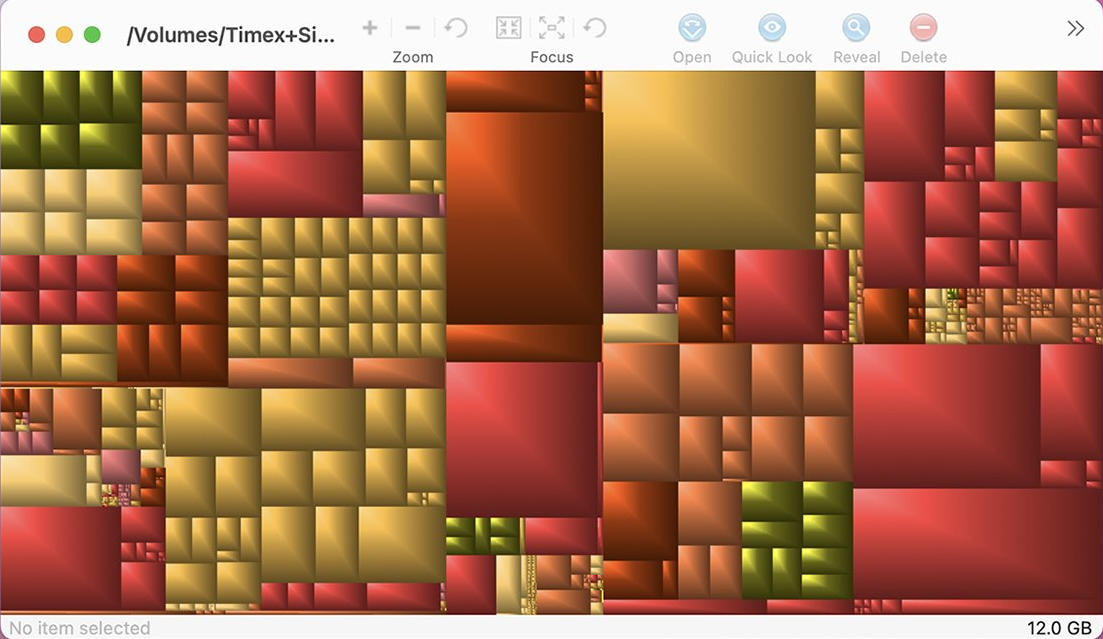
Some of its highlights are:
- Allow to filter a file or folder by creation date, extension, or file type
- Choose a different color palette for a file or folder
- Rescan a folder with different settings
- Multiple view support for easy comparison
- Pros:
- Free from sourceforge
- A wide selection in visualization of scanning results
- Duplicating a view allows to compare various visualizations of the same data
- Support macOS 14 or higher, Apple Silicon or Intel processor
- Update at a high frenquency
- Cons:
- The interface is hard to navigate for some users
- No automated smart cleaning
Editor's Review: GrandPerspective is a small utility application that graphically shows the disk usage within a file system. It can help you to manage your disk, as you can easily spot which files and folders take up the most space. - Mac App Store (Read Full Review)
Why do you need a Mac disk space analyzer?
As discussed, macOS built-in Storage Management lacks granular file visibility, making a dedicated disk space analyzer essential. Third-party utilities reveal every file and folder consuming your drive so you can choose what to keep or remove. Additionally, "System Data" cannot be safely cleaned without deep directory access—otherwise, removing critical files risks system errors.
Tools like iBoysoft DiskGeeker solve this by performing deep, sector-by-sector scans of your hard drive, displaying every file and folder so you can safely identify and clear unnecessary data.
Find this article informative? Then share it with more people!
Conclusion
This post lists the 5 best recommended Mac disk space analyzers for you to perform some file/folder size analysis and remove missions, and each one comes with introductions and strengths/drawbacks, you can try one as you like.