
 Jenny Zeng
 Jessica Shee
Macs have a default file manager called Finder, located in the bottom left corner with a smiling face. As its name suggests, Finder helps you find, access, view, and edit files on your Mac's internal hard drive and external storage devices like USB flash drives.
That's to say, it handles the essential Mac file management activities but is far from perfect. At times, you will need extra functions that Finder can't offer. This is where this post can serve you.
This post highlights the top 8 Mac file managers to replace or supplement Finder, with pros and cons, then also recommends a strong file management tool, iBoysoft DiskGeeker, which helps you remove useless files to free up more system space.
Do you actually need a Finder alternative?
Before buying a third-party file manager, assess whether Apple's Finder is actually limiting your workflow.
When default Finder is enough:
You likely do not need a third-party replacement if your daily tasks only require:
- Basic organization: Moving and copying local files via drag-and-drop or standard tabs.
- Quick commands: Using Spacebar previews, clipboard shortcuts (⌘ + C / ⌥ + ⌘ + V), or toggling hidden files (⌘ + Shift + .).
- Path visibility: Enabling Finder's built-in path and status bars.
- System minimalism: Avoiding third-party Full Disk Access (FDA) permissions or background helpers.
*Note: Third-party apps cannot replace native macOS system Open/Save dialog sheets.*
When you need a specialized tool:
Consider a specialized file manager if your day-to-day work requires:
- Dual-pane navigation: Viewing two active folders side by side in one window.
- Advanced batch processing: Renaming large file sets using Regular Expressions (Regex) and live-preview grids.
- Remote server connections: Managing FTP, SFTP, SMB, WebDAV, or Amazon S3 servers natively.
- System power-controls: Direct terminal integration, root access (`sudo`), and POSIX/ACL permission editing.
- Smart folder merging: Combining contents of identically named folders instead of completely overwriting them.
How we tested and verified the best Mac file managers?
To provide objective, rigorous recommendations rather than relying on promotional materials, our evaluation protocol was conducted across a dual-architecture environment: Apple Silicon Macs (M-series chips running modern macOS versions such as Sequoia, Tahoe, and Golden Gate) and legacy Intel Macs. (Note: Legacy Intel test setups cannot accurately reflect native Apple Silicon optimization, speed, or Rosetta 2 translation overhead).
Unlike high-level software reviews, our hands-on testing and verification methodology covers:
Hardware & OS Compatibility Scope:
Dual-Architecture Testing: Apple Silicon and Intel machines were tested separately to document architectural performance gaps and native app support.
OS Support: Verified compatibility with current macOS releases, ensuring seamless integration with modern system restrictions and sandboxing.
Core Local File Operations (Hands-on Stress Tested):
Local Copy & Move: Evaluated copy speeds, progress indicators, and conflict resolution behaviors (such as auto-renaming or file overwrites).
Batch Renaming: Tested multi-file rename rules, regex support, and live preview performance.
Search & Indexing: Checked deep file search capabilities, attribute filtering, and speed against Spotlight integration.
Hidden Files & Folder Merging: Verified whether apps can natively toggle hidden files via hotkeys and properly merge folder contents instead of wholesale overwriting.
Remote Protocols Validation (Live Server Testing):
Protocols: FTP, SFTP, SMB, WebDAV, and Amazon S3 capabilities were actively tested using live external servers rather than accepting vendor feature lists. We verified connection stability, keychain credential handling, and sync limitations under real network loads.
Commercial Terms & Verification Date:
Pricing & Free Limits: All pricing tiers, free-tier feature limitations, and trial durations were independently checked against official websites and developer checkout pages.
Last Verified Date: October 2026 (All pricing, trial lengths, and OS support confirmed current).
Here is a quick comparison of the top 8 Mac file managers to replace Finder.
| Mac File Manager Name | Editorial Rating & Methodology | Best For | Free Option / Trial Limit | Apple Silicon & OS Support | Local File Operations | Remote Protocols | Main Limitation | Last Verified Date |
|---|---|---|---|---|---|---|---|---|
| Commander One | 4.7/5 Source: iBoysoft Editorial Rating |
Free local and remote file management with cloud sync & regular expressions | Free version available / Pro pack $29.99 | Apple Silicon native (M1–M4) & Intel Tested on modern macOS releases |
Rename during copy/move, custom hotkeys, regular expression search, root access | Cloud storage, FTP, WebDAV, SFTP, Amazon S3, Google Drive, Dropbox (Pro) | No folder comparison, can't batch rename files | October 23, 2026 |
| Path Finder | 4.8/5 Source: iBoysoft Editorial Rating |
Power users looking for a feature-rich Finder replacement with folder merge and drop stacks | 30-day free trial / $29.95 yearly subscription | Apple Silicon native (M1–M4) & Intel Tested on modern macOS releases |
Folder sync, browse iPhone, one-click dual pane copy, drop stack, batch renaming, ACL editor | Dropbox integration only (No general remote server support) | No support for remote servers, relatively high price | October 23, 2026 |
| ForkLift | 4.6/5 Source: iBoysoft Editorial Rating |
Fast file transfers and remote server management with menubar quick actions | 14-day free trial / $19.95 per year | Apple Silicon native (M1–M4) & Intel Tested on modern macOS releases |
Synchronization for folders/favorites, activity view, multi-rename, app deleter, file compare | Amazon S3, Rackspace, Google Drive, remote servers/drives | File copying sometimes takes long, unable to calculate hash file | October 23, 2026 |
| Dropover | 4.3/5 Source: iBoysoft Editorial Rating |
Quick temporary file storage and sharing via floating shelves (Not a full file manager) | 14-day free trial / $6.99 | Apple Silicon native (M1–M4) & Intel Tested on modern macOS releases |
Floating shelf triggered by cursor shake, supports URLs, text snippets, web images | Multiple cloud services (iCloud Drive, Dropbox, Google Drive, Microsoft OneDrive) via public link | Not a full-featured file manager | October 23, 2026 |
| Nimble Commander | 4.9/5 Source: iBoysoft Editorial Rating |
Power users, IT professionals, and developers requiring lightning-fast minimalist dual-pane workflows | Free & Open-sourced | Apple Silicon optimized & Intel Tested on modern macOS releases |
Drag & drop, navigation/filtering by typing, quick selection by extension/mask, external editors, hash calculation | Connect remote servers and drives | More applicable for advanced users, has a learning curve | October 23, 2026 |
| Transmit | 4.4/5 Source: iBoysoft Editorial Rating |
Heavy-duty remote server connection and syncing (FTP, SFTP, WebDAV, S3) | 7-day free trial / $45 | Apple Silicon native (M1–M4) & Intel Tested on modern macOS releases |
Local-local sync, batch rename, file sync progress bar, key generation/management | 11 cloud services, FTP, SFTP, WebDAV, S3 | Slightly higher price than others, no menubar | October 23, 2026 |
| CRAX Commander | 4.6/5 Source: iBoysoft Editorial Rating |
Highly customizable dual-pane multi-tabbed file management with syntax highlighting | Free demo version / $25.99 | Apple Silicon native (M1–M4) & Intel Tested on modern macOS releases |
Customizable view/toolbar, keyboard shortcuts, file/folder coloring, built-in editor with syntax highlighting, multi-rename | FTP (network/remote modules) | Paid software, possible performance issues when working with FTP | October 23, 2026 |
| Fman | 4.5/5 Source: iBoysoft Editorial Rating |
Cross-platform streamlined file management with customizable hotkeys and a powerful plugin system | Free version available / €39 | Cross-platform (macOS Apple Silicon/Intel, Linux, Windows) Tested on modern macOS releases |
Customizable hotkeys, show hidden files, quick access function, powerful plugin system | Work with local and network drives | Relatively high price, lack of advanced built-in features | October 23, 2026 |
Commander One - Best free file manager for Mac
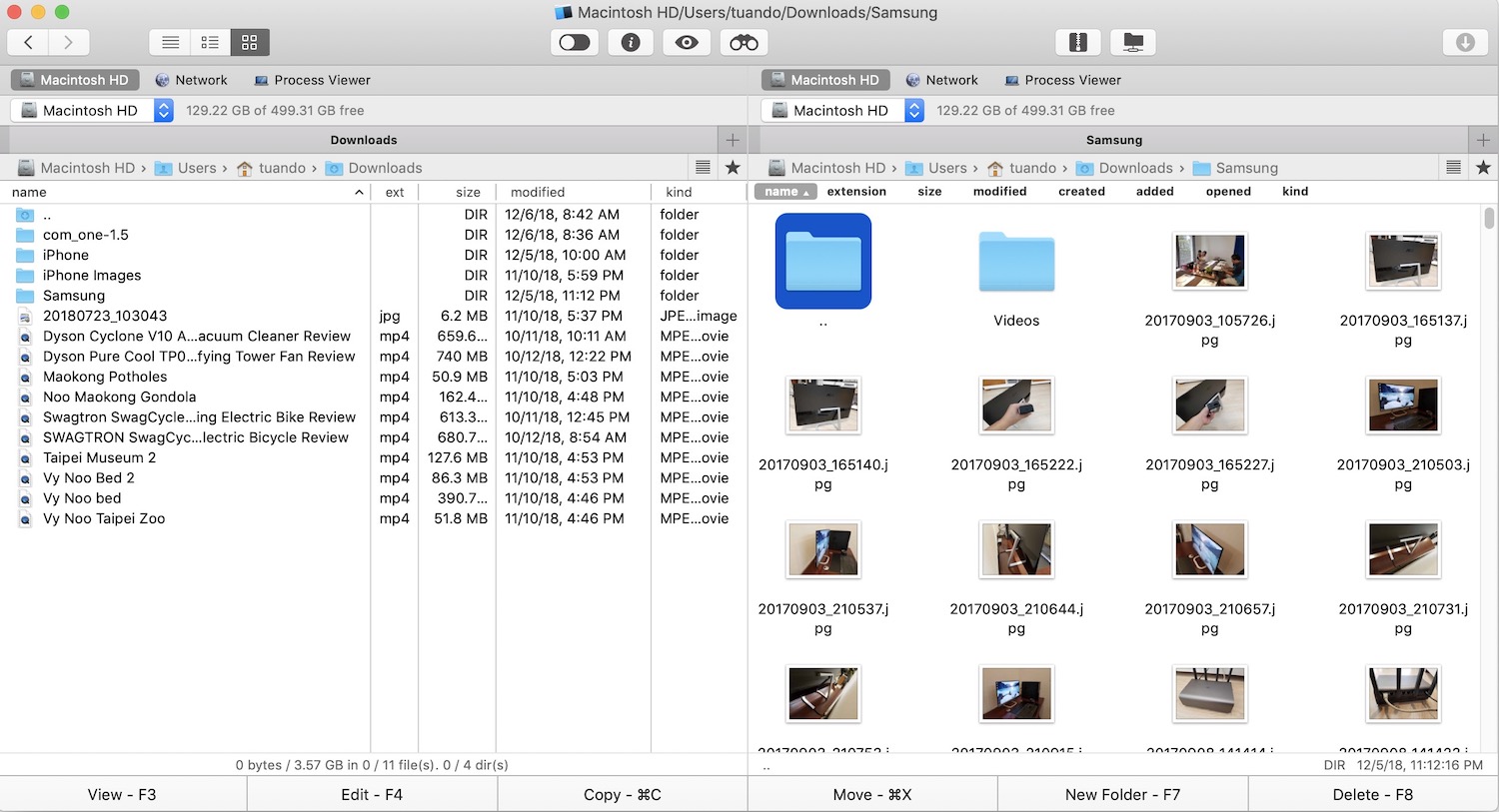
One of the best free Mac file managers is Commander One, which allows you to view files from two different directories in the same window. It also supports useful keyboard shortcuts, compressing files with passwords, showing hidden files, and searching using regular expressions.
Apart from managing your local files, this remote file manager also helps organize files stored on cloud storage or remote servers such as FTP, WebDAV, SFTP, Amazon S3, etc.
On top of that, its pro version (cost $29.95) has a built-in Mac Terminal emulator, an FTP manager, integration with Google Drive and Dropbox. Another one of its neat features is that it lets you mount iOS devices such as iPhone and iPad to move files to or receive files from your Mac.
- Pros:
- Dual panel interface
- Root access
- Show hidden files
- Quick Action buttons
- Access remote servers
- Support M1 Mac
- Cons:
- No folder comparison
- Can't batch rename files
Price: Free version/pro pack: personal license $29.99
Editor's Review: Commander One lets you conveniently manage all your files with minimum effort and also provides the ability to control not only local data but also the files you keep on cloud platforms and remote servers. It's a fantastic option if you want to expand the toolset of Finder and get unlimited control over all your files. - By Kate Gross, fixthephoto.com
Path Finder - Feature-rich file explorer for Mac
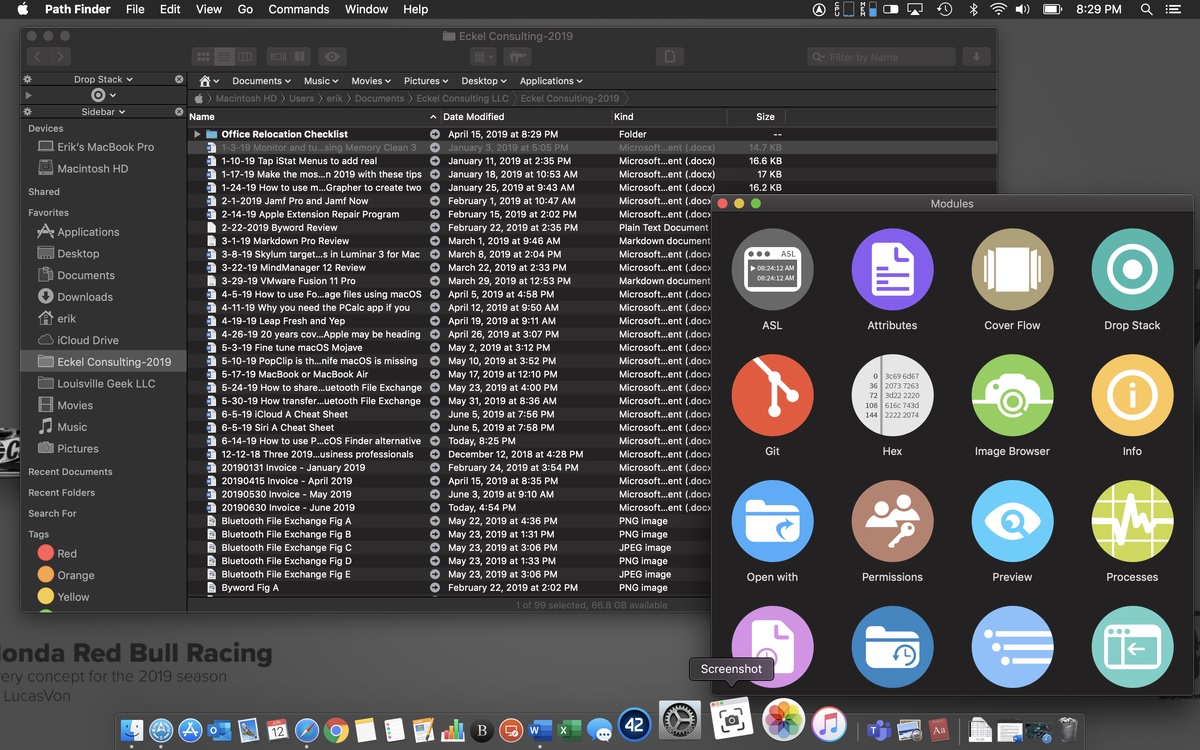
Similar to Commander One, Path Finder also features a customizable dual-pane view that enables you to drag and drop files between two panels. This Macintosh file manager also has native Apple silicon support, access to hidden files, Dropbox integration, and convenient file navigation.
Besides, it enables you to merge the contents of two folders instead of overwriting and editing low-level files without leaving the browser. Embedded with so many features such as batch renaming, keyboard access, command-line tools, ACL editor, and FolderSync, no wonder Path Finder is the favorite of many pro users.
- Pros:
- Dual-pane view
- Batch renaming
- Drop stack
- Powerful modules
- Support M1 Mac
- Cons:
- No support for remote servers
- More expensive than others
Price: 30-day free trial/$29.95
Editor's Review: Path Finder provides users with a smoother experience when managing files, moving files or folders, and checking file information on Mac. It is a comprehensive file manager for Mac that makes moving, browsing, and checking files much easier, significantly improving your work efficiency. - By Jessica Carrell, anysoftwaretools.com
ForkLift - Great Mac file explorer
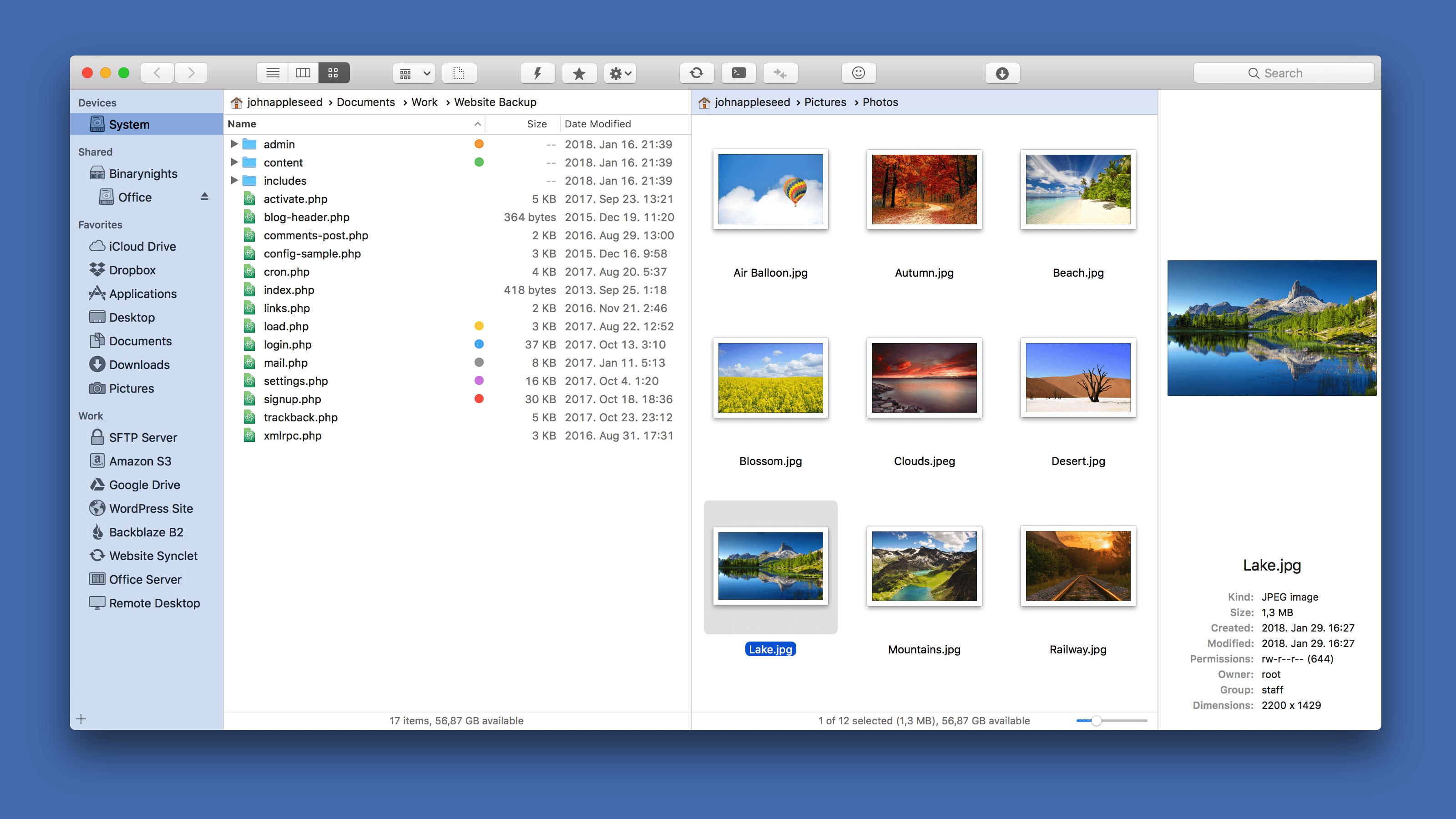
Another one of the best file managers on Mac is ForkLift. With this tool, you can rename multiple files, synchronize files locally and remotely in a mouse click, and find your favorite file in a flash.
Like Commander One, ForkLift supports transferring files between local and remote drives such as Amazon S3, Rackspace, Google Drive, etc.
Along with that, it has a slew of features such as favorite sync, Dropbox support, dual pane, mounting remote servers on desktop, sync browsing, app deleter, Git support, file compare, remote editing, etc.
- Pros:
- Dual panel interface
- Connect remote servers and drives
- Menubar apps for quick actions
- Dark mode available
- Support M1 Mac
- Multi rename
- Cons:
- File copying sometimes takes long
- Unable to calculate the hash file
- Limited programs for file/folder comparison
- Occasional errors
Price: 14-day free trial/$19.95 yearly subscription
Editor's Review: Forklift is probably one of the most updated file managers and dual-pane file transfer clients for macOS. It makes searching, managing and organizing files more convenient, easy, and seamless, helping you keep things in order and further allowing you to do your tasks faster. - By g2.com
Dropover - Temporary file holder
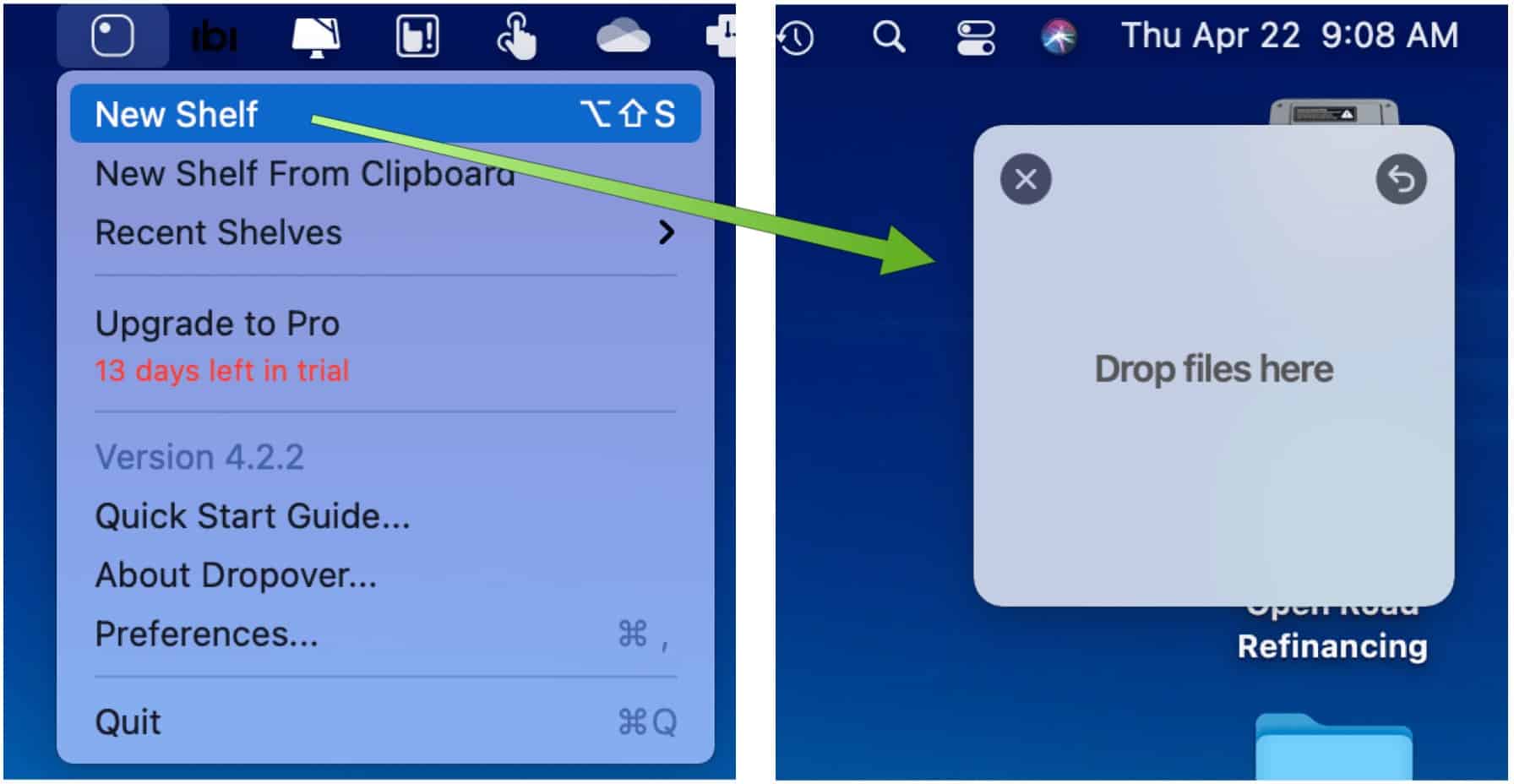
What highlights Dropover is its ability to temporarily store files or folders in a floating shelf, triggered by shaking your cursor. Besides files, it works with URLs, text snippets, and even web images.
You can create as many shelves as you want for multiple destinations. And once the shelf is created, you can share dragged files with a copied public link to Dropover's built-in cloud service or iCloud Drive, Dropbox, Google Drive, and Microsoft OneDrive.
While Dropover is great for moving files around your Mac, it lacks functions that other tools in our best file managers for Mac in the 2024 list have.
- Pros:
- Temporarily store files
- Intuitive shelf triggering
- Share to multiple cloud services
- Cons:
- Not a full-featured file manager
Price: 14-day free trial/$6.99
Editor's Review: Dropover is easy to use and extremely low-maintenance. Its users have many different options they can select within the preferences of the app for customization purposes. - By Nicholas Calderone, macsources.com
Please share with others if any of the Mac file managers above can meet your needs.
Nimble Commander - Minimalist and flexible file manager for Mac
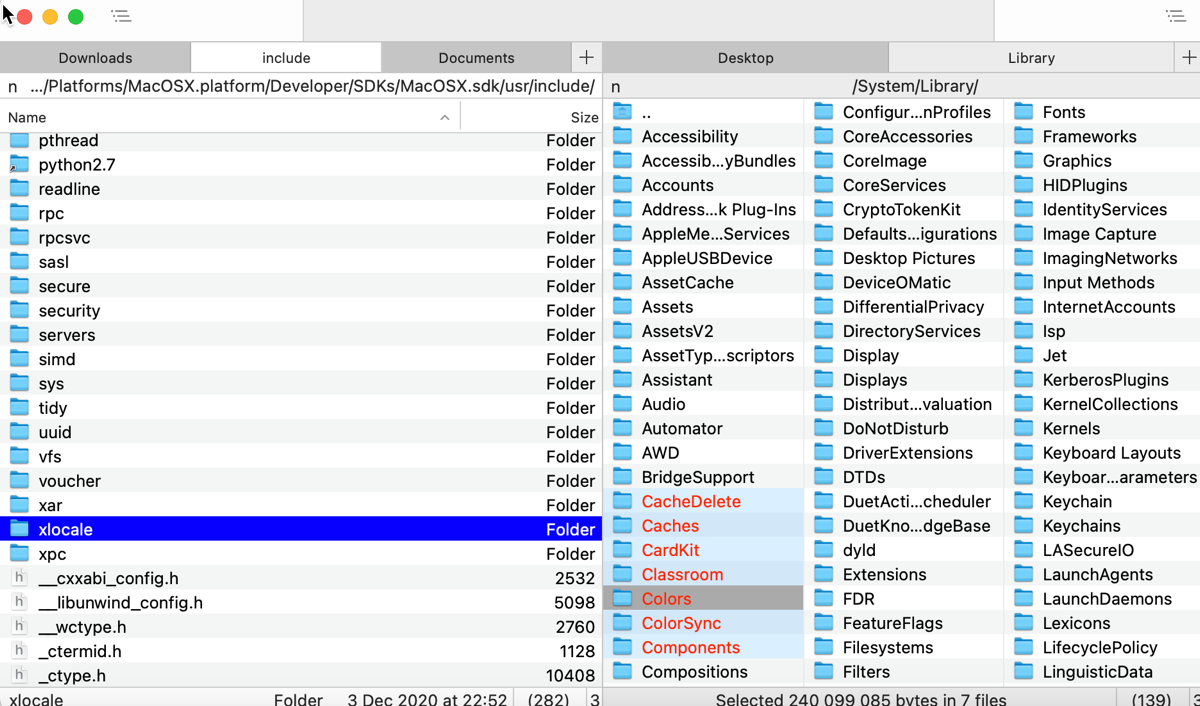
Nimble Commander is another great alternative for Mac Finders, providing both strong functionalities and great convenience. Without redundant options, this Mac file manager represents a minimal and classic user interface, only showing the necessary share button and directory tree.
You can still enjoy the classic dual-pane design, along with several useful options, including quick file search by file attributes or content by using custom search or with Spotlight, and a built-in file viewer that shows content in a textual or hexadecimal representation.
It also supports batch renaming, archive handling, and quick keyboard access to file management operations, gaining popularity among power users like IT professionals, software developers and system administrators.
- Pros:
- Dual-pane interface
- Connect remote servers and drives
- Quick keyboard access
- Indicate system information
- Batch renaming
- Handle symbolic and hard links
- Hash Calculation
- Cons:
- Advanced users are its major target audience
- Has a learning curve
Price: Free & Open-sourced
Editor's Review: Exclusively designed for Mac, Nimble Commander is built with efficiency in mind, providing blazing performance and immediate user-interface feedback. On the other hand, it exploits the classic dual-pane ideology and traditional hotkey layout while maintaining a clean, minimalist UI design. - By macupdate.com
Transmit - Highly effective file manager for Mac
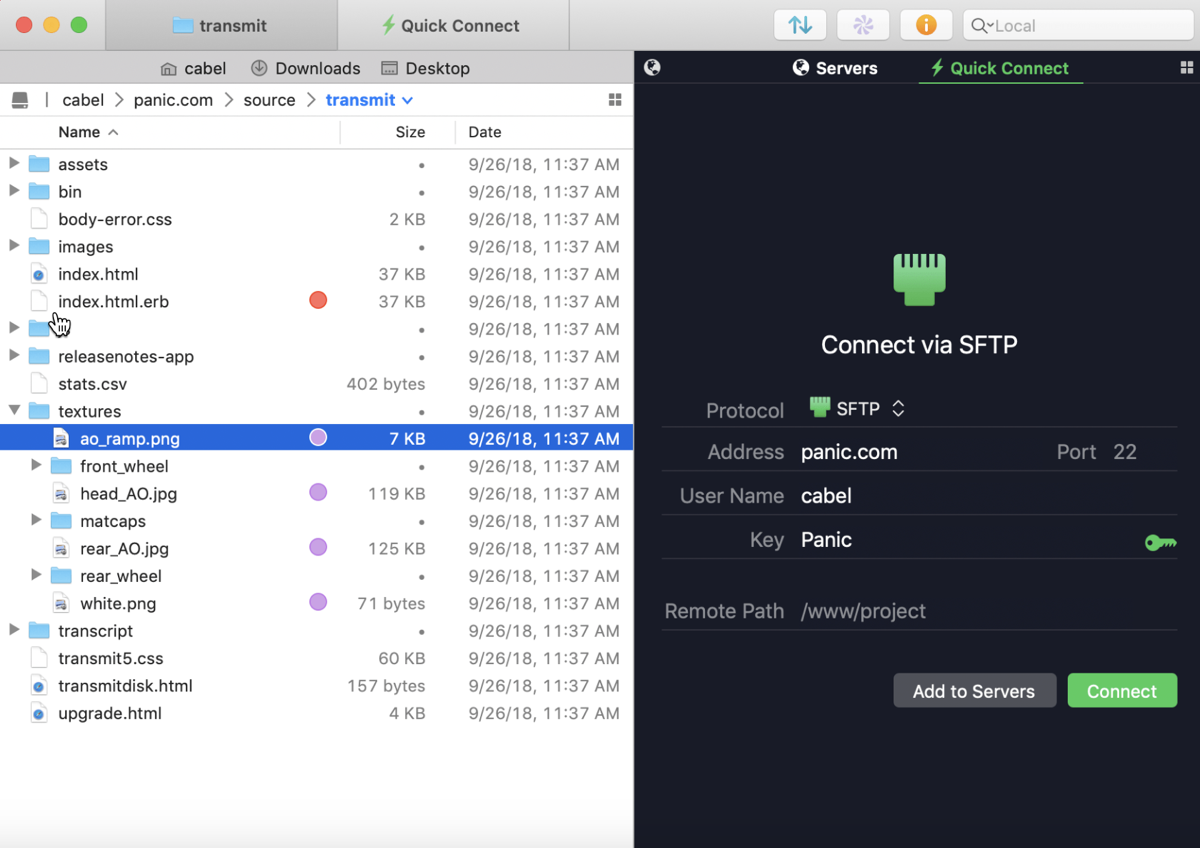
Transmit is a long-established and reliable file manager for Mac, especially known for its connectivity to major remote services. It now connects to 11 new cloud services and the classic ones like FTP, SFTP, WebDAV and S3, greatly simplifying complex service drag-and-drop operations.
You can achieve local-to-local and remote-to-remote sync thanks to its File Sync feature, get faster file browsing, data transfer and batch rename, jump to your favorite folders with just one click, and even manage and generate keys without leaving Transmit.
Its advantages also lie in a clean and intuitive interface, dual-pane and effective file management on multiple servers, constant updates, and responsive support. Both regular users and advanced users fall in love with this file management software for Mac.
- Pros:
- Connect most major remote servers and drives
- Easily transfer data between local and remote storage
- Seamlessly synchronize files across devices
- User-friendly interface
- Dual-pane view
- Cons:
- Slightly higher price than other file managers
Price: 7-day free trial/$45
Editor's Review: It's Transmit's ease of use that has always appealed to me the most. My day-to-day needs for an app like Transmit have been fairly light, so I appreciate that it's simple and fast to set up a server and transfer files. - By JOHN VOORHEES, macstories.net
CRAX Commander - Highly configurable file manager for Mac
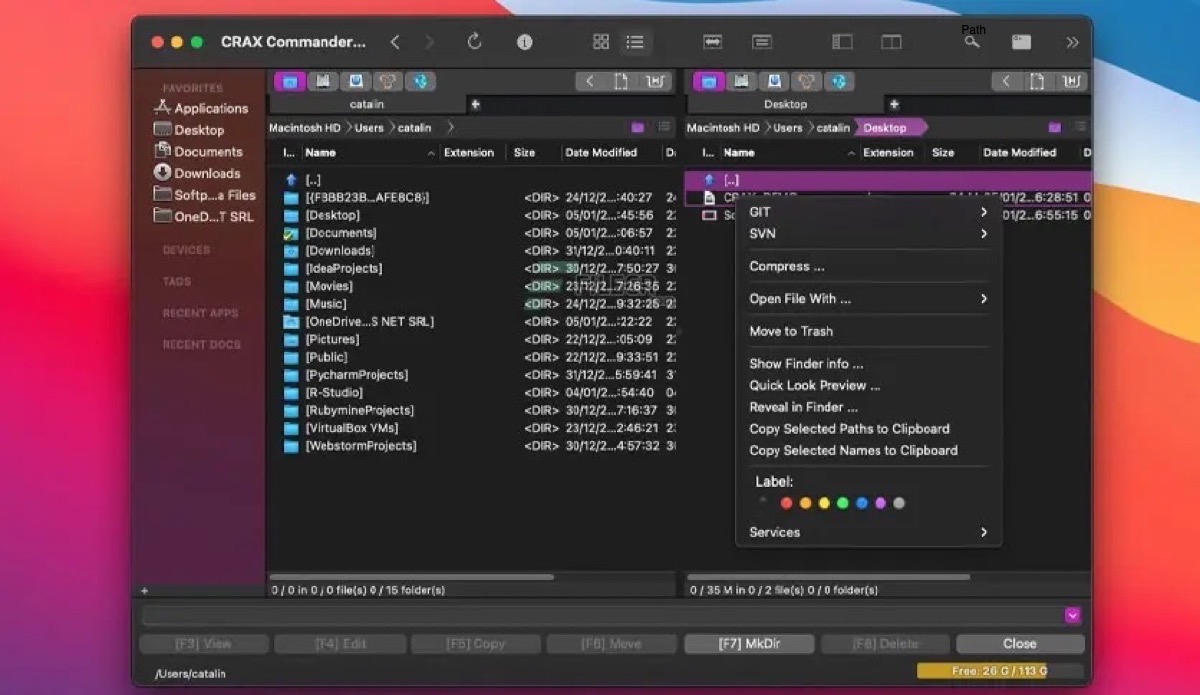
As a Dual-pane and multi-tabbed file manager for Mac, CRAX Commander boasts several basic and advanced features along with rich customizable options. The best part of this Mac file manager is allowing users to tailor the interface based on personal preferences.
CRAX Commander allows users to define keyboard shortcuts and external tools, customize the view by showing or hiding panels, sidebars and menus, change the coloring of files and folders for easier organization, and adjust tabs and bookmarks, all facilitating a more smoother and pleasant user experience.
Its basic features include remote connection, multi-file renaming, folder merging, calculating file checksums, remote file viewing and editing, etc. In addition, CRAX Commander can also achieve advanced file and folder searching, table data filtering, and archive handling. One of its highlights is the built-in editor with syntax highlighting.
- Pros:
- Easy file-related operation
- Highly customize the interface to personal tastes
- Connect to FTP, SFTP, SMB, AFP
- Easily organize files and folders
- Reconfigure hotkeys
- Cons:
- non-free Mac file manager
- Possible performance issues when working with FTP
Price: free demo version/$25.99
Editor's Review: CRAX Commander is a dual-pane file manager with an approachable user interface. It provides many of the functionalities you need to quickly and effectively access and manage your local and remote files. With CRAX, file management is much faster and easier than it has been before. - By macdownload.informer.com
Fman - Easy-to-use streamlined file manager
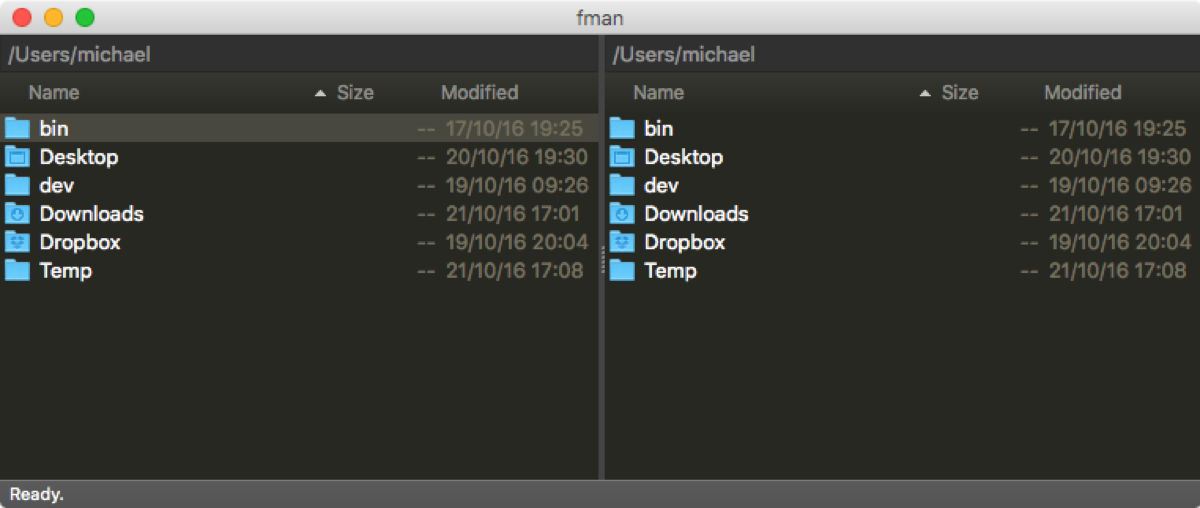
Fman is a neat and cross-platform file manager, applicable for macOS, Linux and Windows operating systems. It possesses a classic and clean dual-pane interface, a handy search bar at the top, and a powerful plugin system to suit your needs.
You can use Fman to perform common file-related tasks, including copying or moving files, exploring directories, and transferring files between remote cloud storage and local storage. Its great feature, GoTo on Steroids, allows you to quickly jump to a specific directory and access your frequently used files.
Although lacking some advanced features, Fman is ideal for computer newbies or someone who wants to run a file manager that consumes minimal system resources to manage their folders and files.
- Pros:
- Clean Dual-pane interface
- Extensive plugin system
- Supports multiple platforms
- Quick access to the specific directory
- Cons:
- High price
- Lack of advanced features which power users need
Price: free version/€39
Editor's Review: Fman is a file manager designed as an alternative to Windows Explorer. It has two panes for exploring two locations and performing file operations with drag and drop, along with support for keyboard shortcuts and open-source plugins made by the community, really simplifying your file management. - By www.softpedia.com
How to select the best file manager for your Mac?
When selecting the best file manager for your Mac, you should focus on some must-have features:
- Intuitive and user-friendly interface
- Connection to major remote servers and drives
- Easy handling of file-related tasks
- Customizability
- Batch renaming
- Rich plug-in system
- Faster file transfer
- Seamless navigation between folders and tabs
This list isn't exhaustive and just shows the major points you should focus on. Please keep reading to learn about more useful features of the top 8 Mac file managers we recommend.
When you need Mac disk cleanup or storage management?
If your main problem is junk files, low disk space, disk cloning, or broader disk management rather than browsing and moving files, iBoysoft DiskGeeker is a separate Mac disk-management option.
It is an all-around disk management tool, with junk-file cleaning as one of its many features. It can help you sweep away different kinds of junk files, such as system cache files, app installers, duplicated files, other unwanted files, and leftovers of deleted apps. You can use it to delete junk files with just a few clicks, saving the trouble of manual deletion.
If you find a satisfying Mac file manager through this post, please share it with more people.