
 Serena Wang
 Jessica Shee
USB recovery software may help when the flash drive is detected, remains stable, and the lost data has not been overwritten. Stop using the USB drive first, install the software on another drive, and save recovered files to a different physical device.
Before choosing a USB data recovery software for Windows, diagnose your drive's condition to select the right approach. Reference the diagnostic table below to find the appropriate solution.
Quick Diagnosis Table: Can Software Scan This USB?
| USB state | First action | Software applicability | Stop condition |
| Detected and stable | Stop writes | Suitable for scanning | Save elsewhere |
| RAW/asks to format | Recover or back up first | RAW-capable tool may help | Do not format first |
| Slow/disconnecting/hot | Minimize access | Image first if possible | Stop repeated deep scans |
| Not detected/damaged connector | Disconnect device | Software cannot scan | Turn to professional service |
USB Flash Drive Recovery Tools Comparison Table
| Item | iBoysoft Data Recovery for Windows | Disk Drill for Windows | Recuva |
| Best for | Specialized recovery needs | User-friendly recovery | Free basic recovery |
| Ease of use | Easy | Easy | Easy to moderate |
| Errors during scanning | No | Preview mode not working occasionally | Stuck in scanning |
| Free limits | Need to upgrade to Pro to get advanced features | 100 MB free data recovery Virtual hard drive unsupported |
Outdated interface No preview Incompatible with Windows 11 Unable to select a disk or drive for scanning Slow scanning speed |
| Selectable scanning | Yes | Yes | No |
| Scan speed | Fastest | Runner-up | Slowest |
| Deep Scan | Yes | No | No |
| Preview | Yes | Yes | No |
| Recovery type | Data recovery, RAW partition repair & recovery, BitLocker recovery | Data recovery | Data recovery |
| HDD, SSD, USB, SD card, PC, digital camera, etc. | Yes | Yes | Yes |
| File system | NTFS, FAT, exFAT | NTFS, FAT, exFAT | NTFS, FAT |
| Windows compatibility | Windows 11/10/8.1/8/7/Vista/XP, Windows Server 2019/2016/2012/2008/2003 | Windows 10-11 (64-bit), Windows 11 ARM | Windows 11/10/8.1/8/7/Vista/XP |
| File management | Folder structure | Folder structure | No |
Windows USB Data Recovery Software Test Environment
| Test Filed | Details |
| Hardware | ACPI x64-based PC (2 processor cores) |
| OS | Windows 11 (Other Windows compatibilities come from their official product webpages) |
| Disk type | HDD disk (Seagate RSS BUP Slim 1TB) with 1 NTFS partiton called “NEW”, 1 exFAT partition called “exfat” and 3 HFS+ partitions |
| Scanning Media | macOS Tahoe 26 ISO image file, photos, audio, and RAR file |
| Scanning & Recovery mode | Partition scanning; photos recovery |
| Total test time | 3 days |
Share this post with the people who need a USB recovery tool to recover data.
iBoysoft Data Recovery for Windows
Best for beginners and advanced users with data recovery, RAW partition repair, or BitLocker data recovery in a simple, flexible and fast way
Overview:
iBoysoft Data Recovery for Windows is an all-in-one data recovery solution designed to retrieve deleted files from HDDs, SSDs, USB drives, SD cards, and PCs. It easily repairs RAW partitions and recovers data from RAW or BitLocker-encrypted drives. Fully compatible with NTFS, exFAT, and FAT file systems, it seamlessly supports Windows 11/10 and earlier versions.
During hands-on testing, the software performed smoothly and remarkably fast, completing a full scan of our test drive (E: NEW) in just 17.11 seconds—the fastest among all tested tools. Unlike Recuva's dated UI, its clean, modern interface is intuitive and user-friendly, featuring an organized folder structure that makes locating recoverable files effortless.
Moreover, compared to Disk Drill for Windows, it imposes no recovery data limits and includes an advanced Deep Scan mode to uncover lost or deleted files.
How to Use iBoysoft Data Recovery for Windows to Recover Data from USB Drive?
Before you go: Stop using the USB drive first, check if the device is detectable and stable, and avoid writing data back to the original drive. If the USB drive repeatedly disconnects, overheats, has a damaged interface, or is completely unrecognized, you should stop scanning.
Software recovery is only suitable for USB drives that are stable, identifiable, and experiencing logical failures such as deletion, formatting, or a RAW file system. Disks with physical hardware failures do not support data recovery.
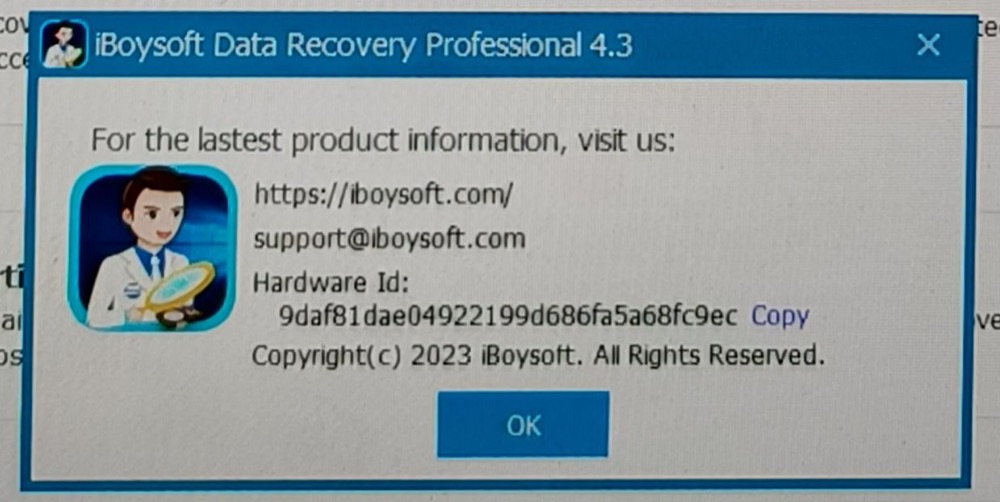
- 1. Download, follow the installation wizard to install and launch iBoysoft Data Recovery for Windows version 4.3 on Windows 11 PC.
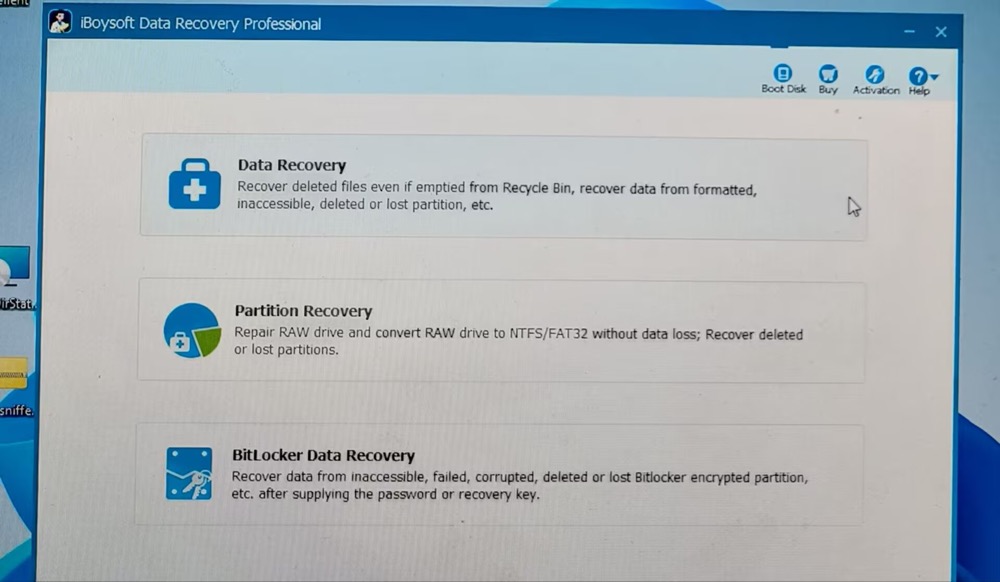
2. Choose Data Recovery on the modern yet clean interface. As the home screen shows, this Windows USB data recovery program also supports repairing RAW partitions and recovering data from RAW drives or BitLocker-encrypted drives.
3. Select drive NEW (E:).
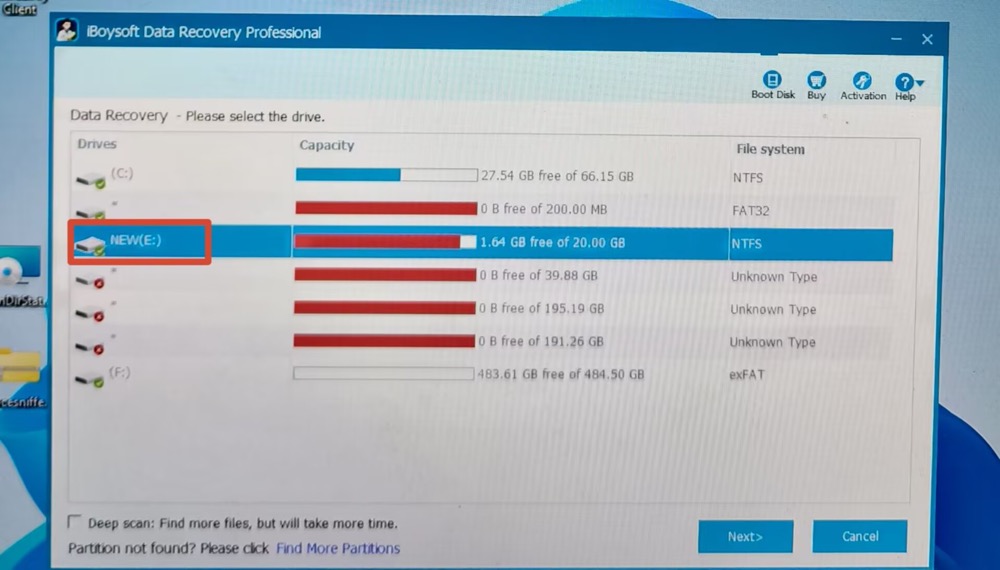
To find more deleted or lost files, manually enable "Deep scan" in the lower left corner of the interface. Scanning more files will take more time.

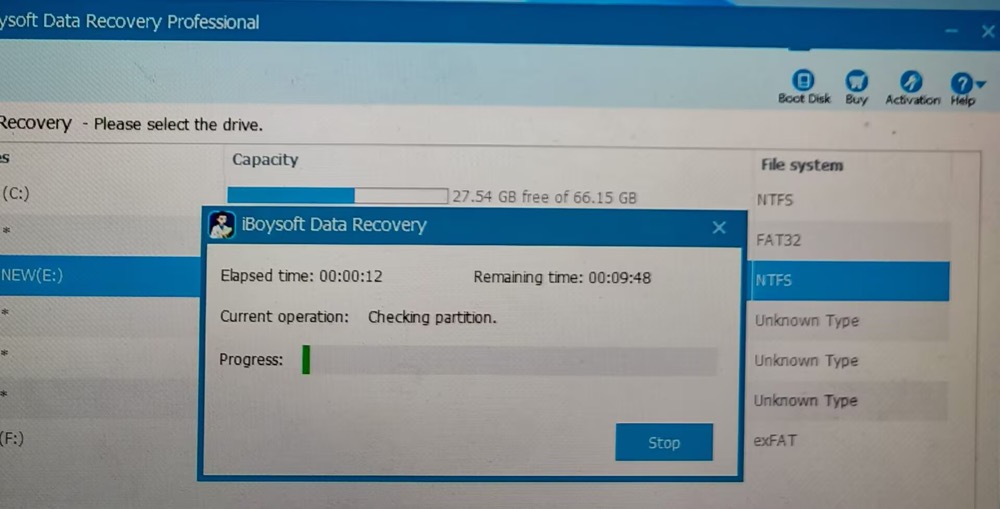
4. Click Next and it begins scanning drive E. The estimated time is not accurate. The actual scanning time only takes 17.11 seconds.
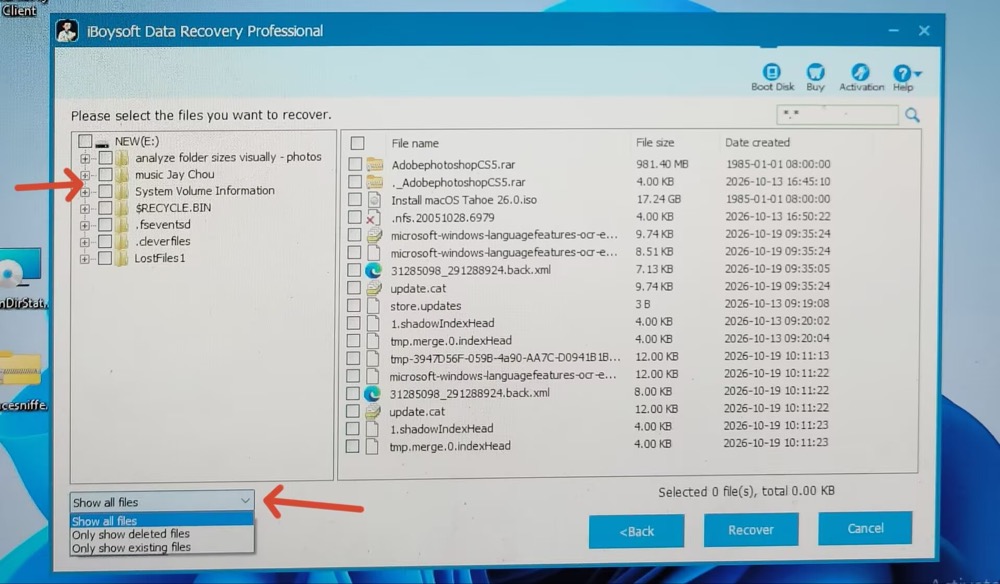
5. Scan results are organized hierarchically by folder and file type so you can quickly locate your data. Use the view filter to display all files, deleted files only, or existing files only.
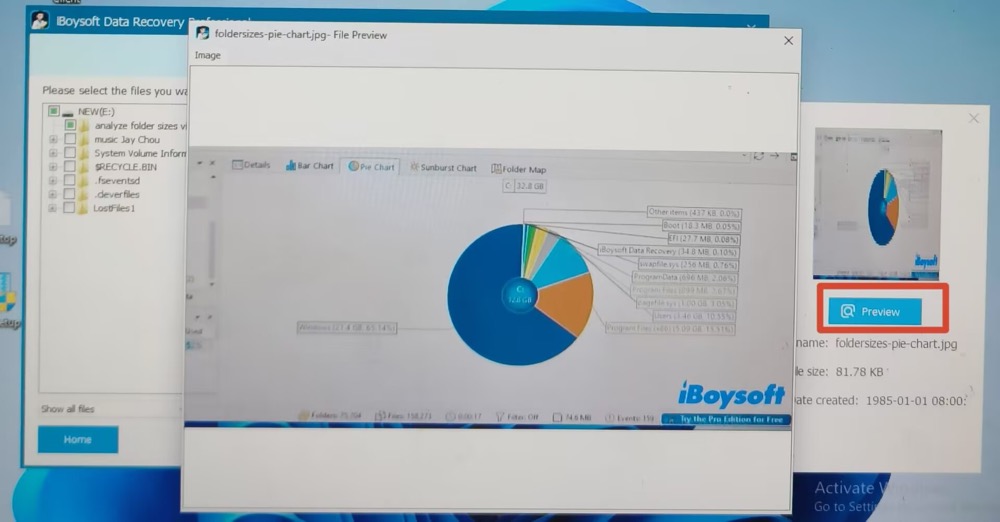
6. Preview your selected files.
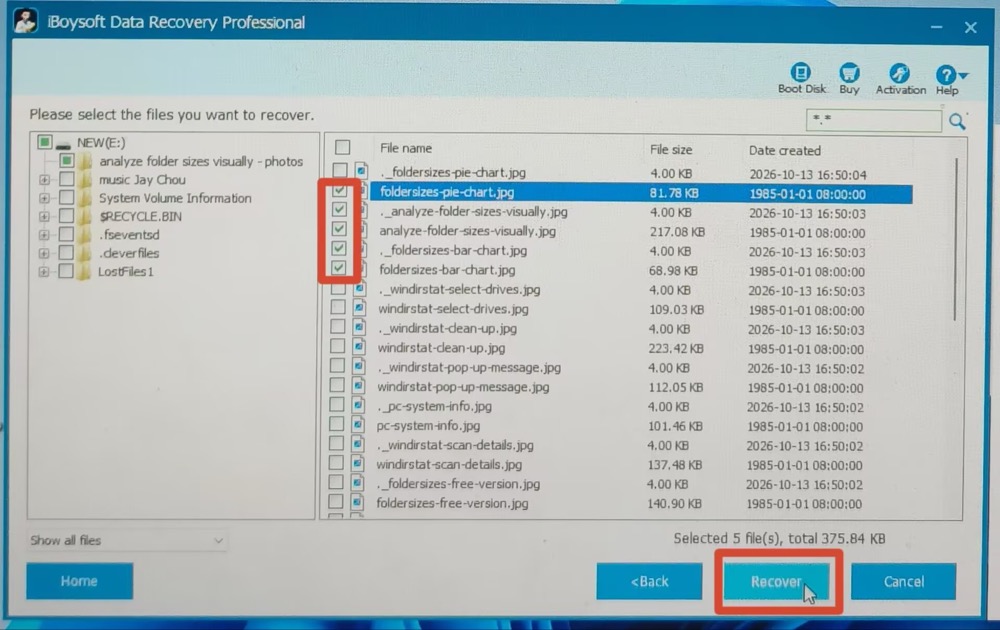
7. Select the files to recover > click Recover > choose the destination folder to save the recovered files. It instantly completes the data recovery task.
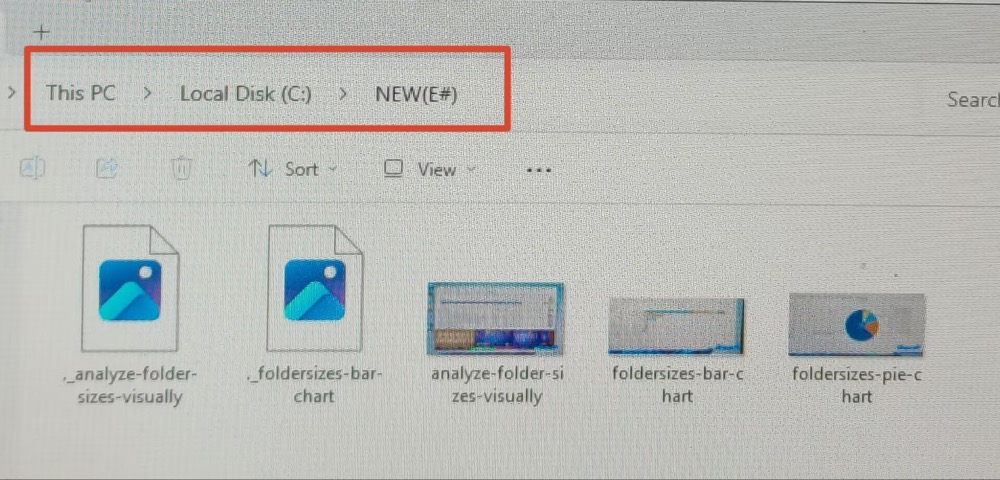
8. Open the final folder to check your recovered photos.
- Pros:
- Recover deleted/lost files from USB drive without file size or quantity limits
- Scan drives at rapid speed
- Modern interface neatly organized by folder structure
- Preview recoverable data before data recovery
- Repair RAW partitions and recover data from raw/BitLocker drives
- Supports Windows 11/10/8/7/XP/Vista and Windows Server
- Supports NTFS, exFAT, FAT32 file formats
- Cons:
- Technical support is only available by email
- Not available for physically damaged disks
Successfully recover data from USB flash drive with iBoysoft Data Recovery for Windows? Share this tool with more people!
Disk Drill for Windows
Best for users to free recover a small amount of data and back up disk
Overview:
Disk Drill is a dedicated data recovery software for Windows, with a wide selection of storage devices, file systems and Windows (11/10) versions supported. It also provides a free version with 100MB free data recovery, preview feature, and additional free tools (disk backup, SMART disk monitoring, the recovery vault data protection tool).
In hands-on testing, the software performed reliably with solid stability—experiencing no freezes or crashes. However, the Deep Scan option was noticeably absent, and the Preview feature failed to display JPG images.
In terms of scanning speed, it took second place, finishing the test drive (E: NEW) in 1 minute and 37.73 seconds. On a positive note, it instantly recovered all five test photos.
How to Use Disk Drill for Windows to Retrieve Data on Windows 11?
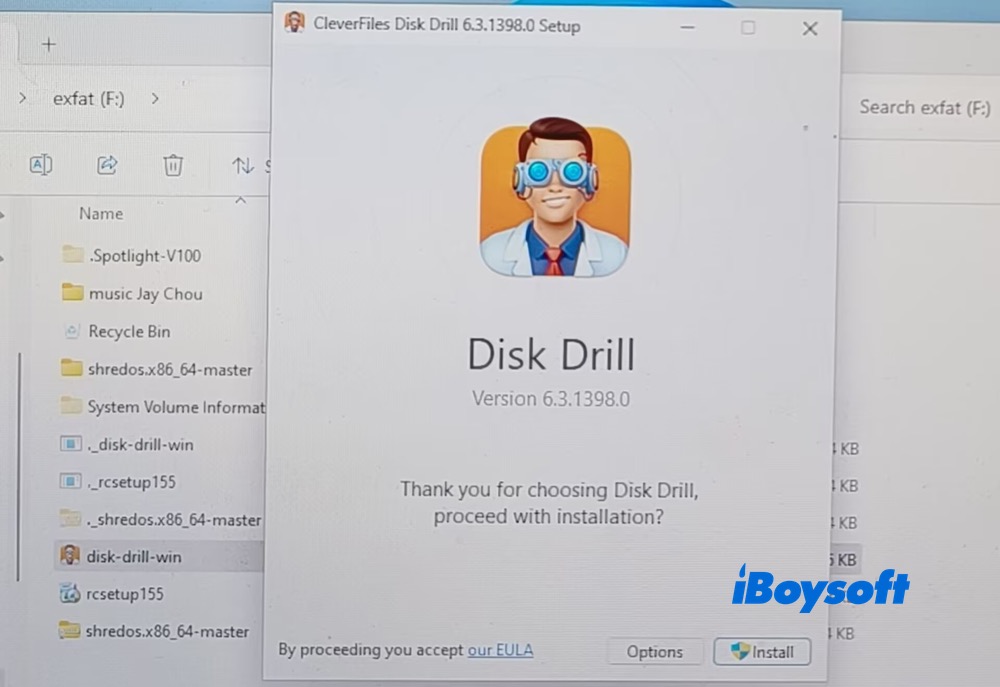
- 1. Download, install and launch Disk Drill for Windows version 6.3.1398.0 on my Windows 11.
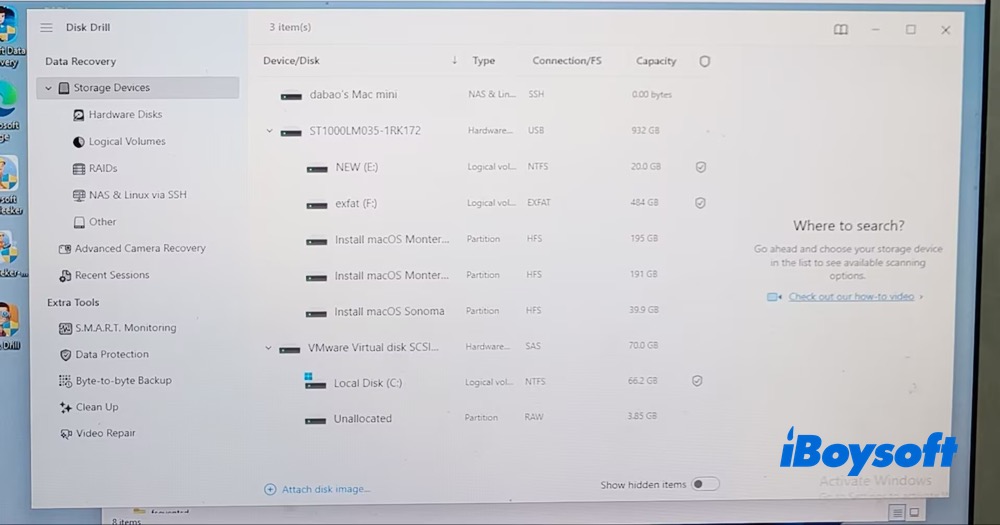
2. Click NEW (E:) on the main screen.
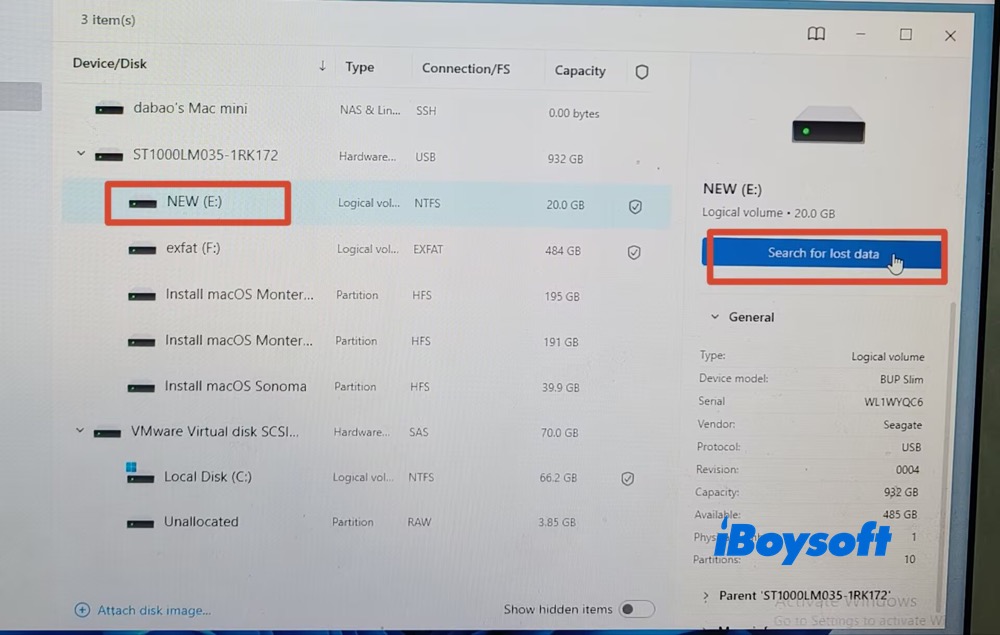
3. Click "Search for lost data" in the right panel of the interface. It will begin scanning drive E.
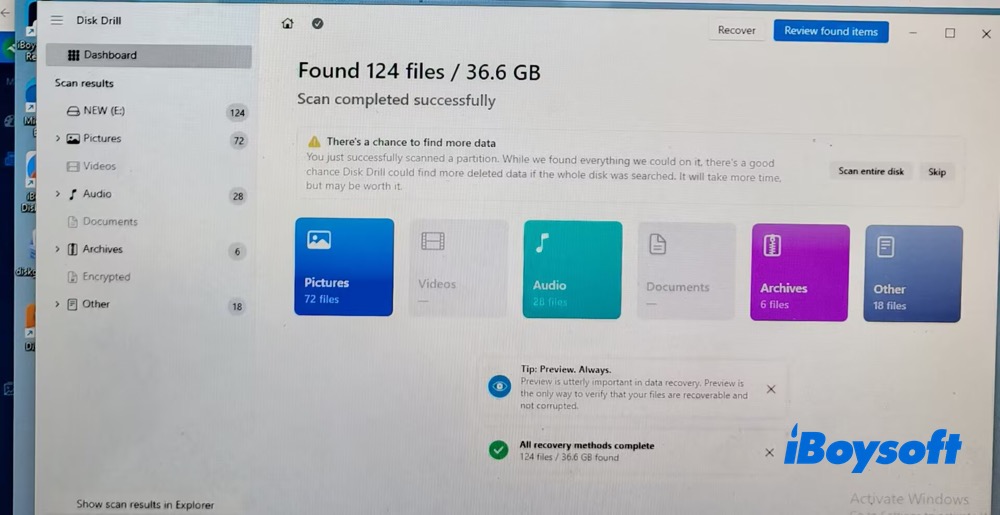
4. The scan finished in 1 minute and 37.73 seconds, locating 124 files (36.6 GB). Recovered data is categorized into folders by type: pictures, videos, audio, archives, and others.
5. During the preview step, I ran into an issue. The five photos that iBoysoft Data Recovery for Windows displayed without any problem failed to load in this software's preview mode.
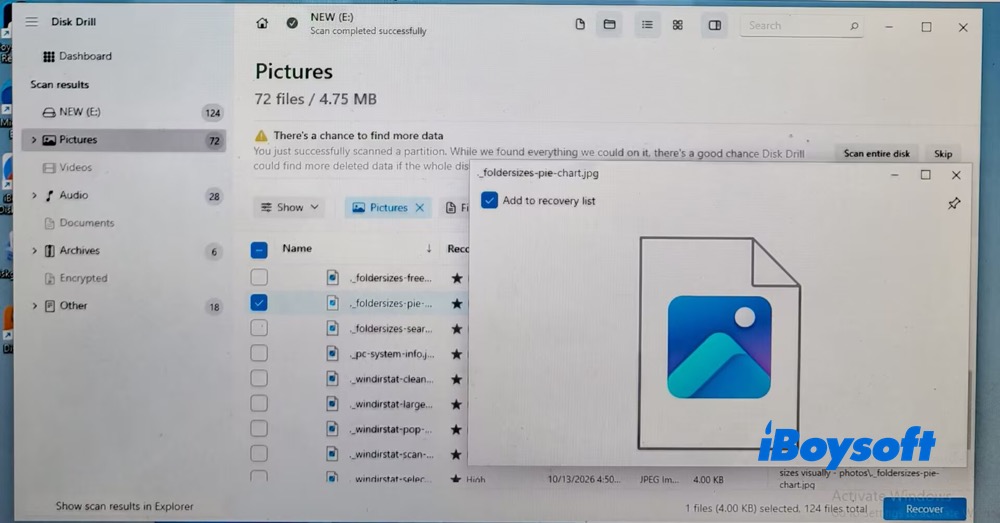
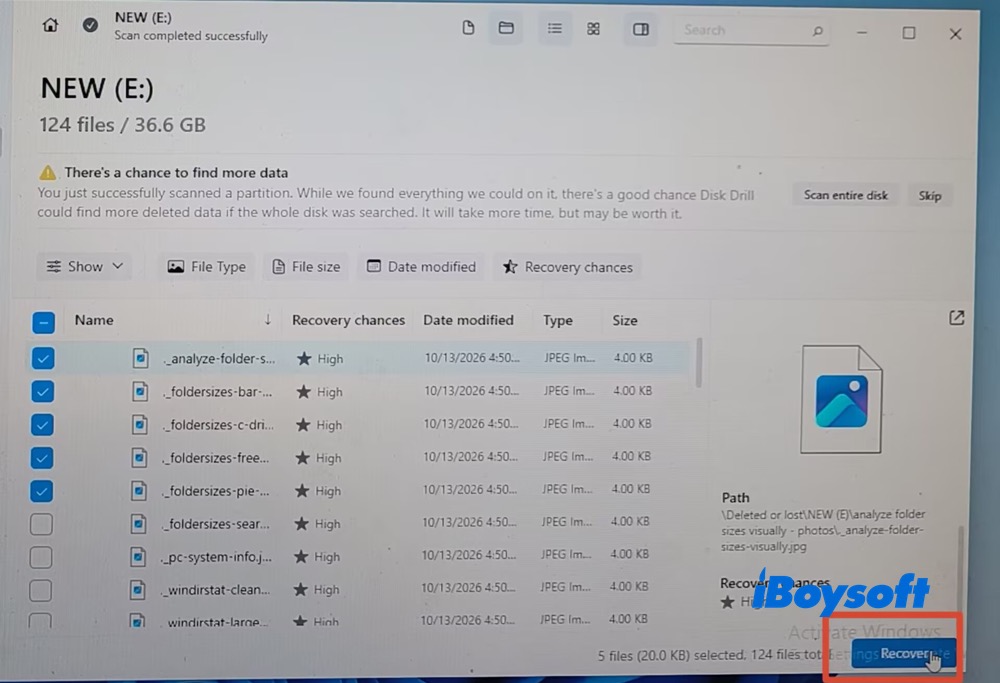
6. Choose the pictures I wanna recover based on their names. Click Recover and choose the destination folder for recovery photos storage. It instantly finished the recovery task.
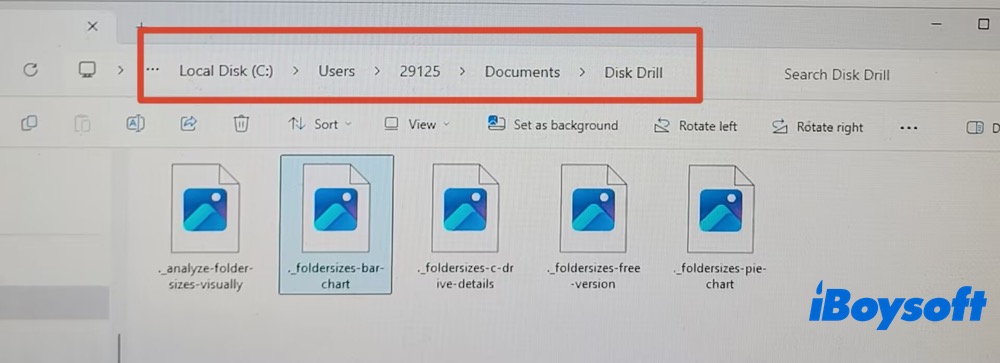
7. Open the target folder and check the retrieved photos.
- Pros:
- Modern yet user-friendly interface
- Deliver above-average speed when scanning and restoring data
- An expansive libary of storage devices and file systems supported
- Supports Windows 11/10/8.1/8/7/Vista/XP, Windows Server 2022/2019/2016/2012/2008
- Additional free tools like disk backup are provided
- Cons:
- No phone support
- Only free for 100MB
- Failed to preview files occasionally
- No Deep Scan found in free version
Recuva Recovery Software
Best for budget-conscious users willing to overlook an outdated interface and full-disk scan limitations in exchange for reliable recovery
Overview:
Its free version is Recuva's biggest selling point. If you are on a budget and willing to look past its numerous limitations, it remains a viable option—though upgrading to Pro is highly recommended.
First, the free tier is incompatible with Windows 11, so you will need to run Windows 10 or an earlier OS for free recovery. Furthermore, it lacks regular updates. The outdated interface lumps all drives and files together without clear categories or preview capabilities.
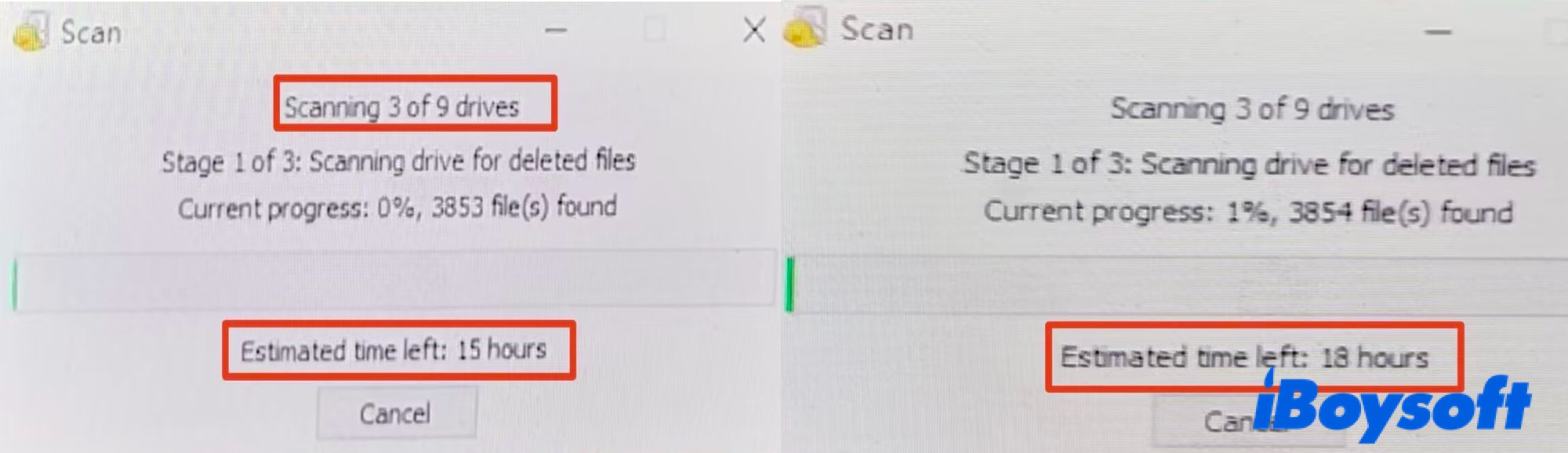
Worst of all is the scanning process: it automatically scans every connected drive as soon as it launches, which is painfully time-consuming. During our testing, the scan froze, estimating a completion time of over 15 hours. These major drawbacks are why it ultimately landed in last place.
How to Use Recuva for Data Recovery on Windows 10 or Earlier Version?
1. Download Recuva version 1.55.133 from its official website.
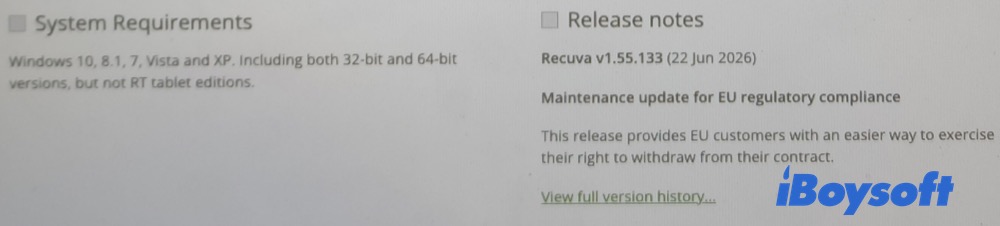
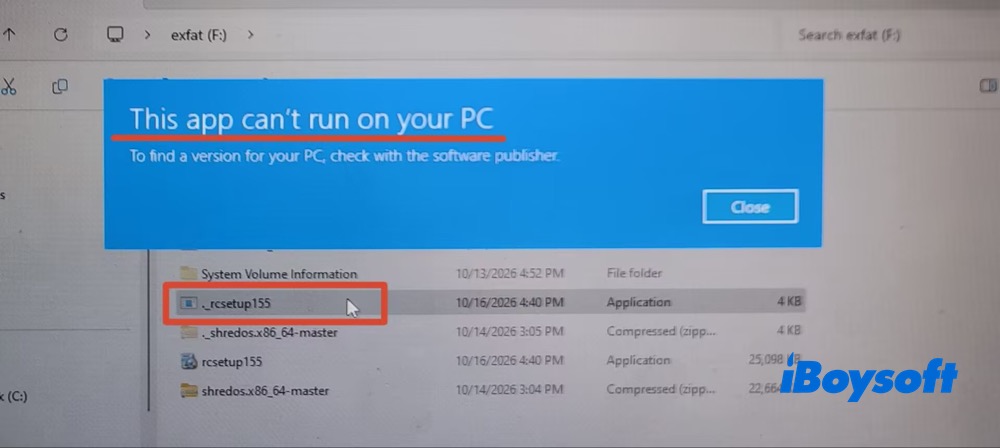
Please make sure to install it on Windows 10 or an earlier version. Or you will get the following notice on your Windows 11:
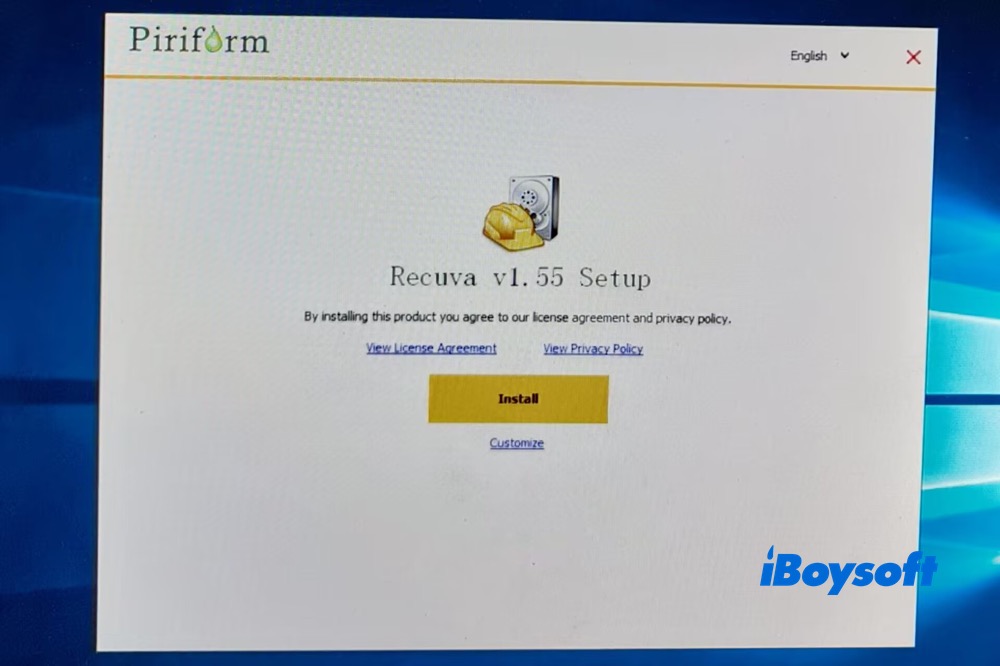
2. Install Recuva v1.55 on my Windows 10 PC.
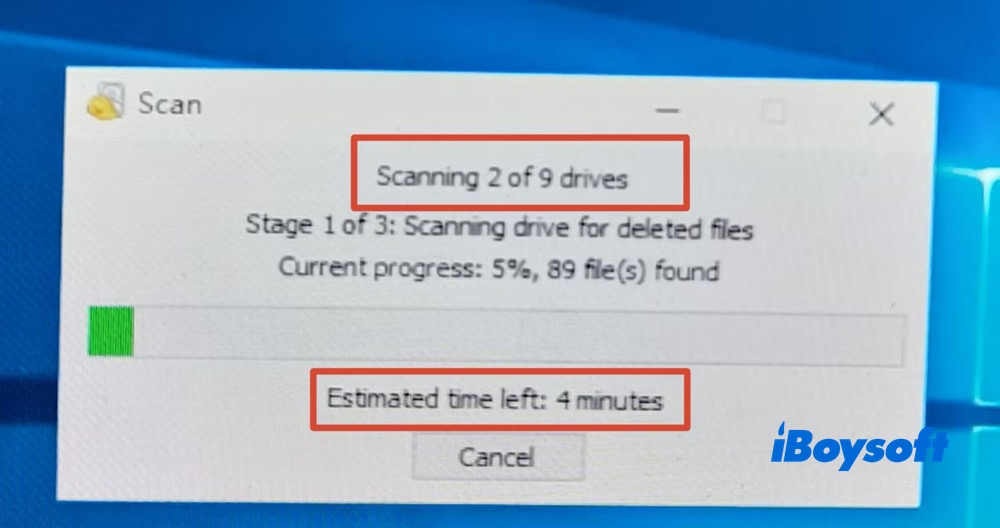
3. Recuva automatically scans all the detected disks and drives on my Windows 10. There are 9 drives. It has no problem scanning the first 2 drives. Estimated time left: 4 minutes.
4. Recuva got stuck scanning the 3rd drive, with 15 - 18 hours estimated time left.
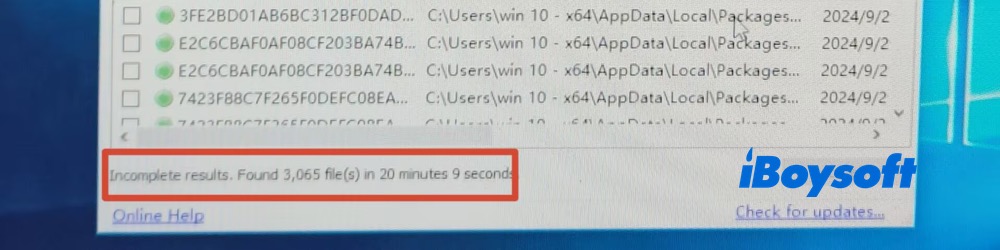
5. After roughly 20 minutes, the scan had made no progress. I decided to cancel it, which generated incomplete results—showing 3,065 files found over that 20-minute period.
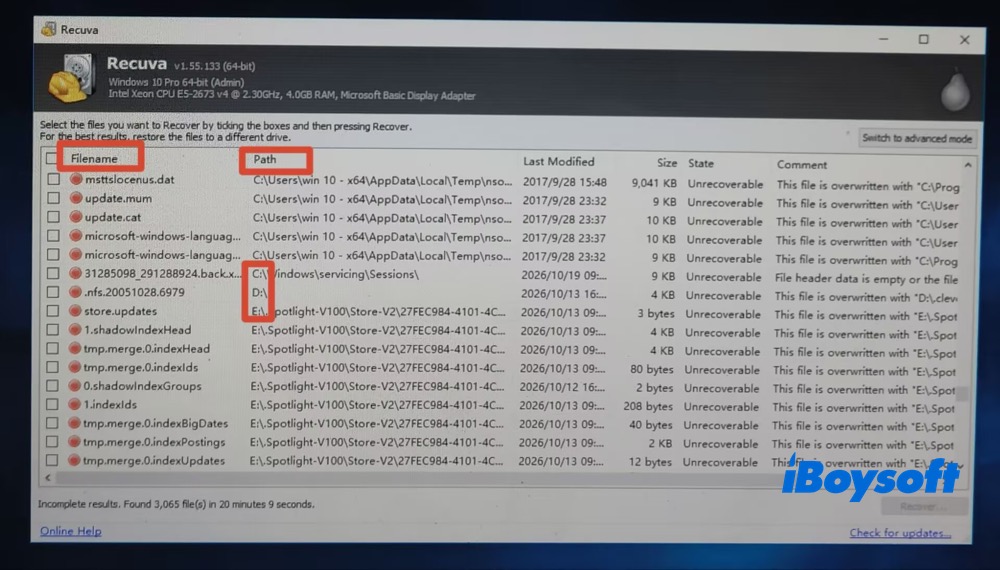
6. It's hard to find the files since they're not organized by drives, folders, or file types. The only way is to find them via filename. I spent a long time finding the target photos. Afterwards, click Recover.
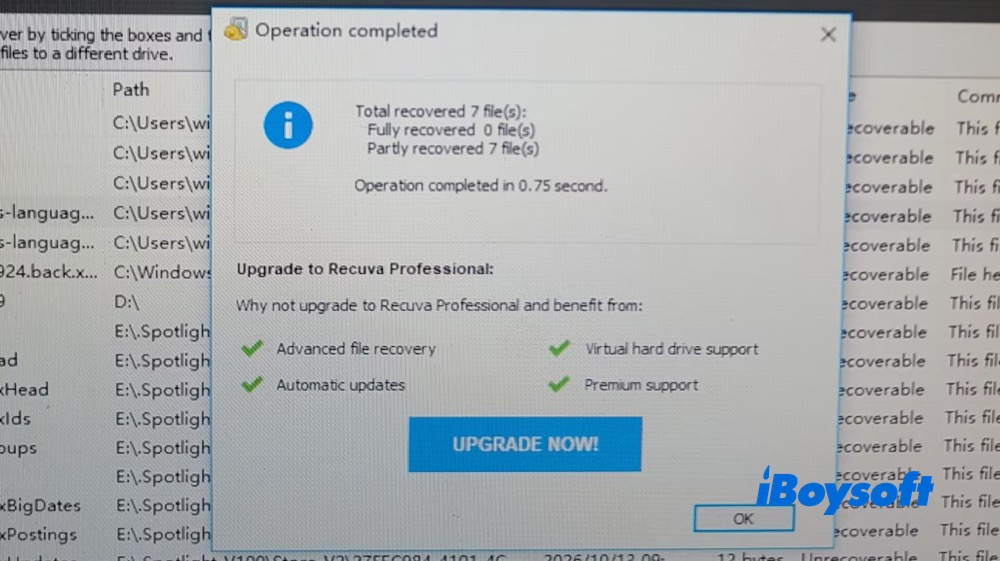
7. Inspect the recovered photos after the operation has completed.
- Pros:
- Free version is available
- Recover data from memory cards, external hard drives, USB sticks, and more
- Works for both FAT and NTFS systems
- Cons:
- Outdated interface
- Get stuck scanning disks and drives
- Unable to select specific disk or drive for scanning
- Incompatible with Windows 11 in free version
- Files are not categorized
- Scanning is time-consuming
Final Words
There is no perfect Windows data recovery tool to meet all users requirements. Pick up the ideal one based on your specific case. If you need a dedicated data recovery tool to recover lost/deleted data from USB drive, as well as repair RAW partitions and recover files from BitLocker drives with simplicity and ultimate speed, iBoysoft Data Recovery for Windows cuts the buck.
If you want a free Windows data recovery program and need to recover data less than 100 MB with smooth, Disk Drill for Windows fits the bill. If you're budget-conscious and can tolerate its heavy limitations, Recuva is worth your consideration.