
 Serena Wang
 Jessica Shee
Creating a clone can simplify migration and recovery preparation, but it is not risk-free. The destination drive may be erased or reformatted, and a failing source drive may become less stable during a long cloning operation. Check the tool's prompts and protect important files before starting.
Quick Comparison Decision Table
| Tool | iBoysoft DiskGeeker for Mac | ChronoSync | SuperDuper! |
| Best for | Mac disk cloning plus disk management | Scheduled sync and backup workflows | Simple Mac files backup |
| Bootable clone | A successful startup disk clone is not necessarily a bootable clone on modern Macs. | ChronoSync has a bootable backup feature, but bootable cloning is not guaranteed on Apple Silicon Macs. | SuperDuper! supports bootable clones on compatible Macs, including Apple Silicon Macs, with some important conditions. |
| File/folder backup | Limited or featuredependent | Yes | Yes |
| Snapshot backup | Yes. It supports incremental backup, as well. | Yes | No |
| Disk image | No. But it supports downloading macOS disk images. | Yes, but that is not the same as cloning an entire Mac startup disk into a disk image. | No |
| Apple Silicon modern Macs | Yes | Yes | Yes |
| Disk management features | Yes. It includes downloading macOS disk image, creating boot disk, visually analyzing disk space usage, cleaning up disk space, and mounting NTFS drives in read-write mode, etc. | No | No |
| Main limitations | Trial & basic edition limitations | More complex interface | Free version limitations |
Mac Disk Cloning Software: Price & Plans
| Software | Free/Trial Option | Paid Plan | Subscription type |
| iBoysoft DiskGeeker for Mac | Free edition with duration and features limits | Basic edition: $29.95 Professional Edition: $89.95 |
Annual subscription |
| ChronoSync | 15-day fully functional trial | Single $49.99 2-pack &79.99 5-pack $174.99 25-pck $749.45 |
One-time purchase |
| SuperDuper! | Free for full "Erase, then copy" backups | $43.95 per user | One-time purchase |
Before You Clone a Mac Drive
- Back up or recover important files before starting if the source drive is failing.
- Check that the destination drive has enough capacity for the source data or partition.
- Confirm whether the cloning process will erase or reformat the destination drive.
- Do not treat a clone as the only backup copy; keep at least one separate backup.
- Verify whether the resulting clone can boot the specific Mac model and macOS version you use.
iBoysoft DiskGeeker for Mac - Sector-by-sector Clone & File-level Backup
Best for most Mac users (Mac disk/volume backup and disk management)
iBoysoft DiskGeeker for Mac supports sector-by-sector disk cloning of Mac hard drives, selective cloning of APFS volumes, and direct disk-to-disk transfers between external drives. Meanwhile, it's far more than a simple Mac cloning tool—it is a comprehensive, all-in-one disk management solution. It enables Mac users to write to NTFS drives seamlessly, enhance data security, and optimize system performance.
Its File Keeper feature (similar to Time Machine snapshot backup) allows you to back up selected APFS volumes and effortlessly recover accidentally deleted or lost files. To keep your data protected automatically, you can set custom backup schedules—choosing from hourly, daily, weekly, or monthly intervals.
How to Use iBoysoft DiskGeeker for Mac to Clone Mac Disk
1. Download, install, and activate iBoysoft DiskGeeker for Mac (version 4.8.0).
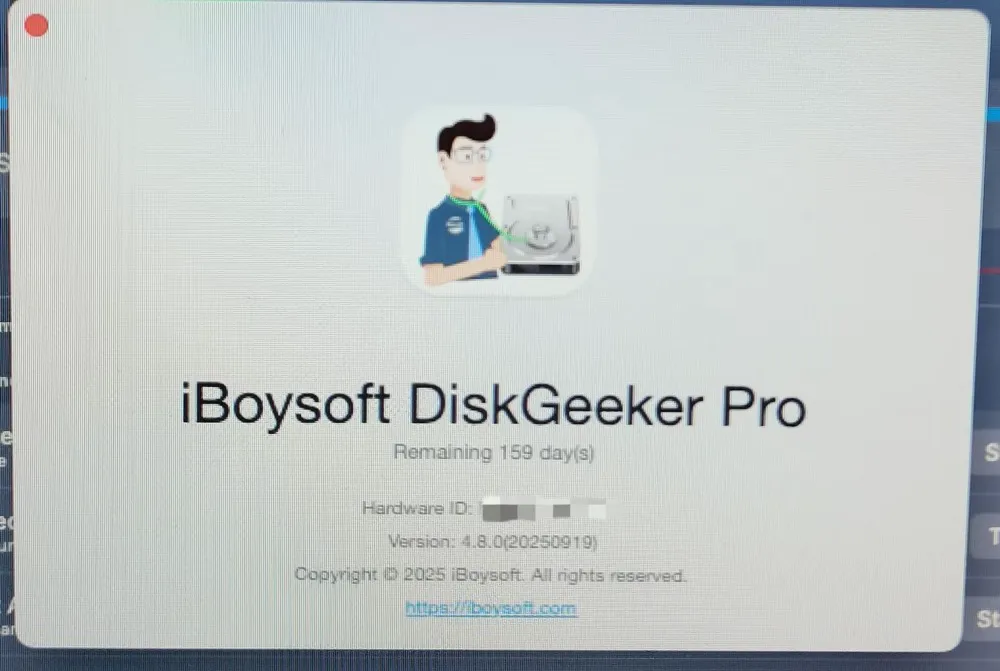
2. Enroll iBoysoft DiskGeeker for Mac into the Full Disk Access list under System Settings.
3. Plug the external hard drive to your Mac and format it.
4. Select the source disk. (Choose the entire disk rather than a volume.)
5. Click "Clone" in the right panel > tap Start.
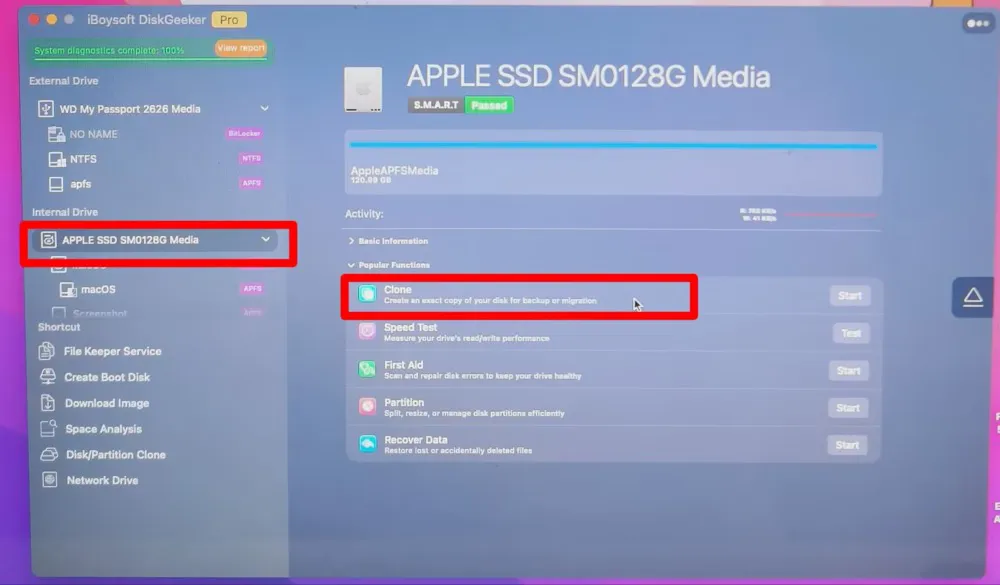
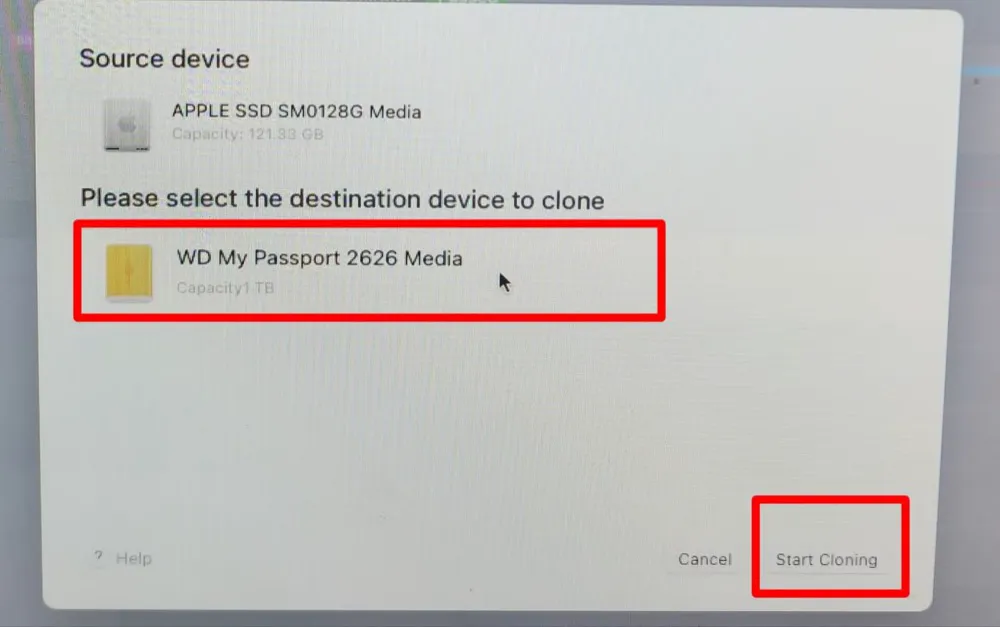
6. Choose the external hard drive as the destination device.
7. Tap "Start Cloning" to call it begin. Now wait for the completion. The time it would take to clone a Mac hard drive depends on your hard drive storage (used or unused space). Meanwhile, the hardware configurations also matter a lot. In my test, it only took several minutes to clone my MacBook disk.
Some of the standout features are:
- Create full disk clones including bootable disk clones
- Back up disks, partitions and volumes
- Scheduled sync APFS volumes with incremental backup supported
- Download macOS disk image & create macOS bootable disk
- Full disk management: NTFS/BitLocker read-write support, space analysis & cleanup, etc.
- Pros:
- Support Apple Silicon Macs and macOS 27
- Disk/volume clone, snapshot backup & disk management
- Top-notch speed in disk cloning
- Cons:
- Limited-time free trial
Editor's Review: iBoysoft DiskGeeker is an all-in-one disk management tool with rich features. - MacUpdate.com (Read Full Review)
If you have found a cloning app that meets your requirements, share this article with more people.
ChronoSync - File-and-folder Backup & Synchronization
Best for professionals (sync and complex backup workflows)
ChronoSync (the standard version, not the ChronoSync Express) is a comprehensive file synchronization and backup software. It's a dedicated Mac disk/file sync and backup toolkit with flexible customizations. Meanwhile, it creates system bootable backups for data protection and disaster recovery purposes.
While its sync and backup capabilities are robust, the workflow can be overly complex for casual users. During testing, my source drive contained a Final Cut Pro package file, which required manual configuration adjustments before ChronoSync would recognize and sync it properly. This added friction makes the process far less user-friendly for non-technical users.
How to Use ChronoSync to Back Up a Mac Hard Drive?
- 1. Download, install and launch ChronoSync. Connect an external hard drive to Mac.
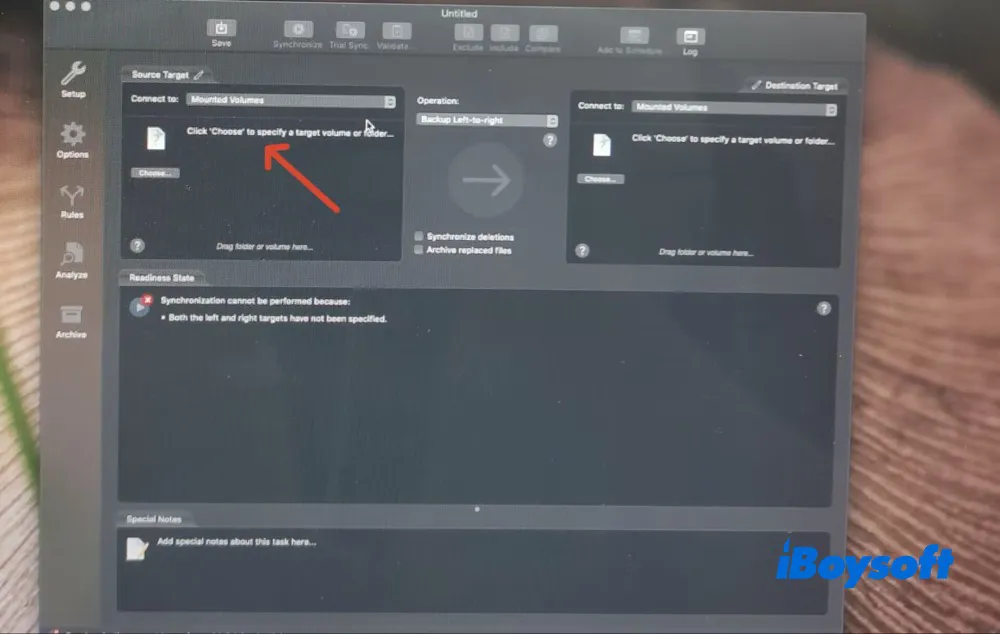
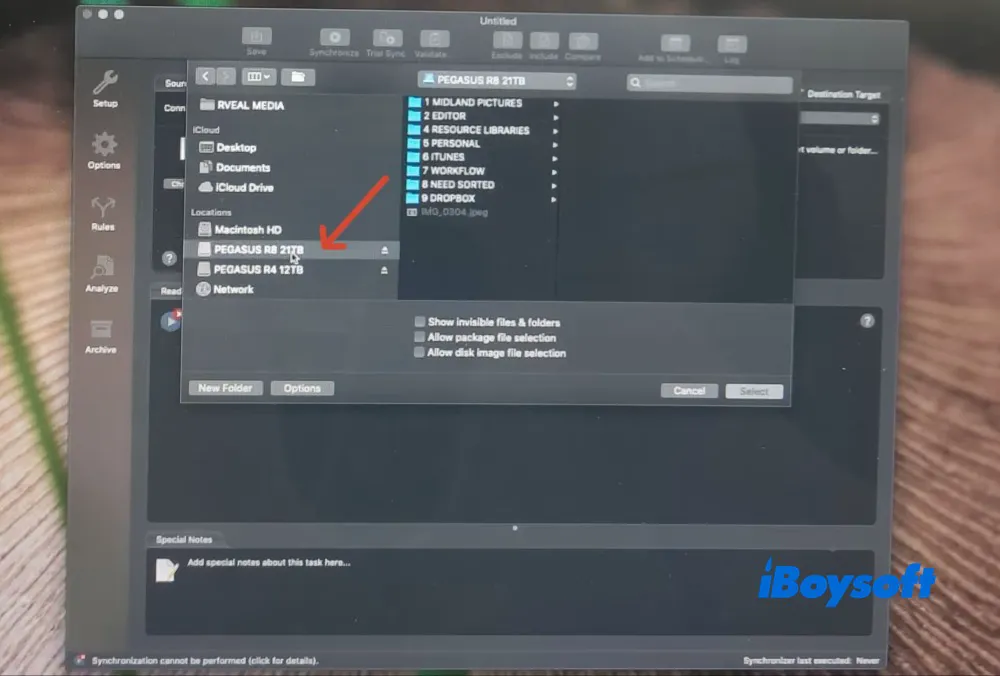
2. Grant macOS Full Disk Access > choose the target drive.
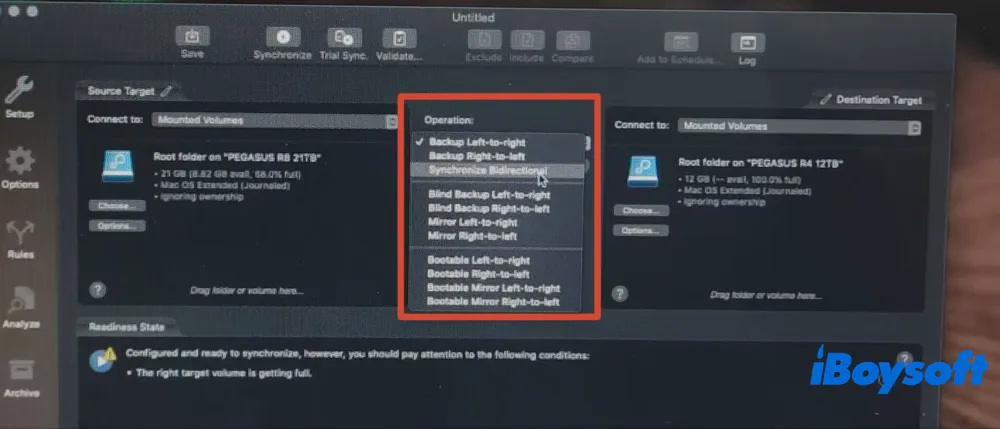
3. Choose the backup or sync mode. There are numerous modes available, including backup left-to-right, backup right-to-left, synchronization bidirectional, mirror left-to-right, bootable left-to-right, etc. Here I selected Backup Left-to-right.
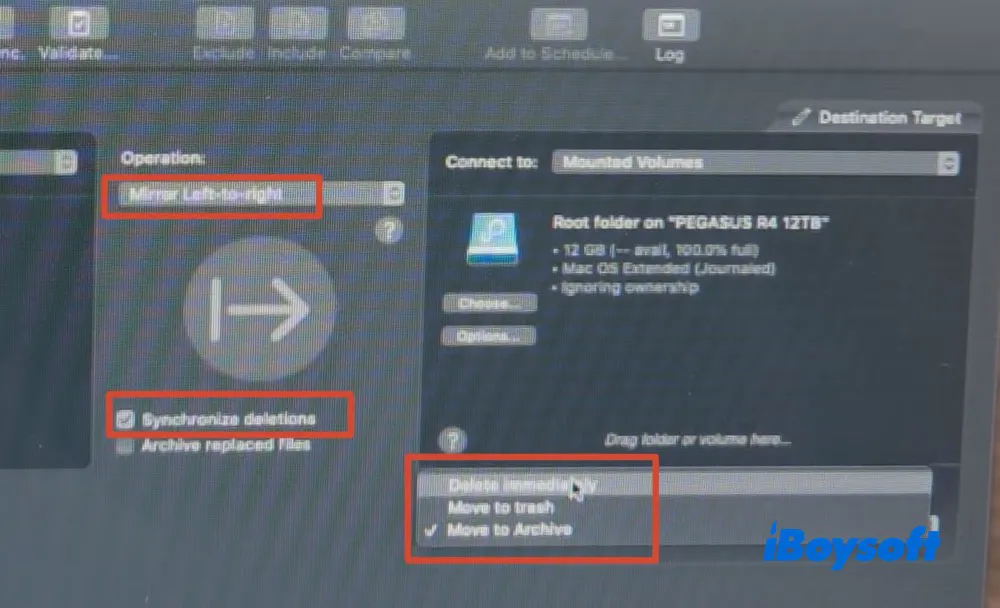
If you want to mirror drive A to drive B, you can choose the mirror mode. Meanwhile, the mirror mode allows you to sync deletion. Free choose delete immediately, move to trash or move to archive to save space.
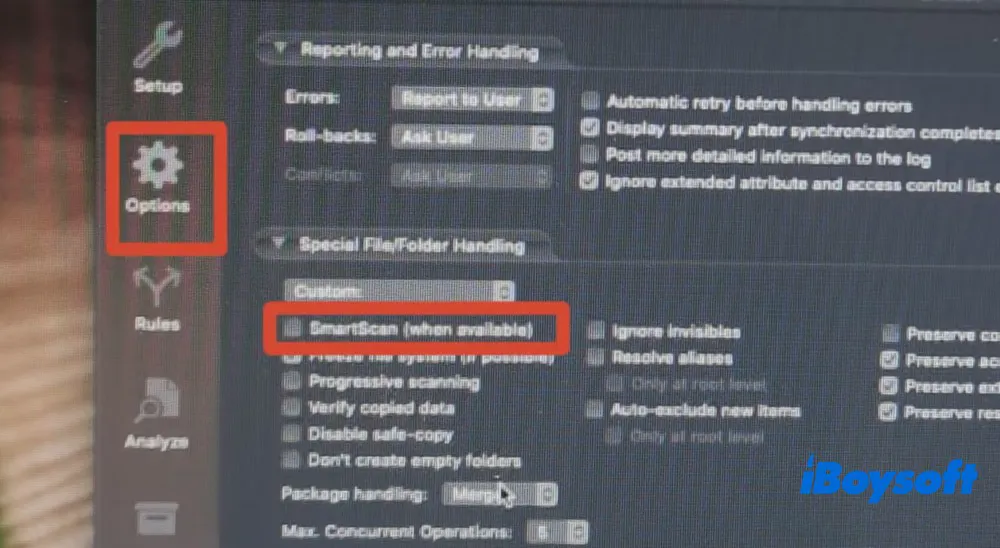
4. This Mac disk backup software notified me that there are special files in my source drive. I remembered it's the Final Cut Pro package files, which require me to manually configure some settings.
Click Options > Custom > disable "SmartScan" > change "Package handling" from Merge to Dissect.
5. Click Backup to begin backing up the Mac drive to the target drive.
Some of its key features are:
- Synchronize files and folders between different drives, network shares, or cloud storage services
- Back up the entire hard drive or a specific file and folder
- Scheduled backup is available
- Create bootable backups, especially APFS snapshots, that can be used to start the Mac in case of a system failure
- Customizable sync and backup tasks
- Pros:
- Synchronize Mac to Mac, iOS device, Windows, Cloud, NAS, etc.
- A wide selection of sync and backup modes
- Support file/folder backup
- Cons:
- Complex sync and backup workflow
- Customization options are less user-friendly to ordinary users
- Offer limited-time Mac cloning software free trial
- A premium version is expensive, starting at $49.99
Editor's Review: I've used ChronoSync for more than a decade and have always found it reliable and robust. - TheMacObserver.com (Read Full Review)
SuperDuper! - File-level Backup
Best for home users for simple files backup
Another free Mac cloning software is SuperDuper! It is specifically designed for macOS to back up all files/user files and create bootable backups. When it comes to simplicity and user-friendliness, this software is head and shoulders above the others, thanks to its neat and self-explanatory interface.
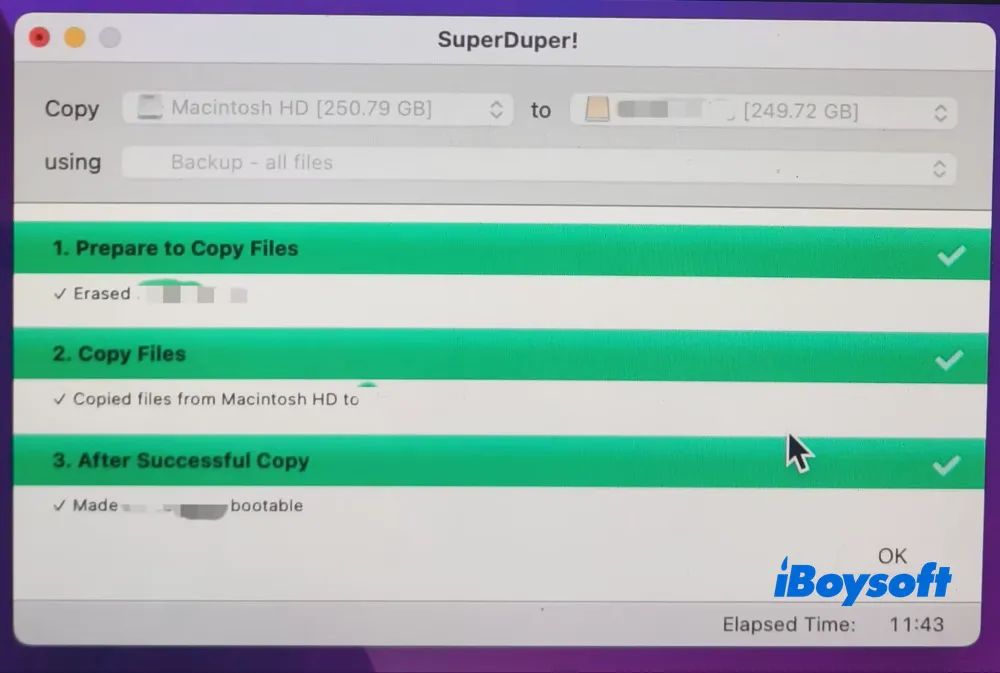
In addition, it boasts impressive backup speeds that outshine the competition. During testing, it completed the task significantly faster than its initial estimate—taking just 51 seconds to back up all files, compared to the estimated time of 11 minutes and 43 seconds. Note that this exceptional speed applies to file-level backups, rather than a sector-by-sector clone.
How to Use SuperDuper! to Backup Mac Hard Drive Files?
- 1. Download and launch SuperDuper!. Grant macOS Full Disk Access.
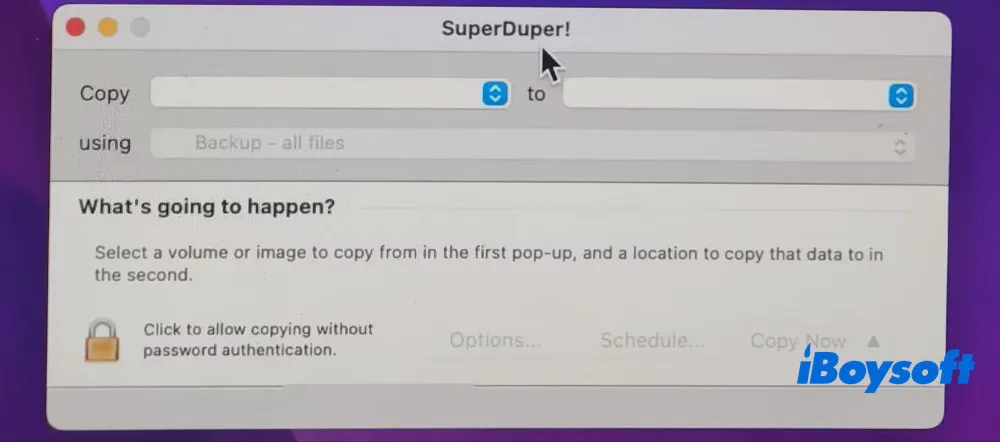
2. Connect your target hard drive.
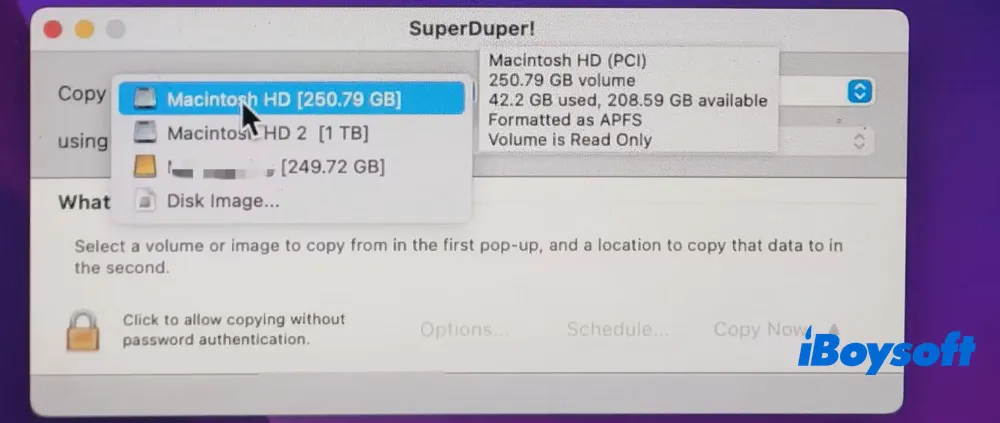
3. Choose the source drive. Here I chose Mac internal drive - Macintosh HD.
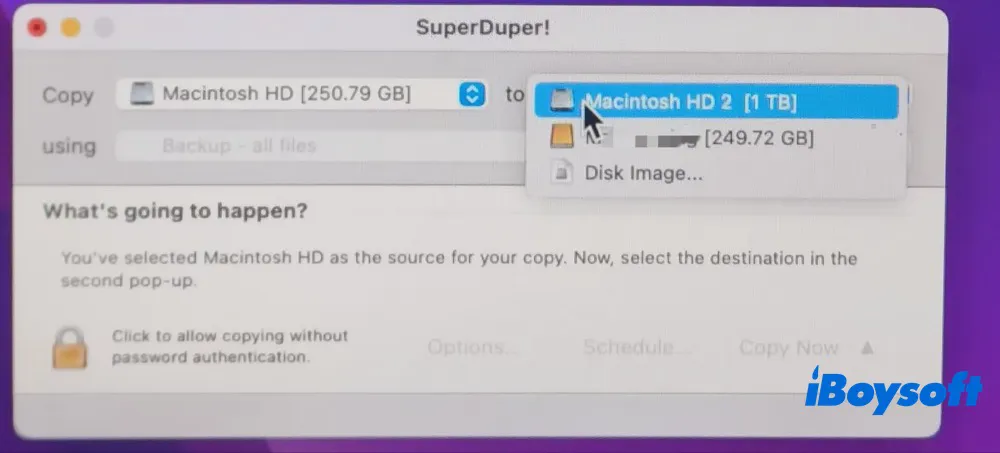
4. Choose the target drive. Internal or external drive is supported. I chose an external HDD drive with almost the same space capacity.
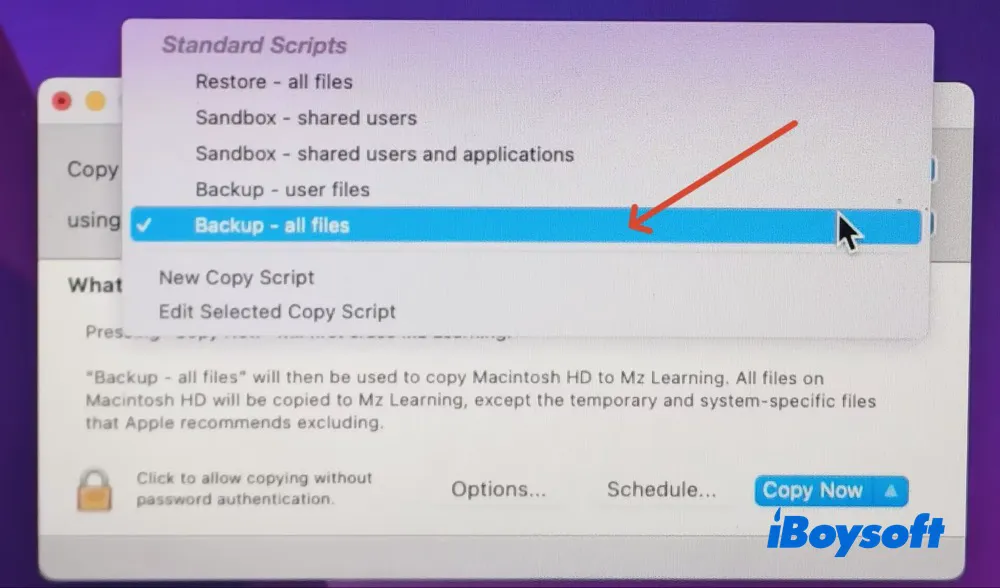
5. Select backup mode in "using" option. I picked up "Backup - all files". There are other options available, including restore - all files, Sandbox - shared users, Backup - user files, etc.
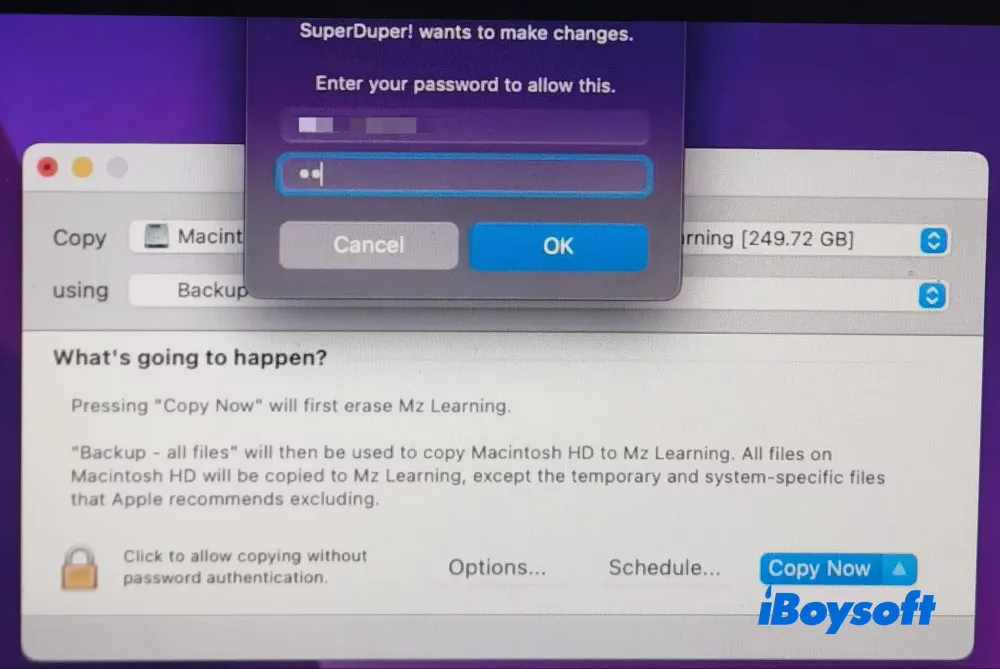
6. Click "Copy Now" > enter your admin password on the pop-up window > hit OK.
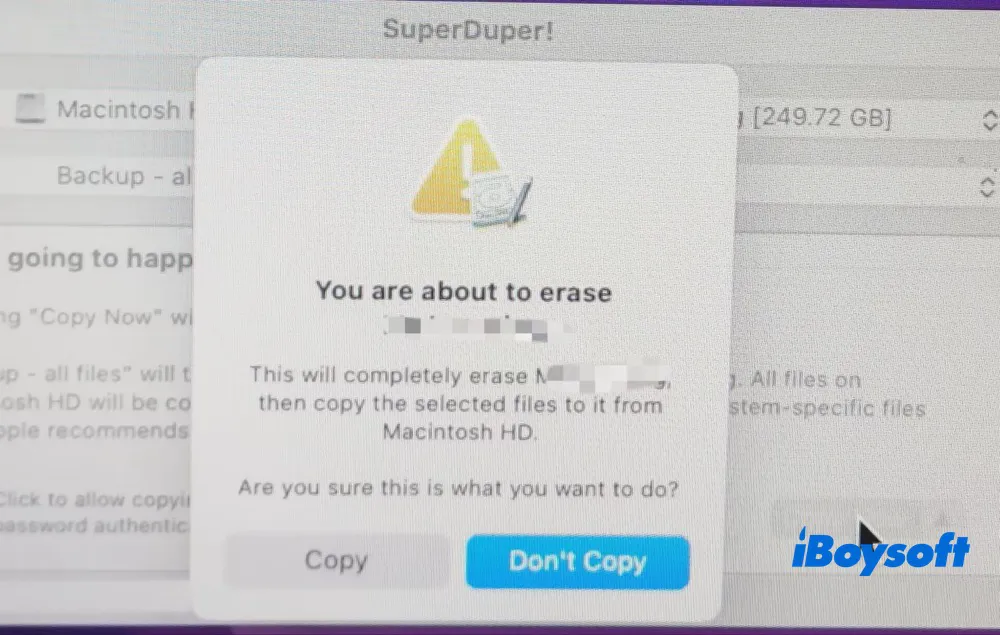
Warning: A notification prompt will inform you that the backup process erases the target drive. Please back up any critical files stored on the target drive before clicking Copy to proceed.
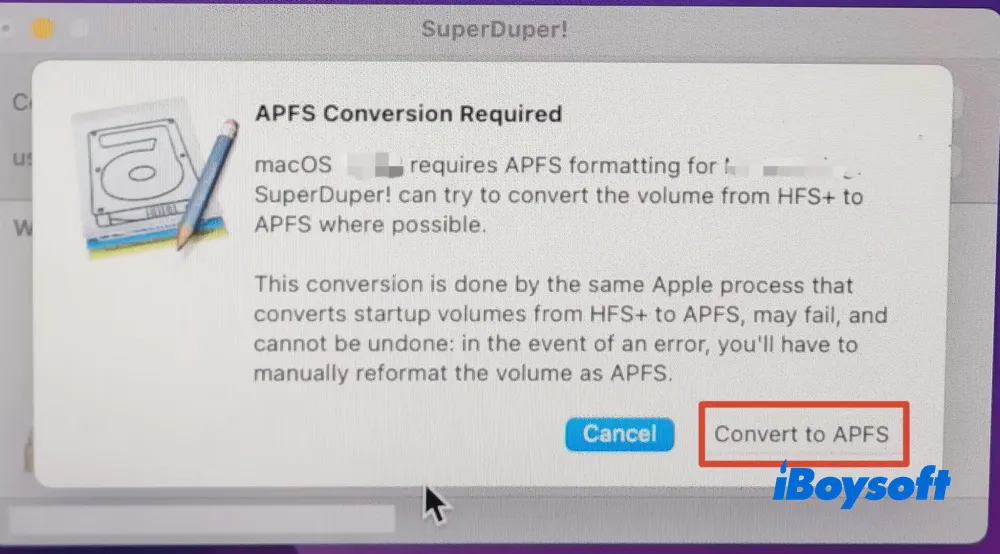
7. Modern Macs require the Apple File System. Another prompt will appear requesting a volume conversion from HFS+ to APFS:
- Review the conversion prompt
- Click Convert to APFS to continue
8. The disk cloning tool will begin erasing the target drive and copying your files. Once the process completes, a success message will appear, and your target drive will be ready to use as a bootable drive.
Some of its prominent features are:
- Create a bootable image of your Mac
- Back up all files or user files at your disposal
- A built-in scheduler available for automatic backups
- Pros:
- Support the latest macOS Golden Gate and Apple Silicon Macs
- Easy to use
- Fast disk cloning speed
- Multiple backup options are available
- Cons:
- The free version offers limited features
- No sector-by-sector clone mode
- No other disk management features
Editor's Review: SuperDuper is an example of backup software that clones your entire hard drive. Using a tool like SuperDuper along with Time Machine delivers the best of both worlds, backing up files and creating a clone of your Mac. - LifeWire.com (Read Full Review)
We will appreciate it if you can help us reach more people!
What Does Disk Cloning on Mac Mean?
Disk cloning on Mac is the process of creating an exact and identical copy of an entire hard disk drive (HDD) or solid-state drive (SSD), including the operating system, applications, files, and system settings on a Mac computer. It is different from the disk image (disk image VS. disk clone).
A conventional way backs up your disk which only contains your files and folders. This clone, also known as a system backup, serves as a comprehensive and bootable duplicate of the original drive, allowing you to boot up your Mac and restore your Mac to a previous state quickly and easily.
Why Should You Use Mac Cloning Software?
There is no risk in creating a disk clone of Mac's hard drive, and here are some compelling reasons why you should consider using cloning software for Mac.
Have a full backup
Mac cloning software creates a full and exact copy of your entire hard drive, making sure that nothing is left behind.
Create a bootable clone
A cloned Mac hard drive will include the operating system data, meaning you can start your Mac directly from the cloned disk. This is especially useful when your internal drive fails.
Easy migration to a new drive
If you upgrade your internal hard drive or get a new Mac, you can clone your old drive to the new one and continue using your Mac without having to reinstall everything.
Save time
Cloning software can often perform backup and recovery faster than other methods, especially when dealing with large amounts of data.
Tips: If the newest clone of your Mac hard drive doesn't contain the files you accidentally deleted or lost, you can use iBoysoft Data Recovery for Mac to perform file restoration.
Please share this article with your followers if you enjoy reading it.
Conclusion
iBoysoft DiskGeeker for Mac, ChronoSync, and SuperDuper! serve different needs, so the best choice depends on whether you prioritize disk cloning, flexible backup management, or straightforward drive copying. None should be assumed to provide sector-by-sector cloning without explicit confirmation of that capability.
- iBoysoft DiskGeeker for Mac: Best for users who need disk cloning and disk management in one tool. However, verify sector-by-sector cloning support if raw disk imaging is required.
- ChronoSync: Best for professionals who need flexible, scheduled backups, file synchronization, and archiving, but not sector-by-sector cloning.
- SuperDuper!: Best for home users who want simple drive copying and recurring backups, with minimal setup. It does not document sector-by-sector cloning.
Overall, choose iBoysoft DiskGeeker for Mac for disk-cloning workflows, ChronoSync for advanced backup management, and SuperDuper! for straightforward Mac backups.